Apple needs to deal with phishing and junk mail on its iCloud servers

Phishing scams through email continue to be one of the biggest problems related to email today.  My email account sees dozens of these and quite often are able to deal with them as junk mail and get rid of them. But a real growing problem I see, is related to Apples iCloud email and pfishing.
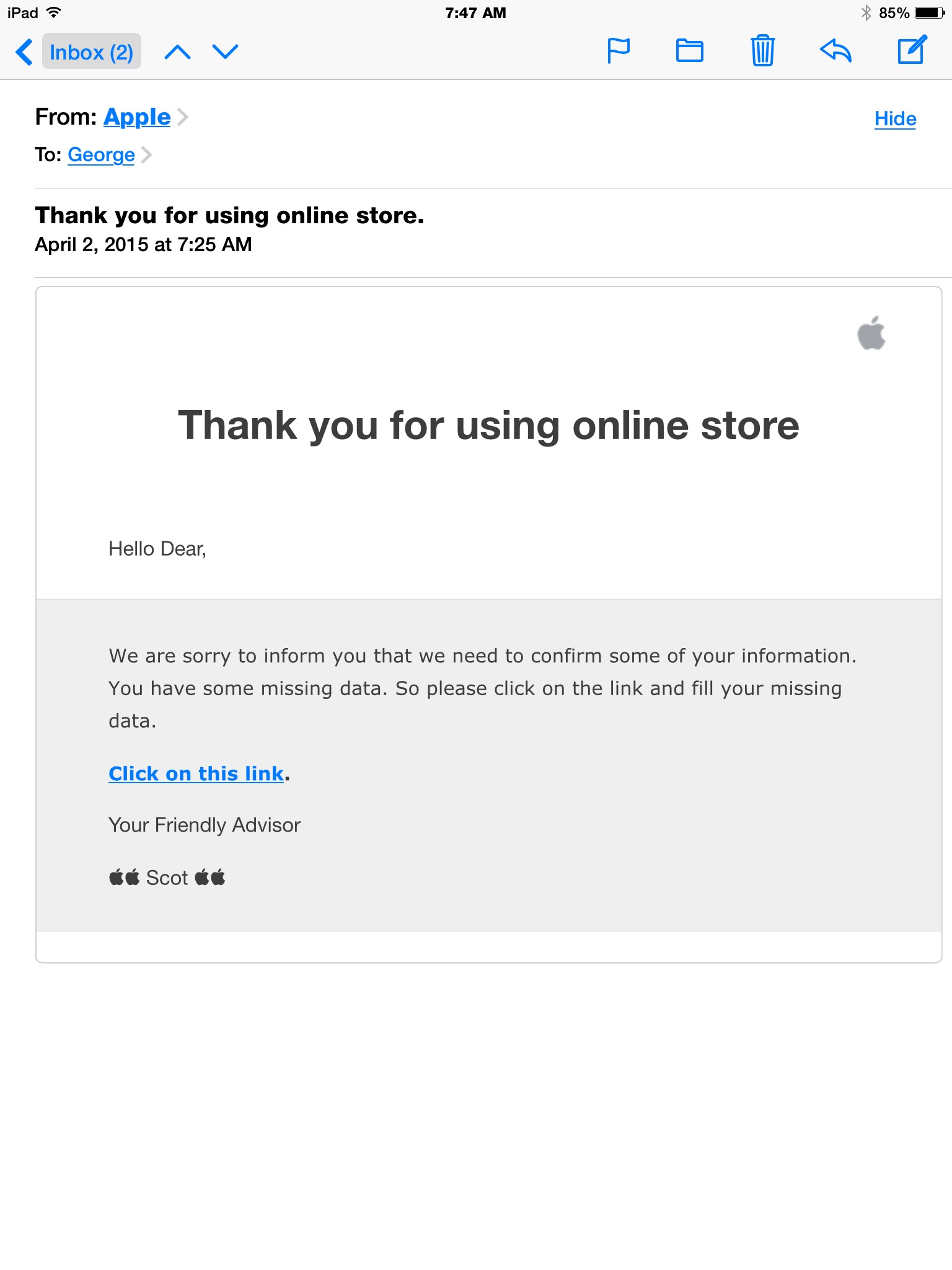
imageiCloud email has never been very good at dealing with junk mail. Unlike Google who has extensive junk mail filtering enabled on their servers, at times Apples email system seems to just send everything through. You certainly have the ability, if you’re on a computer, to mark email as junk and hope that matching emails get put into the junk folder when they come in. Unfortunately, if you’re on one of apples premier iOS devices, you have little to help you because junk mail filters don’t exist. But more and more it seems like Apple with his iCloud email services are doing nothing at the server level to stop you from getting this junk mail and phishing scams. Email that is sent to a third-party provider may be difficult to filter  because that provider cannot determine if the email in legitimate but email that looks like it comes from Apple should be simple for Apple to filter out at the server level and save its customers the risk of mistakenly believing Apple is in contact with them. Here’s a glaring example.

Nearly every day I get at least one email that looks very similar to this. The people sending the email obviously want to make it look like it’s from Apple. But if you look closely, you can easily determine that it’s a scam. My real question for Apple is why they can’t determine these are scams and delete them before sending them to me. I am a savvy enough user to realize that this email is fake. But many users may not realize it that easily.

If you look at the email closely, the look and feel of it looks very similar to the minimalistic email formatting thatimage Apple commonly uses. It’s only when you look at the link that the scammer is attempting to get you to click on that you see that it’s actually fake.  If you actually click that link it takes you to a page that looks just like the Apple account sign in page. I always check these links before I click on them by holding my finger down on the link if on an iPad or iPhone until it shows me where it’s taking me. You can also click and hold with a mouse on the link and see the same thing if you’re on a computer. These kind of emails come from all different companies and always look as if they’re real. But here’s my real issue with Apple.
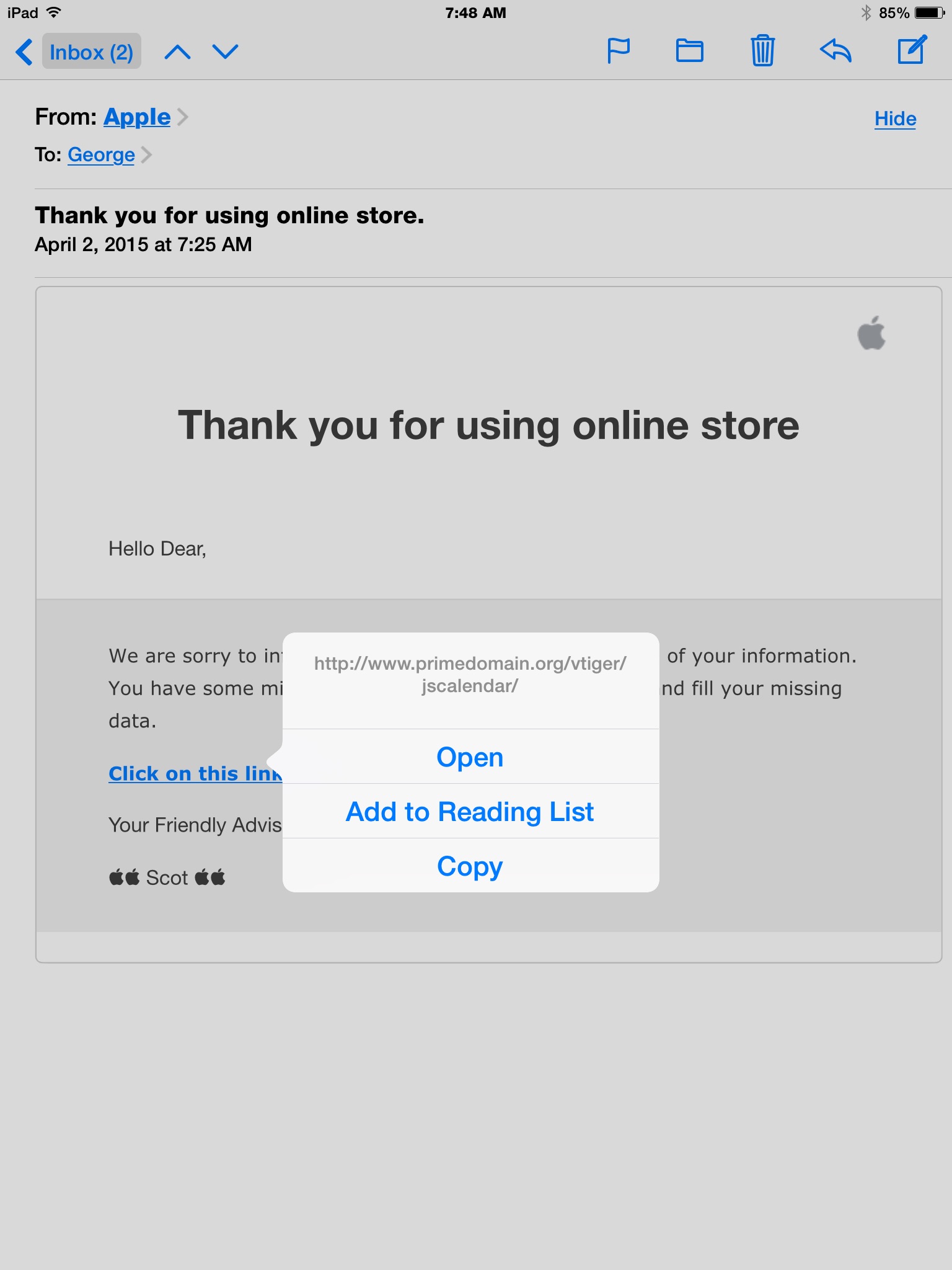
I can see no reason why a mail provider, that is hosting email itself such as Apple, can’t determine these phishing scams are being sent out in its own name. It would seem to me that Apple would want to stop these at the server level rather than subject users to the risk of accidentally clicking. But that certainly doesn’t seem to be the case.

So it bears recommending one more time for users to be extremely careful of the email that comes to them. It only takes one casual click, and the entering of your ID information, to allow someone access to your credit cards, your stored identity information, and cause you all kinds of problems that you’ll then have to deal with.

Remember, think before you click and make email safer. But I still believe, email providers need to step up and deal with this problem. It makes perfect sense to me that Apple does so little filtering at the server level when they can’t even filter out email that looks like it’s coming from them.
More Questions on iCloud Drive

Q: I am not really clear on the iCloud drive. Am I correct with this? First, you need to put items in the icloud drive by dragging them there? Then they should show up on the iPhone but where? Is there supposed to be an icloud drive on the phone? or the pad?  Or would the files just be available, for  example, on pages on the iPhone, since that’s where I worked on them?  This is not totally clear for me.

A: What you say makes perfect sense. Unfortunately that’s not exactly how it works.

The part on the Mac is correct drag things to the iCloud drive icon that’s in your Finder sidebar and that puts them and iCloud Drive. On your Mac you can select iCloud drive and finding those items to open them.

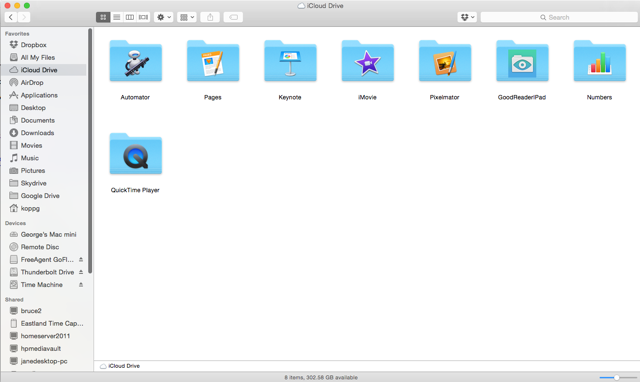
But on the iPhone it’s not that simple, on an iOS device the application has to support iCloud Drive. When it does it creates its own folder on iCloud drive for its specific needs.  Here is a screenshot of my my iCloud Drive.

Screen Shot 2014-12-18 at 4.01.31 PM

Each of the folders with specialized icons is created by an application on the iOS device. Then to access the files in a particular folder, such as pages, you run the pages application on the iOS device. There is no place on the iPhone or iOS platform to look at everything that’s on iCloud drive. You also cannot look for files in other folders. For instance, if you created a home folder on your iCloud drive your iOS apps could not see it.  Each app in iOS only looks in its own folder.

And if that’s not enough, each app from iOS can only look at the root level of that folder.  If on the Mac you create subfolders, iOS cannot see them.

To be quite honest, Apple needs to clean a little of this up before it becomes really useful. For now, I only use it for apps on the phone that I want access to the files on the Mac. Not the other way around.

Hope this clears it up. But it’s not you, it’s confusing by its nature.

Apple has a page on their website that helps clear some of this up.

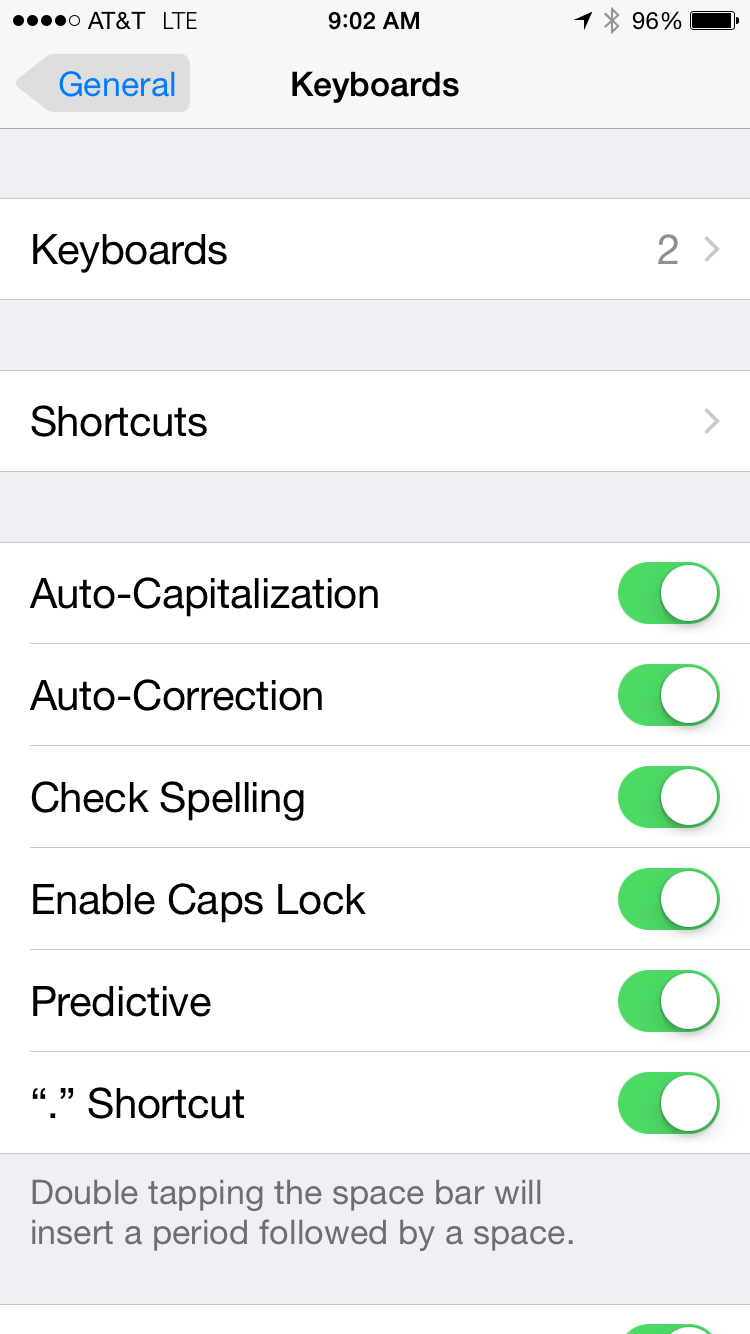
I’ve lost the predictive text bar in iOS 8

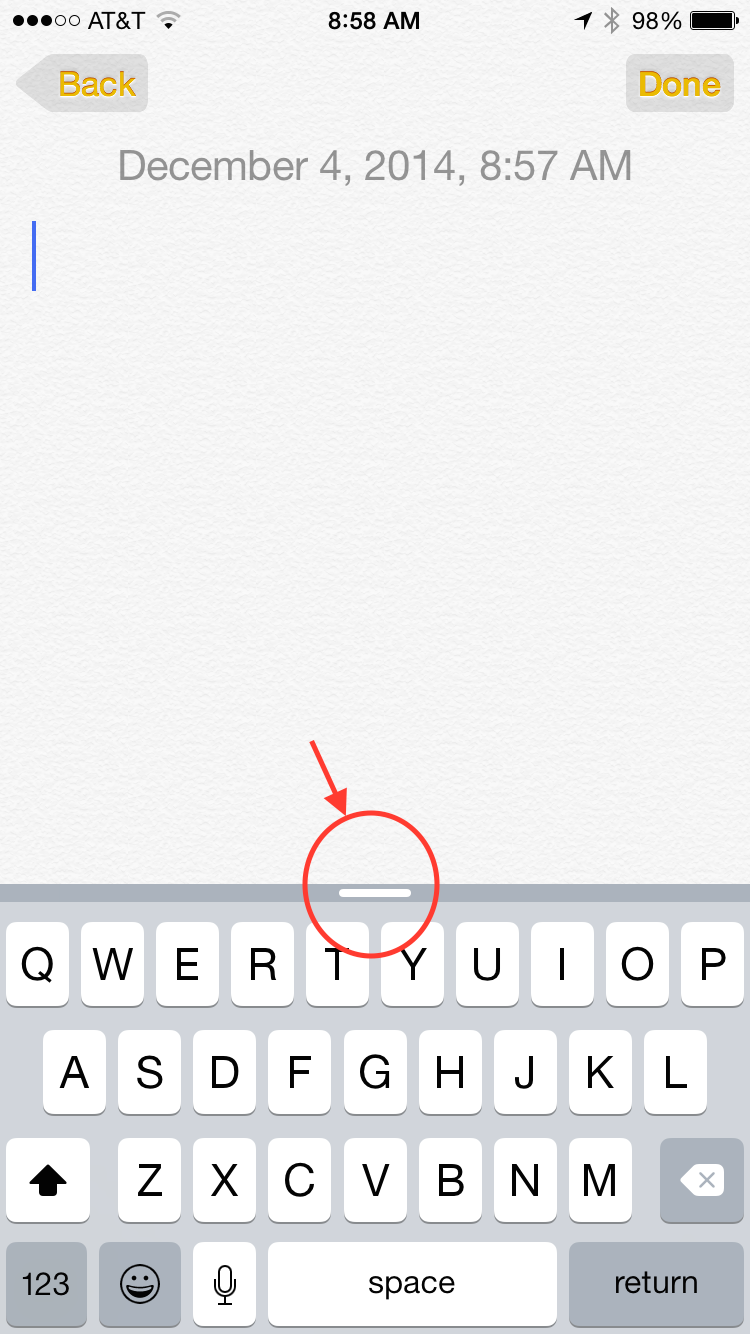
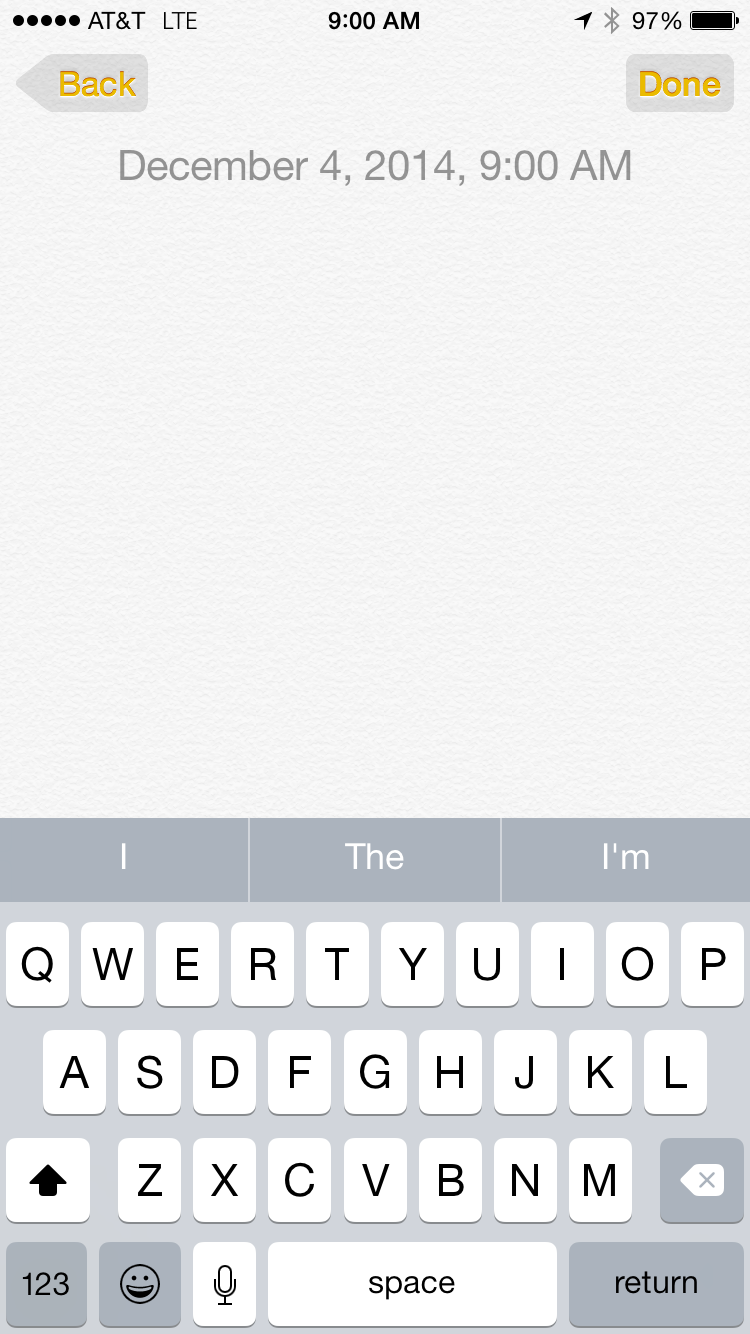
IMG_1375So here’s one that’s kind of easy to miss. People of told me that they can’t find the predictive text bar above the keyboard in iOS 8. They tell me it used to be there but now it’s gone. First I direct them to the settings under keyboard to make sure predictive text is turned on. But typically it is.IMG_1376

What normally happens is your finger accidentally slips when typing on the keyboard and makes the predictive text bar become minimized. If you notice just above the keyboard there may be a small bar at the center of the keyboard area. This bar is a slider that you can click on and drag upward to turn the predictive text bar back on. It’s pretty easy to miss, but once you notice it’s there and turn it back on it’s easy to see how he could accidentally be turned off.

IMG_1374

Not Enough iCloud Storage

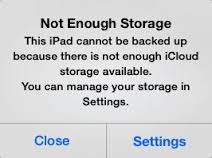
imgresHave you ever seen the message on your iPhone or iPad that tells you it was unable to back up to iCloud?   This is a common message that seen often and there are a couple ways to deal with it.

The simplest way is to simply go to the iCloud storage settings and purchase more storage. Apple makes additional storage available at an inexpensive cost. You can update from the 5 GB Apple provides to 20 GB for only $.99 a month.

Alternatively you can’t remove items from your phone to make your storage needs smaller.

You can use these steps to see how much iCloud storage is available in your account:

On your iPhone, iPad, or iPod touch:If you’re using iOS 8 or later, tap Settings > iCloud > Storage > Manage Storage.
If you’re using an earlier version of iOS, tap Settings > iCloud > Storage & Backup.
On your Mac, go to Apple menu > System Preferences, click iCloud, then click Manage.

The next thing you should probably do is to go into Settings > General > Usage and see what is using up the space on your phone.

Apple has a great technical note describing what gets backed up that’s called, “iCloud: iCloud storage and backup overview”.  From this note here’s what iCloud backs up:

  • Purchase history for music, movies, TV shows, apps, and books

Your iCloud backup includes information about the content you have purchased, but not the purchased content itself. When you restore from an iCloud backup, your purchased content is automatically downloaded from the iTunes Store, App Store, or iBooks Store. Some types of content aren’t downloaded automatically in all countries, and previous purchases may be unavailable if they have been refunded or are no longer available in the store. For more information, see the Apple Support article iTunes in the Cloud availability by country. Some types of content aren’t available in all countries. For more information, see the Apple Support article What can I buy from the iTunes Store in my country?.

  • Photos and videos on your iOS devices
  • Device settings
  • App data
  • Home screen and app organization
  • iMessage, text (SMS), and MMS messages
  • Ringtones
  • Visual Voicemail
  • Your iOS device backup only includes data and settings stored on your device.

It doesn’t include data already stored in iCloud, for example contacts, calendars, bookmarks, mail messages, notes, shared photo albums, iCloud Photo Library beta, My Photo Stream, and documents you save in iCloud using iOS apps and Mac apps.

The bottom line usually comes down to this. If you don’t have room to back up your phone it’s likely because you have too many pictures, or you have received many pictures and messages and have not deleted those messages. Generally if you clean out those two items you’ll have enough space in iCloud to be able to back up.

Pages templates show in a foreign language

IMG_0308.JPGApple’s Pages application provides a number of high-quality easy to use templates to create documents quickly that look very professional. One of the things I often get a question about when people begin to use these templates is why Apple creates them in some foreign language. Here’s the question I usually see:

Q:  Hey George, one thing I don’t understand is why all the text is in a foreign language when I use a template in Pages. Why doesn’t Apple just use English?

A:  Pages templates contain placeholder text, entered to show what a block of text will look like on the page without the distraction of holding any specific meaning.  This text is called lorem ipsum.

Here’s what Wikipedia has to say about it.

“In publishing and graphic design, lorem ipsum is a filler text commonly used to demonstrate the graphic elements of a document or visual presentation. Replacing meaningful content that could be distracting with placeholder text may allow viewers to focus on graphic aspects such as font, typography, and page layout.

The lorem ipsum text is typically a scrambled section of De finibus bonorum et malorum, a 1st-century BC Latin text by Cicero, with words altered, added, and removed such that it is nonsensical, improper Latin.”

The language of that text (Latin) is immaterial, as it is intended to be replaced with whatever words you want to put on the page.

To change this text, you simply click on a block of text in the templets.and start typing.

Alternatively, you can click on the text, go Edit > Paste and Match Style to replace it with text you have copied from elsewhere.

New Home Control Products

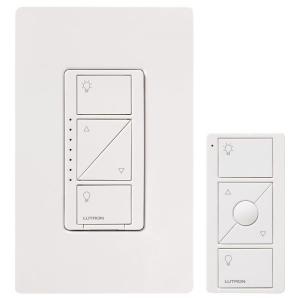
imageThe home control market is in the process of exploding. Many vendors are trying to create products that allow people to create their own smart home and control it from an application on their phone or computer.  Having more products in the market is always great, but determining whether those products really work in your home is another story. I had the opportunity to test a couple more of these products that I’d like to tell you about.

The first of these is called a Lutron Caseta dimming switch and remote. This switch replaces a light switch in your home with a switch that can be controlled from your iPhone, iPad, or android device. For the switches to work you have to have some type of a central home hub that provides control. The home hub I’m using is the Wink hub and I’ve written about it in previous posts.  The switches wirelessly connect to the hub and allow Wi-Fi connected devices to control actions. They give you the ability to be able to create what are called robots to perform functions in your home. An example of this is what I’m using to control my outdoor driveway lights. I installed one of the switches and created a robot script that tells it went to turn the driveway lights on and when  to turn them off.

The switch was easy to install by just removing the existing light switch and wiring this new switch in using the same wires and connectors that were in place. Once installed you use the app on your iPhone or android device to connect to the switch and pair it to the hub.  Once paired with the hub you have control over that device. Then you can create your scripts for how you want the light to function. You also have the ability to turn the lights on and off from any place that you’re on the Internet. This switch comes with a small remote but allows you to have remote control without the use of the phone. So far I’ve been very please with the switch and it’s ease of installation and function.

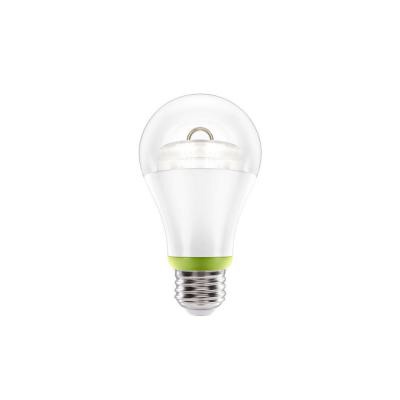
The other device I had the opportunity to test was a GE link lightbulb. This device is basically a lightbulb that imagescrews into a light socket and allows you to control the light in the same way as the Lutron switch did. It’s installation is even simpler in that you basically screw it  into a light socket and turn on the light. You then use the app, the Wink app  in my case, to pair the lightbulb with your system. At that point you have control of it in the same way as the Lutron switch.

One nice thing about the ability of the Wink hub is the ability to program conditional Robots. In my case, I have my lights set that when I turn a particular light on it automatically turns on this lightbulb. This allows me to control lights based upon the condition of other lights in the house. I can’t say enough about this lightbulb in the fact that it is simple to operate easy to install and works flawlessly. The bulb itself is an LED bulb and provides a nice warm light. This bulb was also relatively inexpensive at less than $15.

I really enjoy making my home smarter. When I pick devices to purchase I try to ensure that I select devices that have a good likelihood of being compatible with many other systems. That way I maximize my use of home control today and prepare for future developments that might come tomorrow.

Capture your iOS Device Screen on your Mac in Yosemite

Q:  Somewhere I saw that with Yosemite I will be able to mirror and capture my iPhone screen (if cabled to to my MB). You might have to show me how that works if I haven’t figgered it out by the time I see you.

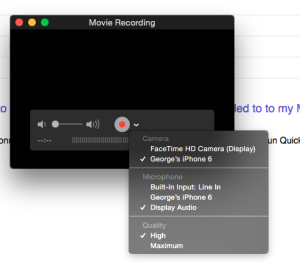
Screen Shot 2014-10-19 at 5.59.52 PMA:  Yes, that is one of the new features in Yosemite.  Just connect your iPhone or iPad to your Mac using the Lightning connector and it will be automatically available as a video camera.  Run Quicktime and select “New Movie Recording in the File menu.  Now change the recording source to your phone .
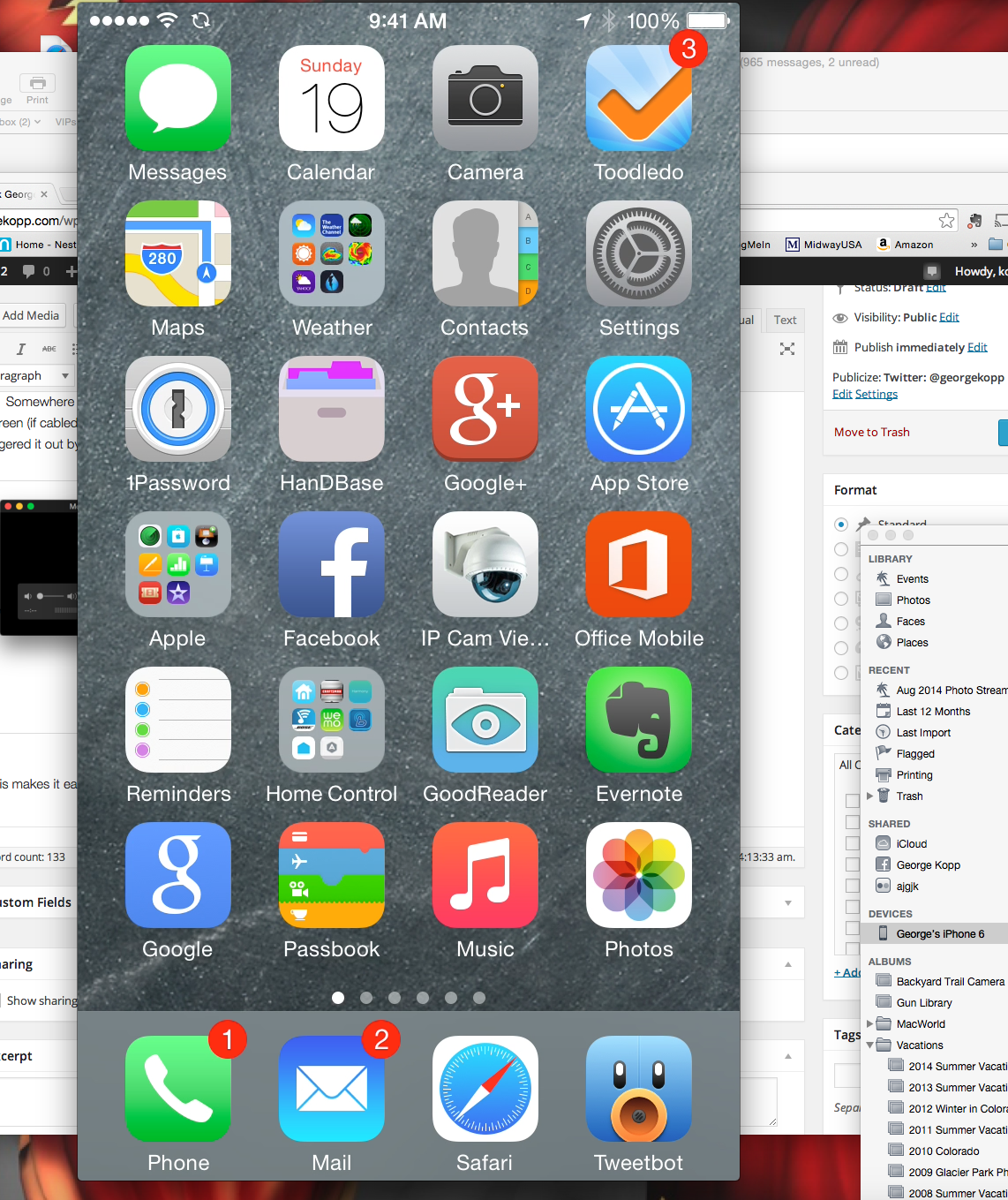
Now the live view of your phone will show on the Mac and can be recorded if you like.

This makes it easy to record video of your phone screen to a file on your Mac.  Right now in Yosemite 10.10.0 it seems to be a little buggy. If you close iTunes before opening QuickTime it seems to work a little better.

Screen Shot 2014-10-19 at 6.14.53 PM

What’s New in iOS 8?

This is a movie of my slide deck presented at the appleJAC Users Group on the new features of iOS 8.

Posted in iOS

1Password: Even more valuable in iOS 8

Screen Shot 2014-09-28 at 1.11.51 PMThe new world of the iPhone 6 and iOS 8 is beginning to show its head. And for my money, it’s a pretty sight to see. One of the first applications to take advantage of some of the new features in iOS 8 is 1Password. I’ve used 1Password for years to store passwords on my computer and my iOS devices. It is always been a trustworthy addition to my computing environment and has saved my bacon in remembering a password many times. But one of the things that made it difficult to use was the inability to be able to automatically enter passwords on an iOS device. iOS 8 has changed all of that with the addition of extensions. And 1Password immediately took advantage of it.

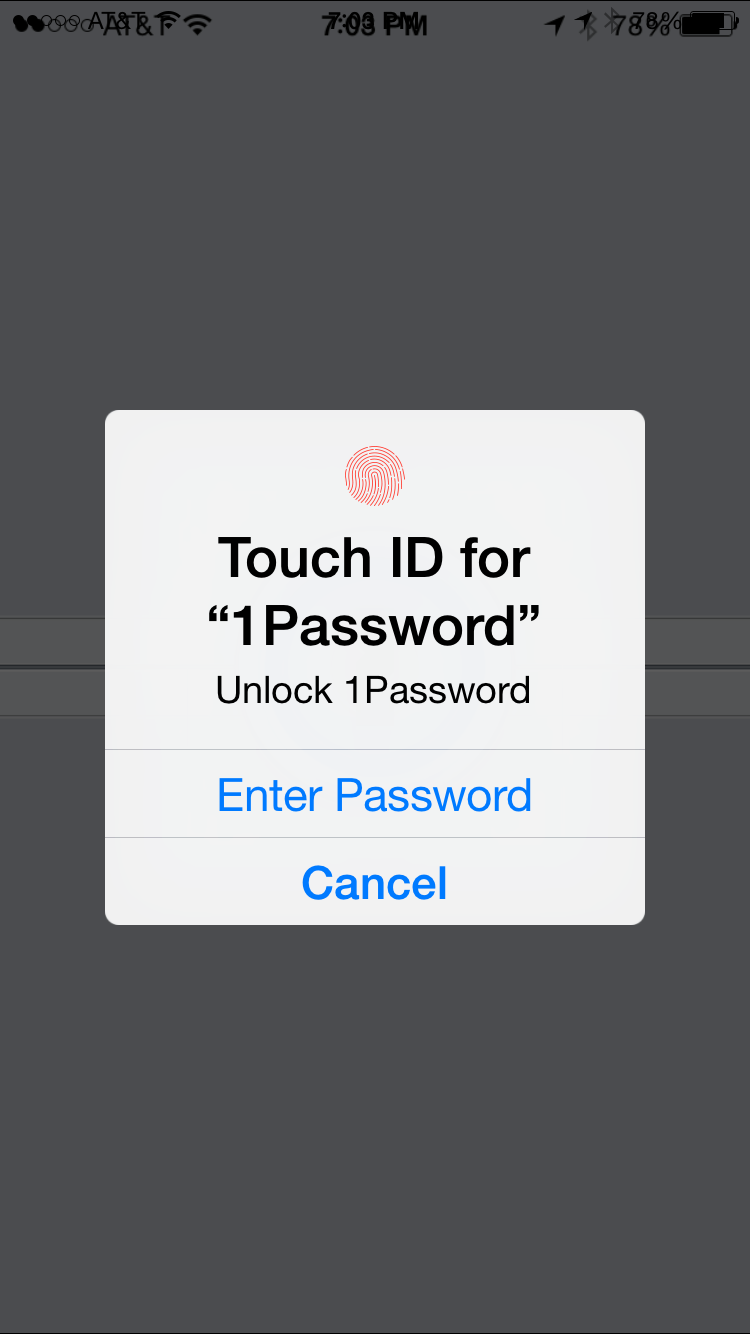
On the same day that iOS 8 was released, AgileBits released a free update to 1PasswordIMG_1273 that took advantage of the new extension capability and also the expansion of touch ID use. In the past I would need to enter my master password every time I needed to get  into 1Password. With the update you have the ability to set the settings to allow you to use your fingerprint on an iPhone 5s or 6 to enter your master password for you and take you directly in to the program. This is such a huge time saver that by  itself would’ve been a great update. But Agilebits did not stop there.

Also in the latest update was an extension for the Safari browser that allowed you with a few taps to enter a password from 1Password into a website in Safari. Before this update it would’ve required you to go back-and-forth between 1Password and Safari a number of times to get both the username and password and enter it. Now, after configuring it, a few simple taps enter the password and you’re off to the races in Safari.

To make all of this new functionality work well for you there are a few settings you might want to consider in the 1Password for iOS application. First, you should go into the settings for 1Password and turn on touch ID. With that turned on you should set the amount of time before having to reenter your master password to something greater than just a few minutes. Remember, your passwords will be protected with touch ID anyway. I set the setting to 48 hours initially but I’m considering changing it to 30 days. This setting is the amount of time that passes before being forced to type in your master password.  In between that time period, you’ll only be asked to use your fingerprint to get in to 1Password.

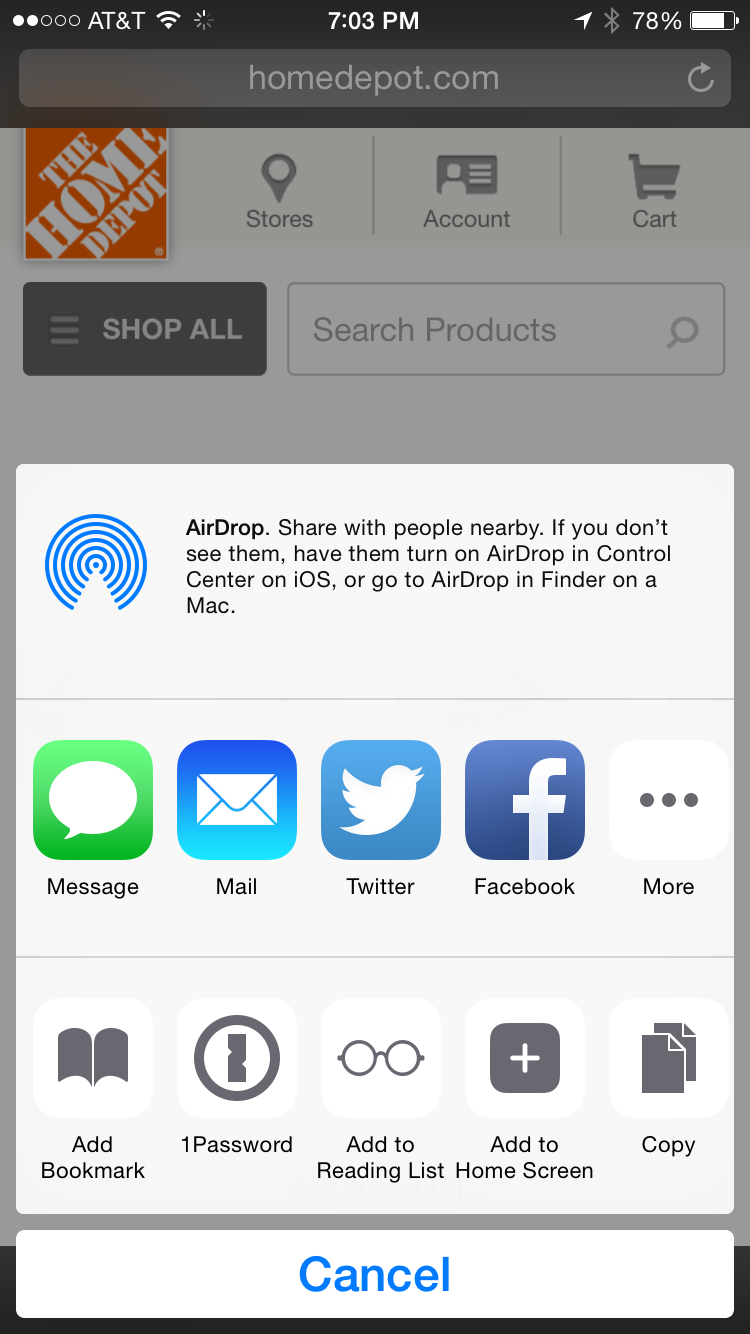
IMG_1274With that said, you need to open the Safari browser and Screen Shot 2014-09-28 at 1.19.56 PMtap on the small square with an up arrow icon in the menu bar. This is how you access the extensions in Safari. Be sure the one password extension is turned on so you’ll be able to use it from Safari.  You may have to tape More to add it in.  I also rearranged it by dragging the 1Password extension forward so that I can get to it without having to scroll after tapping that Icon.

Now, to use it in Safari all you have to do is go to a site that requires a password and tap on that same square with an arrow icon.  Then tap 1password. 1Password will now ask for your fingerprint to take you in to the program. Once you’ve entered it will bring up the passwords that fit the website that you’re on in Safari and you have the ability to touch one of those passwords and have it automatically entered in the browser.

The updates to 1Password prove that the extensions combined with touch ID that Apple has added and iOS 8 are going to be a huge addition for iPhone users. The ability to enter applications with only a touch and to extend Apple’s Safari browser will add many new functions and ease-of-use to the iPhone itself.

1Password is only the beginning. I look forward to all the other applications that will begin supporting these functions and features in the near future.

Posted in iOS

Backup and Restore to a New iOS Device

When you get a new iOS device you’re going to want to back up the information that’s on your current device and put it on the new one. Doing this with an encrypted backup will retain your passwords that you have already said in your iOS device. This video shows the process of moving from one iOS device to a new one

Posted in iOS