Perhaps it’s time to Change your Email Address

There are lots of reasons someone may want to change their email address. The most prominent reasons is that you’re using an email Service that is no longer getting good support or you’re changing your Internet service provider and had previously been using an email provided by that provider. Regardless of why you want to change your email address, the process all goes just about the same.  If you are currently using an email address provided by your service provider, or if you’re using one of the old Internet addresses from companies like AOL or yahoo, these are all email addresses that probably need to be changed to something more stable.

The first thing you need to do is create a new email address. There are lots of good email providers out there and you can choose from any of them. I typically recommend using Google or outlook as your new email address as those are both from companies that will probably be around for a long time to come . Once you’ve created the new email, you’ll need to set it up so that all your devices have access to it and  then use your old email address to verify that everything works by sending yourself an email and verifying you receive it on all your devices.

Next comes to the hard part. You have to make sure that people know it’s your new address. If your previous email address still works, you can look through it for email that you’ve received from people, and companies, that you want to continue to get email from.

I typically look at email in three separate categories:

  1. Email from friends or businesses that you consider critical.
  2. Email that you’ve signed up for.  This can typically be things like businesses or grocery stores that you’ve given your email address so that you can get coupons or sale information from. It may also be newsletters that you’ve signed up for about subjects that you have interest in.
  3. Email that you never signed up for and really don’t care that you get. Many people call this spam, but regardless of what you call it you really don’t care about it and for purposes of changing your email, you don’t want these people to have your new email address. That way this spam will stop coming in.

Of these three categories, only two need to be dealt with. We’re gonna start off by looking at group 2. These emails are typically things that you’ve signed up for, and you enjoy getting, so you wanna make sure they get your new email address. Rather than going through the process of trying to change your email for these accounts, typically the best way is to just re-sign up for these emails. If it’s an email newsletter or list, sign back up again with your new email. If it’s email from particular company, sign up there with your new email or give your email when you’re checking out at a store so that they can re-sign you up using your new email. These are easy. These can happen overtime because these are not critical.

The primary work involved in changing your email has to do with the category 1 people. These are typically businesses, governments, utility companies, credit card, companies, and friends that you want to have your new email. Let’s look at each of these types separately.

Start off by making a list of businesses and organizations. You know that you get email from. From that list you can check them off as you get them done. Many times if you still have access to your existing email, scrolling through past emails will give you an idea of some of the ones you need to get changed.

Financial

Businesses or companies that have a financial connection to you need to be some of the first ones that you change.  Banks often have a process for changing your email address. If your bank is local, the easiest way to change your email addresses go to the bank and take your ID. If you don’t have a local bank, then usually they have a process for you to go through to make a change to your email address on your account. You’ll need to call them and work this out with them individually.

While we’re talking about calling someone, never look up the phone number for these types of institutions on the Internet. It’s just too easy for people to redirect you to the wrong phone number trying to impersonate your facility. Look up the phone number typically on a bill or statement if they will have sent you. This applies to all of these types of businesses you need to change your address with.

For brokerage account, if you have a personal relationship with your broker, you can probably just call them. If you don’t, you’ll need to call the number on your account statement and explain to them that you want to change your email address. They’ll walk you through their process.

If you are retired, you’ll obviously need to let Social Security know your new email address. They have a process for doing that once you login to their site. If you get retirement from another method, you’ll have to let those retirement systems know your new email address also. Many times you can do this over the phone.

Businesses and credit cards

Use your statements that you get from businesses or credit card companies to give you phone numbers to contact them to change your email address. Each one of these will have a different process to go through. In fact, it’s kind of frustrating sometimes. Some are very easy and some make you jump through a lot of hoops. But you’ll need to contact each one of those and get each one of those changed.

Same thing with utility companies. In fact, any company that you get a bill from by email or a receipt from my email is gonna have to get your new email address. Work through each one individually, and make sure you give yourself plenty of time to make these changes.

Friends

Letting all your friends know your new email is probably the easiest thing to do. Start in your new email account, and send a email describing the fact that you’re changing your email address. Just make it short and sweet. Tell them that you’re changing your email address to the new email address and from now on you’d like for them to use this.

You can do this all in one email if you write the email that you want to send, and then use the blind carbon copy function (BCC) in your email client to send the same email to each person all at once. Just add them all to the BCC list and when they get the email it looks like they’re all getting an individual email from you.

Be sure you allow time to get this to happen. Hopefully you’re making your email address change while you still have access to your old email account. This way you can watch emails quit coming into your old account and start coming into your new one and keep track of ones that haven’t made the change yet so that you may need to re-notify them.

If you’ve already lost access to your old account, then it’s basically starting over. It’ll take quite a while before you get all these things changed, but once they do get changed, you can give solace to the fact that you’re at least using a reputable company for your email address. These companies will likely be in business for quite a while and hopefully you’ll never have to go through this process again.

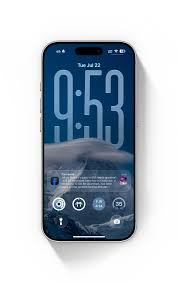
Modify the Lock Screen in iOS 26

Here’s a clear step-by-step guide to modifying your Lock Screen in iOS 26 — including the newest customization features Apple added (like Liquid Glass clock styles, widget placement, and more): Apple Support+2MacRumors+2i\


📱 How to Modify the Lock Screen in iOS 26

1. Open the Lock Screen Customize Mode

  1. Wake your iPhone so the Lock Screen is visible.

  2. Touch and hold anywhere on the Lock Screen.

  3. Tap Customize to edit the current screen, or tap the + Add New button to create a new Lock Screen. Apple Support


🖼 Choose or Change Your Wallpaper

  • Pick a new wallpaper from your photos or Apple’s categories (People, Pets, Nature, etc.).

  • You can use Photo Shuffle to rotate through selected images.

  • Spatial Scenes — a new 3D style that gives depth to compatible photos — may be available depending on your device. Tom’s Guide


⏱ Customize the Clock

  • Tap the time to change its font style and color.

  • iOS 26 adds a Glass (semi-transparent) option alongside solid styles.

  • You can resize the clock (making it larger) by dragging the small handle at the corner when editing. MacRumors+1


📊 Add and Position Widgets

  • Tap the widget area to add widgets like weather, calendar, fitness, alarms, and third-party widgets.

  • Unlike earlier iOS versions, you can drag the widgets toward the bottom of the screen (just above Quick Actions). MacRumors+1


🔄 Swap Quick Actions

  • The buttons below the Lock Screen (like flashlight and camera) can be replaced with other quick actions:

    • Tap the current control → Remove it → then Add Quick Action to choose a new one. Tom’s Guide


🧠 Link to a Focus

  • Within customize mode, you can link a Lock Screen to a particular Focus mode (Work, Personal, Sleep, etc.).

  • This makes that Lock Screen appear automatically when the linked Focus turns on. Apple Support


🗂 Switch Between Multiple Lock Screens

  • After creating more than one Lock Screen, just touch and hold on the Lock Screen and swipe left/right to switch between them. Apple Support


🗑 Delete a Lock Screen You Don’t Want

  • Touch and hold the Lock Screen → swipe to the one you want to remove → swipe up → tap Delete. Apple Support


💡 Bonus Tips

  • If your clock or widgets look different after updates (e.g., Liquid Glass transparency), you can tweak the style or switch back to a solid look under Customize → Tap Time → Choose Solid (users report this works well to restore contrast). reddit.com

  • In iOS 26.2, Apple added an opacity slider for the Liquid Glass clock to make it easier to read if it’s too faint.

MacMost: A Terrific Resource for Learning about your Mac


MacMost is a long-running Apple-focused educational resource that helps people get the most out of their Macs, iPhones, iPads and other Apple products through easy-to-follow tutorials, tips, news and guides. MacMost.com+1

I learm a lot of things from watching Mac most tutorials. In fact, yjrdr videos  are an inspiration for being able to find new things about your Mac, and actually being able to do them from the great instructions that are provided in these videos.

Take a look at it and see if what you think, but I think your going to like it.

📌 What MacMost Is

MacMost (often stylized MacMost.com) is primarily:

  • A website with thousands of free video tutorials about using macOS, iOS and Apple apps. MacMost.com

  • A weekly newsletter with tips, recommendations and Apple news. MacMost.com

  • A YouTube channel and podcast offering how-tos, tricks, news updates and practical advice geared to both beginners and experienced users. Apple Podcasts

On the main site you’ll find recent posts teaching things like how to use features in Photos, Finder, Shortcuts, and other built-in apps, plus regular tips and tricks to make Apple devices easier to use. MacMost.com

👩‍💻 Founder and Content

The creator behind MacMost is Gary Rosenzweig — the founder, host and producer. He has written many books on computing and teaches through clear, straightforward videos.

Stopping iPhone Apps from Listening to You

You can stop iPhone apps from using your microphone by changing a few privacy settings. Here’s how to make sure nothing listens without your permission:


1. Turn Off Microphone Access for Specific Apps

  1. Open Settings

  2. Go to Privacy & Security

  3. Tap Microphone

  4. You’ll see a list of apps with microphone access.

  5. Toggle off any app you don’t want using your mic.


2. Check for Apps That Recently Used Your Microphone

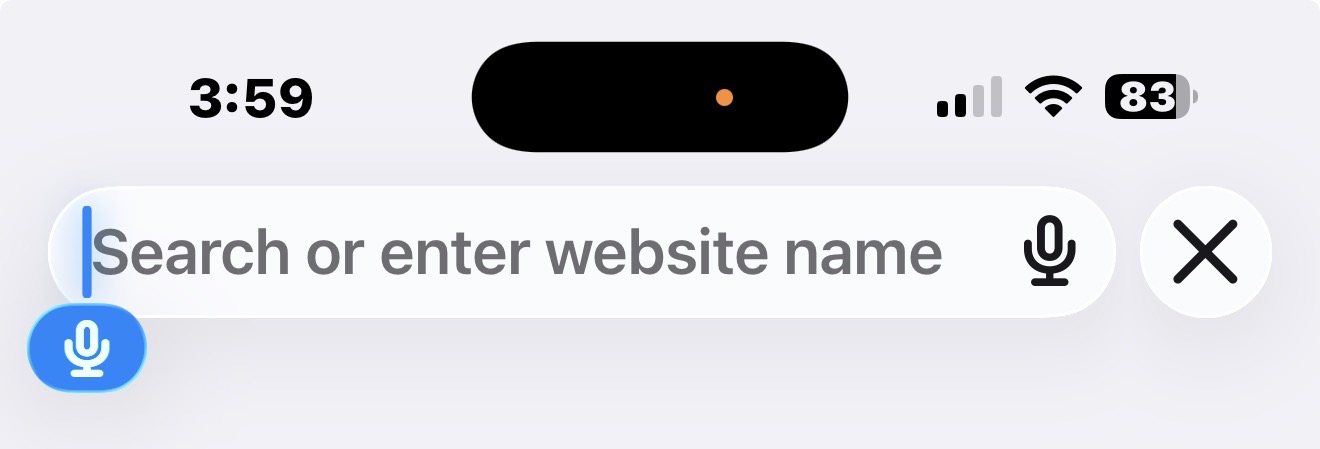
Note the Orange dot and blue Microphone

iOS shows a small orange dot at the top-right of the screen when the microphone is active.

  • If you see it unexpectedly, swipe down from the top-right to open Control Center — it will say which app used the mic last.


3. Manage Siri Settings (if you’re worried about voice listening)

If you want to reduce how often Siri listens:

Disable “Hey Siri”

  • Go to Settings → Siri & Search

  • Turn off Listen for “Hey Siri”

Disable Siri from using your mic when locked

  • Turn off Allow Siri When Locked


4. Disable App Background Activity

Some apps may try to use system features in the background.

  • Go to Settings → General → Background App Refresh

  • Turn off apps you don’t trust (or disable it entirely).


5. Limit App Permissions When Installing

Whenever you install a new app and it asks for microphone access:

  • Tap “Don’t Allow” if it doesn’t need it.


6. Reset All Permissions (optional)

If you want to completely reset which apps have access to sensors:

  • Go to Settings → General → Transfer or Reset iPhone → Reset

  • Tap Reset Location & Privacy

This forces all apps to ask again for any permission, including microphone.


7. Extra Tip: Check for Profiles or Device Management

Rarely, enterprise profiles can enforce permissions.

  • Go to Settings → General → VPN & Device Management

  • Remove anything you don’t recognize.

Spring 2024 Computer Recommendations

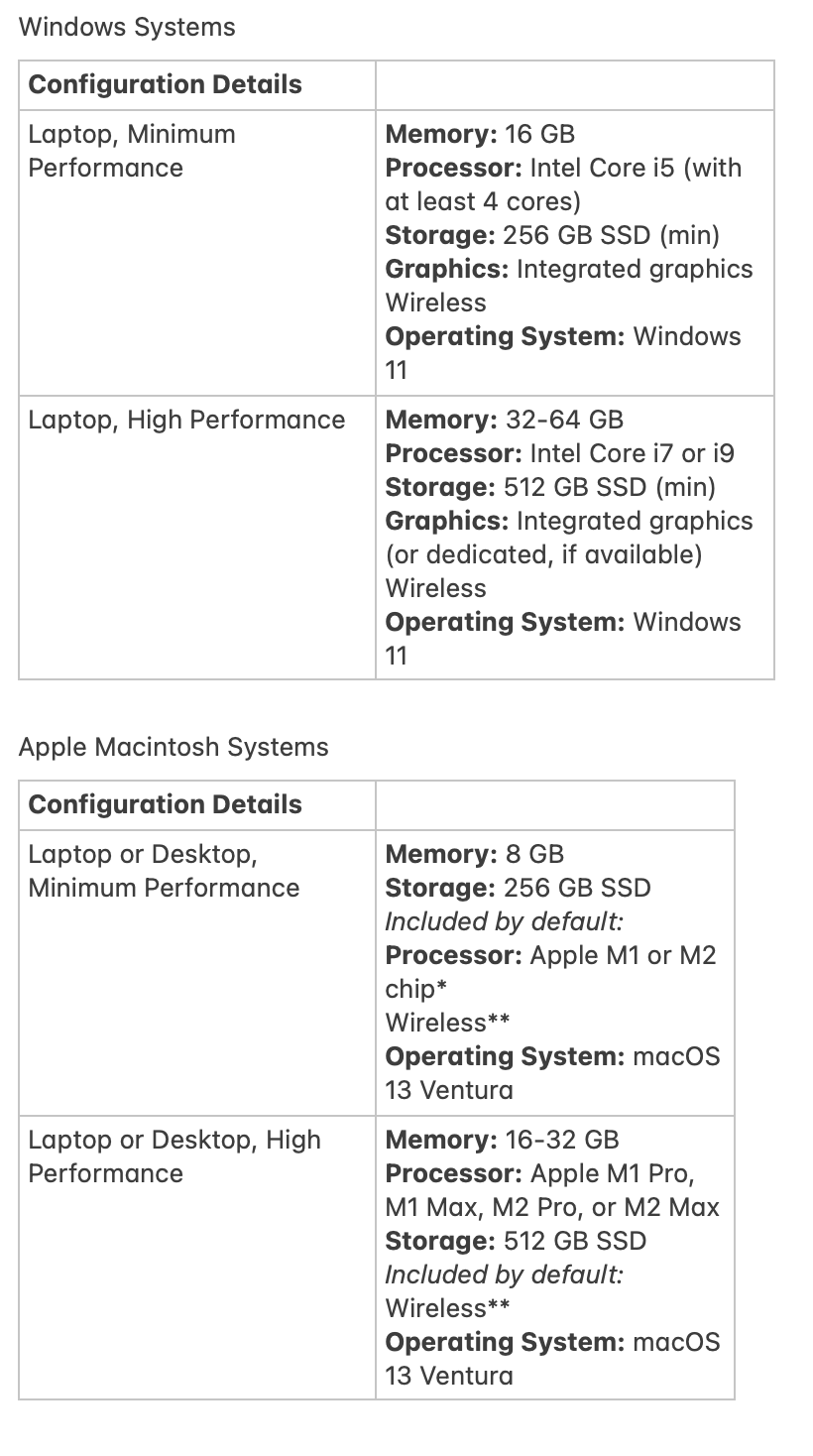
At least once a year I like to give my opinion on what type of a computer someone should be looking for if they’re in the market to purchase a new machine. Many times, there are so many computers on the marketplace that it’s hard to make a decision based upon the functionality you’ll need to use. Basically I break these into two categories, a minimum performance machine and a high-performance machine. If you are a high-performance user, you already know that. If you’re not sure, a minimum performance device is probably where you need to be working.

Often times in the big box stores you find machines that have some of the specifications but not all of them. Big box machines are typically built, particularly on the PC side, with a price in mind. Often times, the machine has specifications that don’t meet current use specs. This also shows up on many Internet sites. Be sure to look into the specifications you’re selecting for the machine that you’re looking to purchase.

In my opinion, brands do matter.  Seeing many machines with problems, I can say that Macintosh computers are generally the most trouble free and will maintain good performance for a longer period.

But some people need Windows for specific applications.  When it comes to Windows computers, my experience says that I would look for these brands (in order):

  1. Dell
  2. HP
  3. Lenovo

All three of these vendors maintain good support websites and make updating hardware drivers easier.  That doesn’t mean much when the machine is new but as it ages, it means everything.

Windows Systems

Laptop, Minimum Performance

Memory: 16 GB
Processor: Intel Core i5 (with at least 4 cores)
Storage: 256 GB SSD minimum
Graphics: Integrated graphics
Networking: wireless
Operating System: Windows 11

Laptop, Higher Performance

Memory: 32-64 GB
Processor: Intel Core i7 or i9
Storage: 512 GB SSD minimum
Graphics: Integrated graphics or dedicated if available
Networking: wireless
Operating System: Windows 11

Foe Macintosh Systems, a MacBook Air is the correct machine for entry to mid stream users today.  For more professional uses and MacBook Pro is great.  If you want a desktop the new M3 iMac is great and either the Mac mini or Mac Studio on the higher end make great sense.  Avoid the Mac Pro desktop.  It’s price vs performance is low for nearly all users.

Macintosh Systems

Laptop, Minimum Performance

Memory: 8 GB
Processor: Apple M2 or M3
Storage: 256 GB SSD minimum
Graphics: Integrated graphics
Networking: wireless
Operating System: MacOS 14

Laptop, Higher Performance

Memory: 16-32 GB
Processor: Intel Core M2 Pro, M2 Max, or M3 series
Storage: 512 GB SSD minimum
Graphics: Integrated graphics or dedicated if available
Networking: wireless
Operating System: MacOS 14

Computer Recommendations 2023

A couple times a year I like to give my opinion on what type of a computer someone should be looking for if they’re in the market to purchase a new machine. Many times, there are so many computers on the marketplace that it’s hard to make a decision based upon the functionality you’ll need to use. Basically I break these into two categories, a minimum performance machine and a high-performance machine. If you are a high-performance user, you already know that. If you’re not sure, a minimum performance device is probably where you need to be working.

Often times in the big box stores you find machines that have some of the specifications but not all of them. Big box machines are typically built, particularly on the PC side, with a price in mind. Often times, the machine has specifications that don’t meet current use specs. This also shows up on many Internet sites. Be sure to look into the specifications you’re selecting for the machine that you’re looking to purchase.

In my opinion, brands do matter.  Seeing many machines with problems, I can say that Macintosh computers are generally the most trouble free and will maintain good performance for a longer period.  

But some people need Windows for specific applications.  When it comes to Windows computers, my experience says that I would look for these brands (in order):  

  1. Dell
  2. HP
  3. Lenovo

All three of these vendors maintain good support websites and make updating hardware drivers easier.  That doesn’t mean much when the machine is new but as it ages, it means everything.

Creating a menu of Text items to Insert with Shortcuts on a Mac

page1image65204208

Start by Opening the Shortcuts application stored in the Applications folder

With the shortcuts application open, click on the + in the upper right corner of the window to create a new shortcut

page1image65204416page1image65204624

This process requires the adding of two steps to the shortcut. The first is a TEXT step to store the text you want to insert from the menu. The second step Copies the text to the clipboard.

Start by double clicking the Text step in the steps menu.

Now enter the text you want to insert such as your name and address.

Now add the Copy to Clipboard step to the Shortcut in the same way. This step requires no additional input.

Now in the File menu at the top of the screen select rename and type a descriptive name to describe the

page1image65204832

shortcut function. I used Name and Address.

page2image65416576 page2image65415952

Finally Click the small circle with an i in it to show the Shortcut Details.

In this list click on the Show in Menu Bar option.

page2image65411792

Using the Shortcut menu.

In the menu bar of the Mac you will see a Shortcut Icon listing the shortcuts you made. Click the menu and select the item you want paste into your document.

Now click your cursor where you want the text inserted and Press Paste

Command-V

page3image65269744

I just want to print from my iPad

These days printing has gotten much easier from an iPad or iPhone. Most printers that you would purchase today will support Apple Airprint. In the past, you had to be a little careful that you picked up AirPrint printer. Over the past few years, manufacturers have made the decision to add that as a standard feature. And most printers also are Wi-Fi compatible. They either have built-in Wi-Fi so that you can connect to your local network or they have ethernet connectivity that get you connected to the router. Either way, air print works just great once the printer is on the network.

Once you have the printer connected, and you have your iPad connected to your local network, how do I go about printing.

In the past, we’ve either used Mac or Windows computers. Fortunately both of those computers had a menu bar at the top of the screen with the file menu. In that file menu was always a print command. It really didn’t matter whether you were in photoshop or Safari, there was a file menu with a print command in it.  This made it extremely easy to figure out any applications printing capability. Unfortunately, Apple in iOS has not made it quite that simple. Nearly every application will provide you printing capability but how to get to it can often be different and somewhat confusing.

Let’s start off with Safari, Safari uses a small square box with an arrow pointing up at the top of the screen to get you to what they called the share sheet.

From that share sheet you can often send a link or a page to someone else by email or text but if you scroll down in that share sheet, you’ll find the print command. Once the print command is open, you will often have to find your printer for the first time but once that printer reset on your local network, it will typically come up and allow you to print. From there, you make typical setting changes such as color printing or black-and-white, number of copies, or some other specific command that might be related to printing in that application.

So obviously, Apple who strives to be so consistent with its applications would have that little square with the up arrow in every application to lead us to the share sheet and printing. But not so fast… Unfortunately Apple uses a few other things to define where you need to go to be able to find that print command. Once you’re in the print command, the settings are all consistent as you would expect but getting to that print command is not necessarily simple if you’re not looking in the right place. 

Apples on Mail application doesn’t follow that square with the up arrow consistent share sheet concept.

To be able to print and mail, you need to go to the curved arrow in the lower right corner of the email you’re looking at. This is the same location you would go to reply, or forward that email. Once they are, you’ll find the print command which one selected brings up the consistent print dialog box. But I cannot for the life of me understand why Apple used a curved arrow rather than the standard square with the arrow going up to denote the location to do sharing, or commands based upon the email that you’re in.

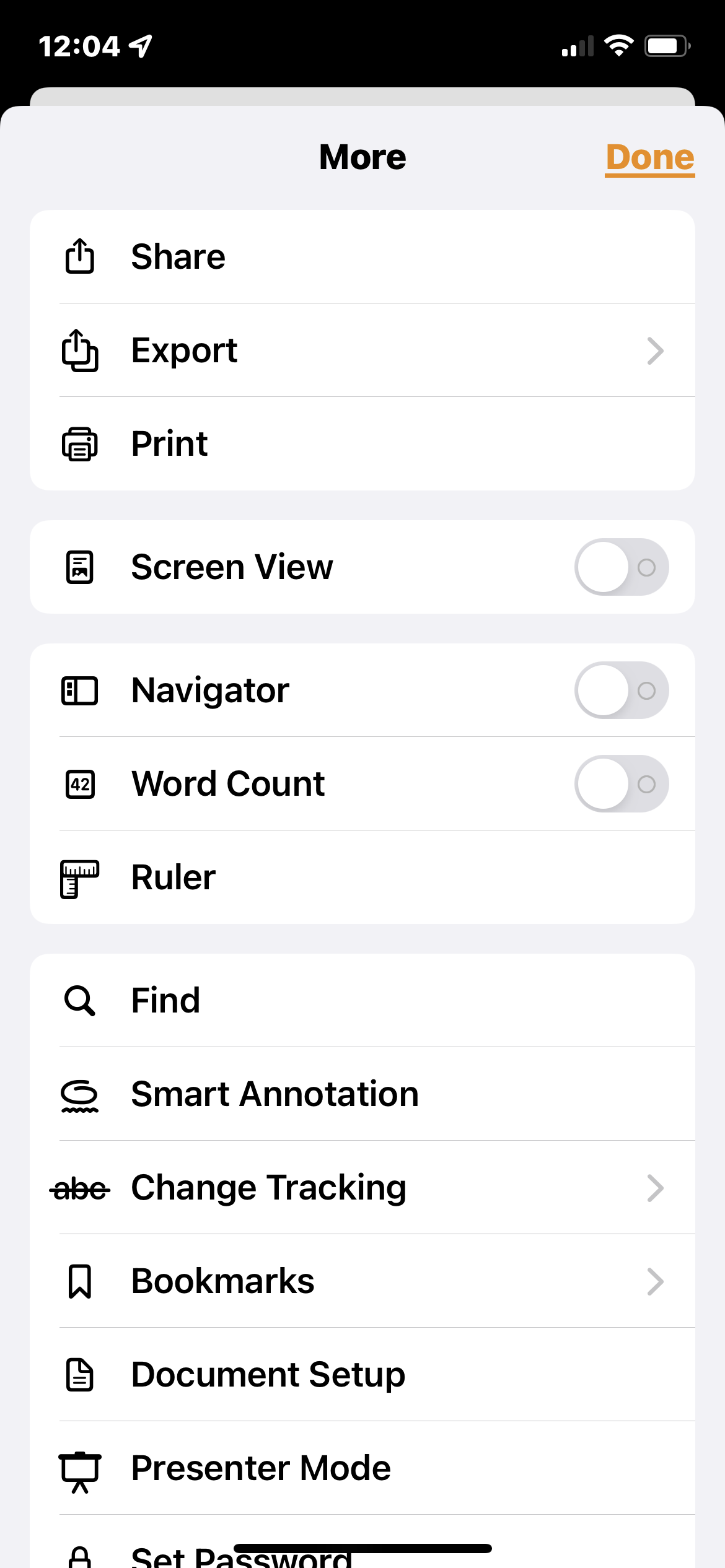
And to make it worse, Apple‘s other application such as Pages and Numbers and Keynote, all force you to go to a circle with three dots in the upper menu bar to find the print command. One would think, Apple, who forces uniformity and consistency would have thought enough to be able to use the same method to get people to be able to print their documents. But that’s not the case.

So the important thing to remember is often times printing is available in any application you want to find on the iPad or iPhone. You just have to look around to find where it is in that application, and then remember that’s the place to go to find that print command.

What to do when your Mac is Frozen….

You know that frustrating, annoying, sometimes panicked feeling you get when your Mac isn’t doing what you expect? If an application freezes or your computer is generally misbehaving, here are a few things to try to get it working again.

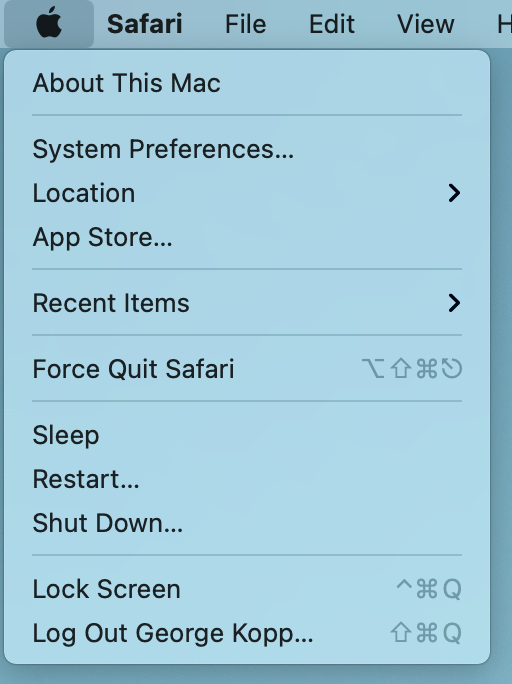
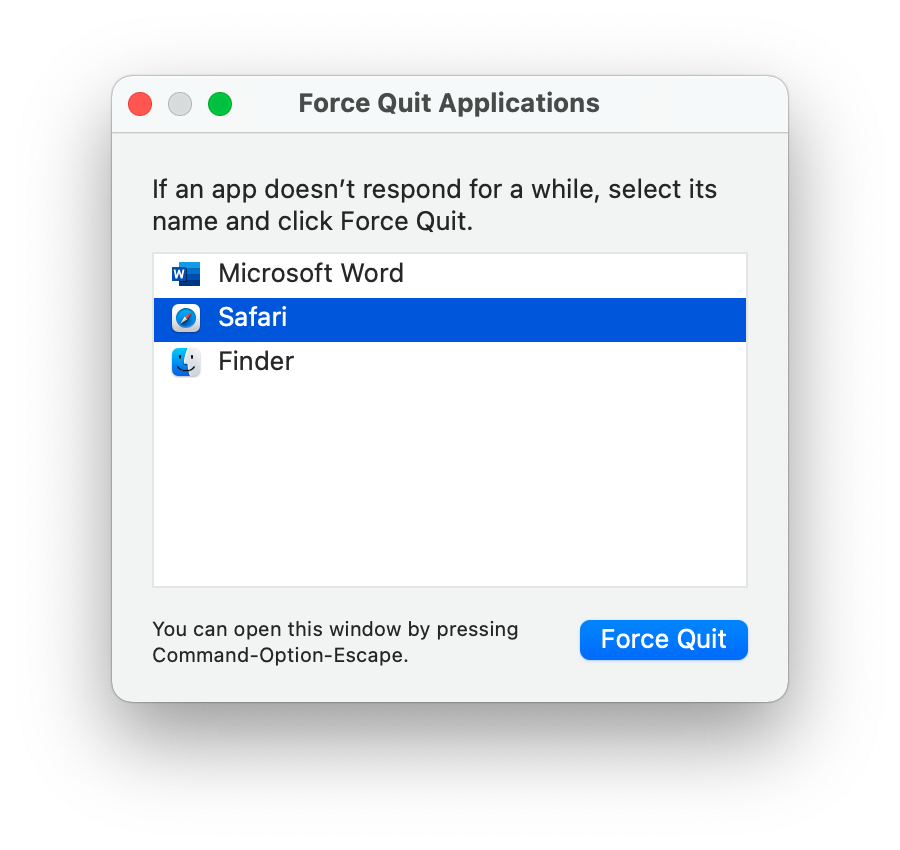
Use Force Quit when an application is unresponsive. Choose Force Quit from the Apple menu.

Click the name of the deviant application (it probably has not responding next to its name). You typically won’t have to reboot.

Restart. If Force Quit doesn’t work or does not respond, try rebooting the computer. If a frozen Mac prevents you from clicking the Restart command on the Apple menu, hold down the power button for several until the screen goes black, then press the power button. If all else fails,  and the machine is a desktop, pull the plug, but remember that powering down without logging out should be used only as a last resort.

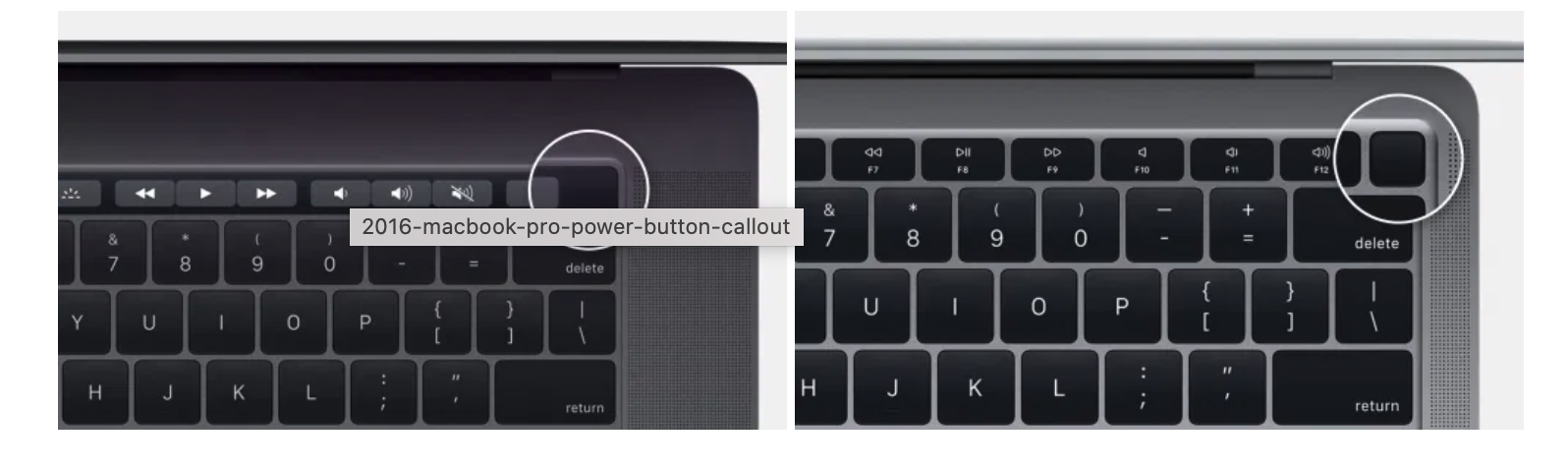
The power button is usually obvious on desktop machines but where is the power button on new MacBooks?

Look for the unmarked black square (Touch ID/power button) above the delete key
On older MacBooks you’ll see the power icon on the top right key

On the left: power button/Touch ID on 2016 and later MacBook Pro models. On the right: 2018 MacBook Air power button/Touch ID

On the left: power button/Touch ID on 2016 and later MacBook Pro models. On the right: 2018 MacBook Air power button/Touch ID


Create a Password Protected Folder on the Mac

Mac users have the ability to create a password protected folder in the form of a disk image using Disk Utility.  This video describes the steps.