
Perhaps it’s time to Change your Email Address

There are lots of reasons someone may want to change their email address. The most prominent reasons is that you’re using an email Service that is no longer getting good support or you’re changing your Internet service provider and had previously been using an email provided by that provider. Regardless of why you want to change your email address, the process all goes just about the same.  If you are currently using an email address provided by your service provider, or if you’re using one of the old Internet addresses from companies like AOL or yahoo, these are all email addresses that probably need to be changed to something more stable.

The first thing you need to do is create a new email address. There are lots of good email providers out there and you can choose from any of them. I typically recommend using Google or outlook as your new email address as those are both from companies that will probably be around for a long time to come . Once you’ve created the new email, you’ll need to set it up so that all your devices have access to it and  then use your old email address to verify that everything works by sending yourself an email and verifying you receive it on all your devices.

Next comes to the hard part. You have to make sure that people know it’s your new address. If your previous email address still works, you can look through it for email that you’ve received from people, and companies, that you want to continue to get email from.

I typically look at email in three separate categories:

  1. Email from friends or businesses that you consider critical.
  2. Email that you’ve signed up for.  This can typically be things like businesses or grocery stores that you’ve given your email address so that you can get coupons or sale information from. It may also be newsletters that you’ve signed up for about subjects that you have interest in.
  3. Email that you never signed up for and really don’t care that you get. Many people call this spam, but regardless of what you call it you really don’t care about it and for purposes of changing your email, you don’t want these people to have your new email address. That way this spam will stop coming in.

Of these three categories, only two need to be dealt with. We’re gonna start off by looking at group 2. These emails are typically things that you’ve signed up for, and you enjoy getting, so you wanna make sure they get your new email address. Rather than going through the process of trying to change your email for these accounts, typically the best way is to just re-sign up for these emails. If it’s an email newsletter or list, sign back up again with your new email. If it’s email from particular company, sign up there with your new email or give your email when you’re checking out at a store so that they can re-sign you up using your new email. These are easy. These can happen overtime because these are not critical.

The primary work involved in changing your email has to do with the category 1 people. These are typically businesses, governments, utility companies, credit card, companies, and friends that you want to have your new email. Let’s look at each of these types separately.

Start off by making a list of businesses and organizations. You know that you get email from. From that list you can check them off as you get them done. Many times if you still have access to your existing email, scrolling through past emails will give you an idea of some of the ones you need to get changed.

Financial

Businesses or companies that have a financial connection to you need to be some of the first ones that you change.  Banks often have a process for changing your email address. If your bank is local, the easiest way to change your email addresses go to the bank and take your ID. If you don’t have a local bank, then usually they have a process for you to go through to make a change to your email address on your account. You’ll need to call them and work this out with them individually.

While we’re talking about calling someone, never look up the phone number for these types of institutions on the Internet. It’s just too easy for people to redirect you to the wrong phone number trying to impersonate your facility. Look up the phone number typically on a bill or statement if they will have sent you. This applies to all of these types of businesses you need to change your address with.

For brokerage account, if you have a personal relationship with your broker, you can probably just call them. If you don’t, you’ll need to call the number on your account statement and explain to them that you want to change your email address. They’ll walk you through their process.

If you are retired, you’ll obviously need to let Social Security know your new email address. They have a process for doing that once you login to their site. If you get retirement from another method, you’ll have to let those retirement systems know your new email address also. Many times you can do this over the phone.

Businesses and credit cards

Use your statements that you get from businesses or credit card companies to give you phone numbers to contact them to change your email address. Each one of these will have a different process to go through. In fact, it’s kind of frustrating sometimes. Some are very easy and some make you jump through a lot of hoops. But you’ll need to contact each one of those and get each one of those changed.

Same thing with utility companies. In fact, any company that you get a bill from by email or a receipt from my email is gonna have to get your new email address. Work through each one individually, and make sure you give yourself plenty of time to make these changes.

Friends

Letting all your friends know your new email is probably the easiest thing to do. Start in your new email account, and send a email describing the fact that you’re changing your email address. Just make it short and sweet. Tell them that you’re changing your email address to the new email address and from now on you’d like for them to use this.

You can do this all in one email if you write the email that you want to send, and then use the blind carbon copy function (BCC) in your email client to send the same email to each person all at once. Just add them all to the BCC list and when they get the email it looks like they’re all getting an individual email from you.

Be sure you allow time to get this to happen. Hopefully you’re making your email address change while you still have access to your old email account. This way you can watch emails quit coming into your old account and start coming into your new one and keep track of ones that haven’t made the change yet so that you may need to re-notify them.

If you’ve already lost access to your old account, then it’s basically starting over. It’ll take quite a while before you get all these things changed, but once they do get changed, you can give solace to the fact that you’re at least using a reputable company for your email address. These companies will likely be in business for quite a while and hopefully you’ll never have to go through this process again.
Microsoft defines new PC reference platform

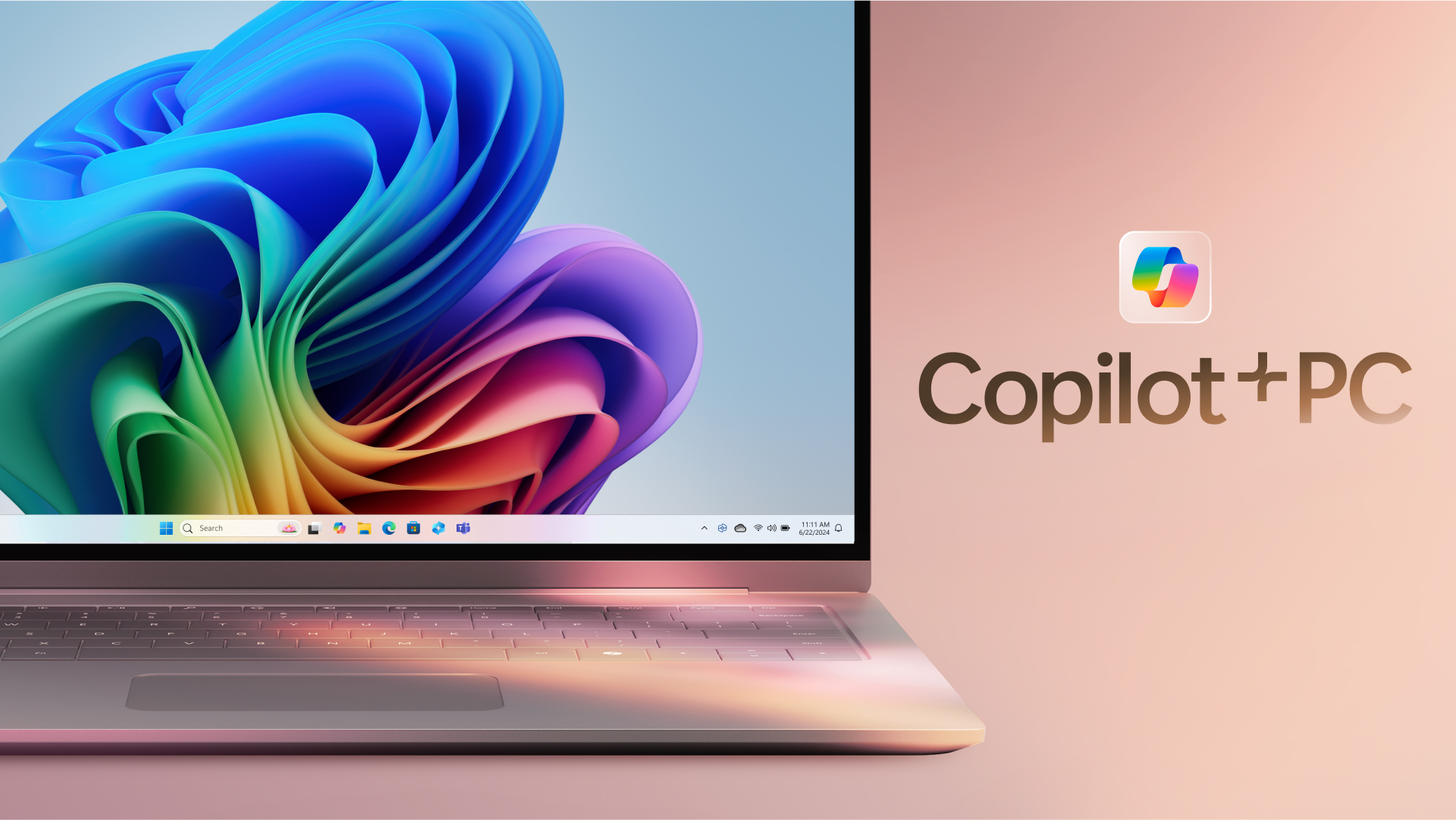
Microsoft recently introduced the world to a new category of Windows PCs designed for AI, Copilot+ PCs.   

Copilot+ PCs are the fastest, most intelligent Windows PCs ever built. With powerful new silicon capable of an incredible 40+ TOPS (trillion operations per second), allday battery life and access to the most advanced AI models, Copilot+ PCs will enable you to do things you can’t on any other PC. Easily find and rememberwhat you have seen in your PC with Recall, generate and refine AI images in near real-time directly on the device using Cocreator, and bridge language barriers with Live Captions, translating audio from 40+ languages into English.  

These experiences come to life on a set of thin, light and beautiful devices from Microsoft Surface and our OEM partners Acer, ASUS, Dell, HP, Lenovo and Samsung, with pre-orders beginning today and availability starting on June 18. Starting at $999, Copilot+ PCs offer incredible value. 

This first wave of Copilot+ PCs is just the beginning. Over the past year, we have seen an incredible pace of innovation of AI in the cloud with Copilot allowing us to do things that we never dreamed possible. Now, we begin a new chapter with AI innovation on the device. We have completely reimagined the entirety of the PC – from silicon to the operating system, the application layer to the cloud with AI at the center, marking the most significant change to the Windows platform in decades.  

The fastest, most secure Windows PCs ever built 

Microsoft introduced an all-new system architecture to bring the power of the CPU, GPU, and now a new high performance Neural Processing Unit (NPU) together. Connected to and enhanced by the large language models (LLMs) running in our Azure Cloud in concert with small language models (SLMs), Copilot+ PCs can now achieve a level of performance never seen before. They are up to 20x more powerful and up to 100x as efficient for running AI workloads and deliver industry-leading AI acceleration. They outperform Apple’s MacBook Air 15” by up to 58% in sustained multithreaded performance, all while delivering all-day battery life.  With incredible efficiency, Copilot+ PCs can deliver up to 22 hours of local video playback or 15 hours of web browsing on a single charge. That is up to 20% more battery in local video playback than the MacBook Air 15”.

Windows now has the best implementation of apps on the fastest chip, starting with Qualcomm. We now offer more native Arm64 experiences than ever before, including our fastest implementation of Microsoft 365 apps like Teams, PowerPoint, Outlook, Word, Excel, OneDrive and OneNote. Chrome, Spotify, Zoom, WhatsApp, Adobe Photoshop, Adobe Lightroom, Blender, Affinity Suite, DaVinci Resolve and many more now run​ natively on Arm to give you great performance with additional apps, like Slack, releasing later this year. In fact, 87% of the total app minutes people spend in apps today have native Arm versions. With a powerful new emulator, Prism, your apps run great, whether native or emulated.

Every Copilot+ PC comes secured out of the box. The Microsoft Pluton Security processor will be enabled by default on all Copilot+ PCs and we have introduced a number of new features, updates and defaults to Windows 11 that make it easy for users to stay secure. And, we’ve built in personalized privacy controls to help you protect what’s important to you. You can read more about how we are making Windows more secure

So, why are these new PC’s so interesting to me?

Microsoft is doing exactly what Apple did when they introduced the new M1 chip. They’re moving the machines over to an architecture that is much faster, and much more suitable for artificial intelligence. They even reference the MacBook Air in their documents describing the performance of these machines. New copilot plus PCs change the architectural discussion. As long as application developers follow along, and create applications that will all run natively in the arm architecture, these machines are going to be real rivals to Apples M1 processors.

It’s a little too early to be able to recommend these new computers for everyone. But for people who are using Microsoft applications like Microsoft Office, getting email, and surfing the web, these are a great option for you to get a machine that is more future proof than a lot of PCs on the market .

Spring 2024 Computer Recommendations

At least once a year I like to give my opinion on what type of a computer someone should be looking for if they’re in the market to purchase a new machine. Many times, there are so many computers on the marketplace that it’s hard to make a decision based upon the functionality you’ll need to use. Basically I break these into two categories, a minimum performance machine and a high-performance machine. If you are a high-performance user, you already know that. If you’re not sure, a minimum performance device is probably where you need to be working.

Often times in the big box stores you find machines that have some of the specifications but not all of them. Big box machines are typically built, particularly on the PC side, with a price in mind. Often times, the machine has specifications that don’t meet current use specs. This also shows up on many Internet sites. Be sure to look into the specifications you’re selecting for the machine that you’re looking to purchase.

In my opinion, brands do matter.  Seeing many machines with problems, I can say that Macintosh computers are generally the most trouble free and will maintain good performance for a longer period.

But some people need Windows for specific applications.  When it comes to Windows computers, my experience says that I would look for these brands (in order):

  1. Dell
  2. HP
  3. Lenovo

All three of these vendors maintain good support websites and make updating hardware drivers easier.  That doesn’t mean much when the machine is new but as it ages, it means everything.

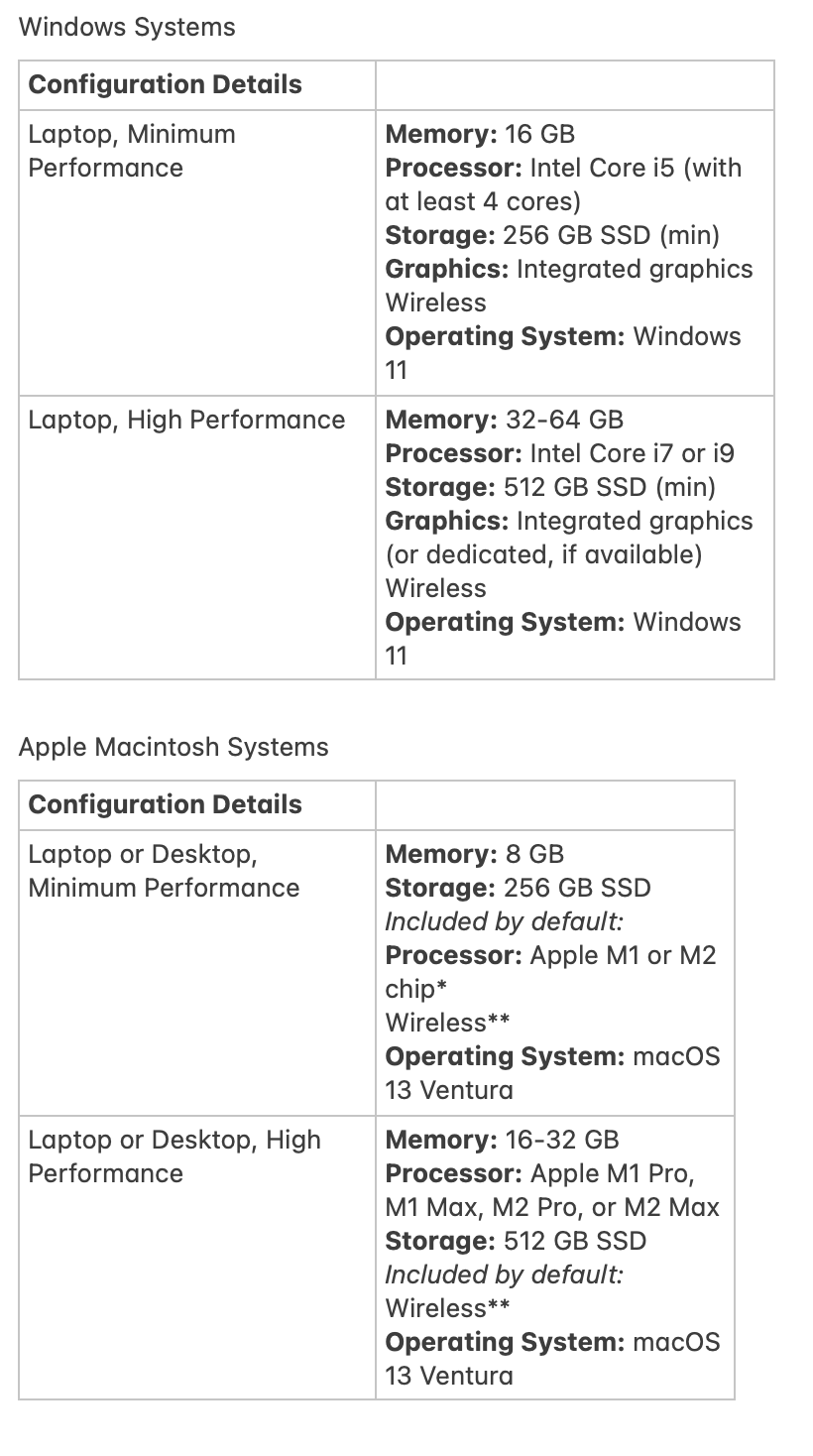
Windows Systems

Laptop, Minimum Performance

Memory: 16 GB
Processor: Intel Core i5 (with at least 4 cores)
Storage: 256 GB SSD minimum
Graphics: Integrated graphics
Networking: wireless
Operating System: Windows 11

Laptop, Higher Performance

Memory: 32-64 GB
Processor: Intel Core i7 or i9
Storage: 512 GB SSD minimum
Graphics: Integrated graphics or dedicated if available
Networking: wireless
Operating System: Windows 11

Foe Macintosh Systems, a MacBook Air is the correct machine for entry to mid stream users today.  For more professional uses and MacBook Pro is great.  If you want a desktop the new M3 iMac is great and either the Mac mini or Mac Studio on the higher end make great sense.  Avoid the Mac Pro desktop.  It’s price vs performance is low for nearly all users.

Macintosh Systems

Laptop, Minimum Performance

Memory: 8 GB
Processor: Apple M2 or M3
Storage: 256 GB SSD minimum
Graphics: Integrated graphics
Networking: wireless
Operating System: MacOS 14

Laptop, Higher Performance

Memory: 16-32 GB
Processor: Intel Core M2 Pro, M2 Max, or M3 series
Storage: 512 GB SSD minimum
Graphics: Integrated graphics or dedicated if available
Networking: wireless
Operating System: MacOS 14

Computer Recommendations 2023

A couple times a year I like to give my opinion on what type of a computer someone should be looking for if they’re in the market to purchase a new machine. Many times, there are so many computers on the marketplace that it’s hard to make a decision based upon the functionality you’ll need to use. Basically I break these into two categories, a minimum performance machine and a high-performance machine. If you are a high-performance user, you already know that. If you’re not sure, a minimum performance device is probably where you need to be working.

Often times in the big box stores you find machines that have some of the specifications but not all of them. Big box machines are typically built, particularly on the PC side, with a price in mind. Often times, the machine has specifications that don’t meet current use specs. This also shows up on many Internet sites. Be sure to look into the specifications you’re selecting for the machine that you’re looking to purchase.

In my opinion, brands do matter.  Seeing many machines with problems, I can say that Macintosh computers are generally the most trouble free and will maintain good performance for a longer period.  

But some people need Windows for specific applications.  When it comes to Windows computers, my experience says that I would look for these brands (in order):  

  1. Dell
  2. HP
  3. Lenovo

All three of these vendors maintain good support websites and make updating hardware drivers easier.  That doesn’t mean much when the machine is new but as it ages, it means everything.

The First thing you need to do with your New Laptop

Protect your Battery

I certainly should have made this post along time ago. One of the things I tell people when I set up a new laptop for them is that it’s very important for them to “season” the battery so that the battery understands the full capacity and can recharge to that capacity.

The typical estimated life of a Lithium-Ion battery is about three to 5 years or 300 to 500 charge cycles, whichever occurs first. One charge cycle is a period of use from fully charged, to fully discharged, and fully recharged again. But long before the Battery begins to fail, the capacity of the battery becomes reduced.

Rechargeable Lithium-Ion batteries have a limited life and will gradually lose their capacity to hold a charge. This loss of capacity (aging) is irreversible. As the battery loses capacity, the length of time it will power the product (run time) decreases.  There are some things you can do to a new laptop battery to ensure the battery works to its full capacity.  

Here are the simple steps to ensure you get the most out of that new laptop battery.

1
Connect your laptop’s power cord and allow it to fully charge.

2
Unplug the laptop once it is charged .

3
Use the computer until you receive a warning that the battery is nearly empty. Save any open documents to prevent data loss.

4
Continue to use the laptop until the battery is completely drained .

5
Reconnect the laptop’s power cord and allow it to recharge to full capacity. You may use the machine while it is recharging, but do not unplug it until it is finished.

Once you do that, you can now recharge and use the battery on your laptop as you normally would.  But, to avoid premature reduction in your battery capacity, be sure to use it on battery at least once in a while.

Maximum Battery life is achieved if you charge the laptop fully, then use it on battery until it tells you it needs to be charged.  While we cant use our devices in that way all the time, letting the laptop fully discharge, at least some of the time, is always the best way to avoid early battery problems.

Antivirus for Windows

One of the questions I get asked quite often deals with which Antivirus to use for Windows 10. The fact that the market for paid antivirus software in Windows is so vast should lead you to one very important conclusion.  Antivirus software makes a lot of money for the developers.

So often you see articles describing how one antivirus software is so much better than anything else on the market. In fact, most of these articles are all just spam. Antivirus software has gotten to the point where I don’t believe it makes any sense to pay for it any longer. Microsoft includes antivirus software built into windows 10 that is actually quite good. Other antivirus software such as McAfee, and Norton can slow your machine down so much, particularly if it’s older, that you may not be able to effectively use the computer.

More than once, I have run into a situation where a user will subscribe to LifeLock and get the free included Norton antivirus installed on their machine only to find, their machine no longer functions well, runs very slowly, and continually pauses due to the high resource requirements from the Norton antivirus software. On the other hand, McAfee runs better, but McAfee’s incessant use of trickery to get it self installed on your computer, basically popping up messages telling you that your machine needs to be updated, just doesn’t sit very well with me.

So my recommendation is, uninstall all of this superfluous software, and let windows take over the task of managing your antivirus checking. Your machine will feel faster, it will be updated when windows updates, and many of the compatibility issues that you see with other antivirus programs will go away.

So resist the old idea that you need to pay for antivirus software. If any antivirus software comes preinstalled on your new computer, uninstall it immediately and use the Microsoft software that’s built-in.

So what about Malware Protection

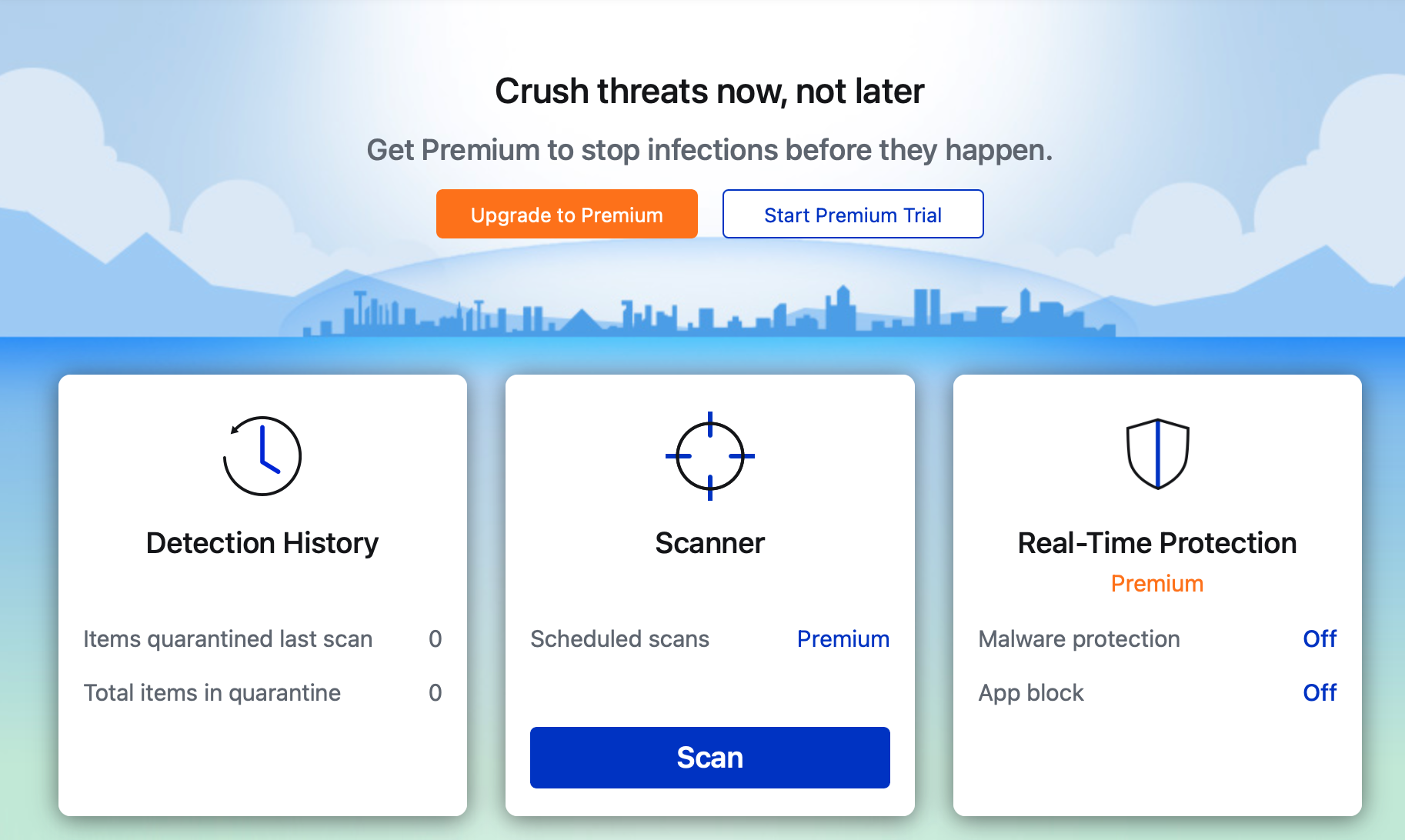
Malware testing is one of those things that is also included in Microsoft software. But in this case I find that there is a better solution. I fully recommend Malwarebytes. Malwarebytes is a free software program that will test your machine for malware that’s been installed. This software does about the best job of any thing I’ve ever seen. While there is a paid version of it, the paid version difference is that it just runs automatically in the background. As long as you have the wherewithal to run it every couple of weeks to test your machine, I don’t recommend the need to pay for it.

Scan Your Computer Using Malwarebytes

Malwarebytes Anti-Malware is a tool that allows you to scan your computer to find and remove malware like viruses and spyware.

To start your first scan, click [Scan] after it opens.

The scan may take several minutes.
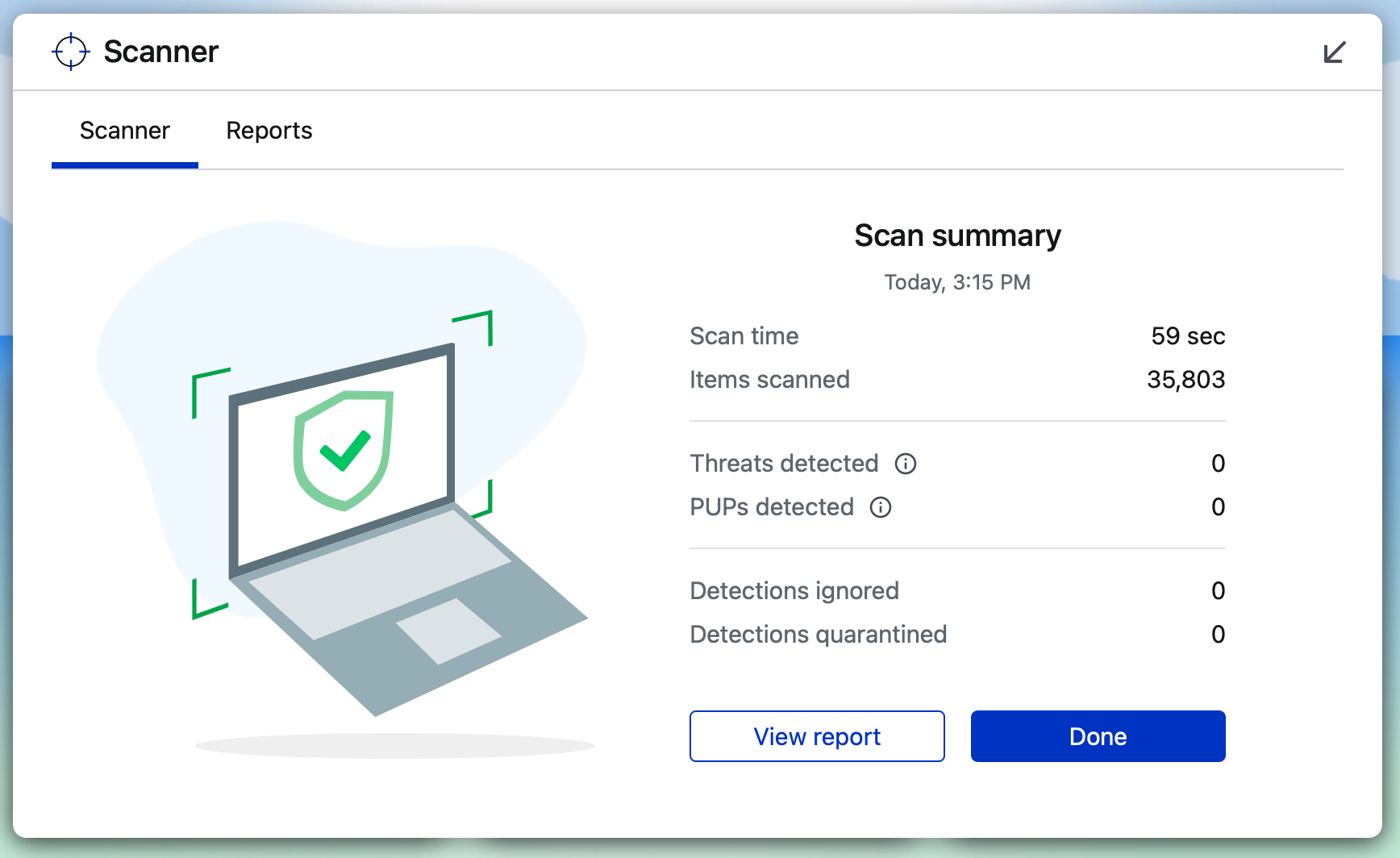
Malwarebytes Anti-Malware will now start scanning. When the scan finishes, a screen will show any malware that was detected, if any was detected.

What Do I Do if MalwareBytes Finds Threats on my Computer?
If malware has been found on your computer, you may remove it by following the prompts within MalwareBytes once the scan is finished to view the report and to quarantine the threats. To manage them quarantined threats after a scan has already been completed, click [Detection History] on the main page. Once the scan has been complete and the threats have been quarantined, the system may require you to reboot the computer. When the computer restarts, do another scan to verify that there are no continuing threats.

Update Malwarebytes
To update Malwarebytes once it has already been installed, do the following:

Launch Malwarebytes.
On the launch page, click the gear icon in the top-right corner to view the settings. Click the [About] button on the far right corner. The currently installed version of MalwareBytes will appear on the left. Click the [Check for Updates] button to check for updates. If no update is found, you currently have the latest version installed. If you are prompted to install an update, install the update and do another scan on your computer.
After Malwarebytes has been updated, scan your computer.

Scan Your Computer
To scan your computer with Malwarebytes Anti-Malware after your initial scan, do the following:

Launch Malwarebytes.
Make sure Malwarebytes is up to date (see above).
Click the [Scan] button.
Let the scan progress. If threats are found, follow the prompts to quarantine the threats.

You now have successfully scanned your computer using MalwareBytes.

Windows 10 Settings and Controls

Many people who move from Windows 7 to Windows 10 have trouble changing system settings for their new operating system.  Windows 10 has its settings located in a different place than Windows 7.  But if you know how, you can continue to use Windows 7 style control panels to make settings changes.

And Now, The End is Near……

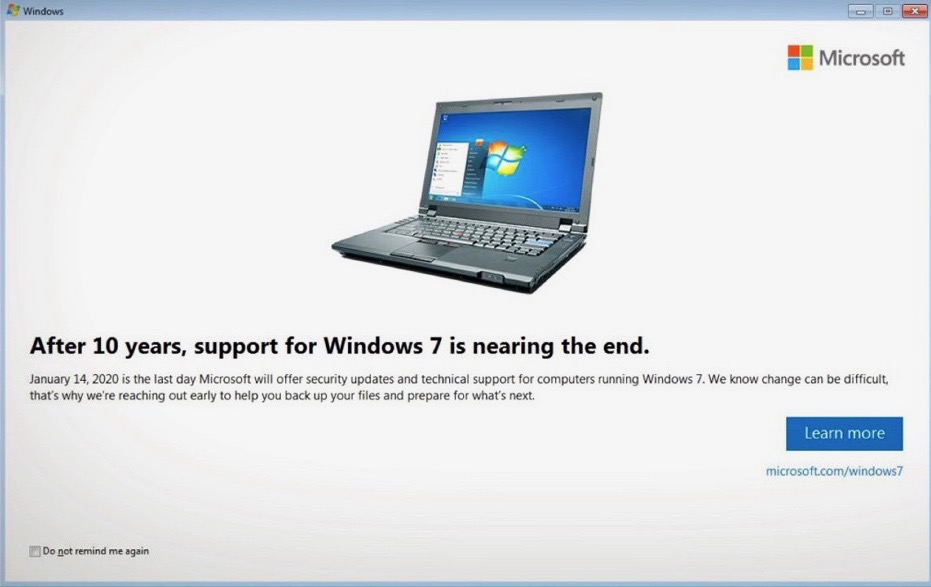
Beginning this week users of that venerable old operating system Windows 7, willl begin seeing prompts such as this at random intervals. Microsoft has been clear that the day of Windows 7 has passed and its time to begin to plan for the end.

As I work with users of Windows 7, I have certainly heard it all.  “I just like Windows 7”; “I don’t want to learn anything new”; “I heard Windows 10 had lots of bugs”; “I don’t want to change”, the list of excuses in endless.  But the time for excuses is gone.

What does the end of support mean to you

Ending support means Microsoft will no longer provide updates or security patches for Windows 7. So, as time passes, Windows 7 will likely become the main target of hackers.  More and more malware will be targeted at Windows 7.  If you are a user of Windows 7 at home, it likely may not mean much to you.  If a hacker destroys your operating system you may only lose your music library and all your pictures of your kids.  That’s not a problem because you have a good backup, right??  But if you are a business user, the elimination of security patches is critical.  You may end up exposing your customers data to hackers, cause a network wide infection, or have your computer crash at the wrong time.

There was a point in time when Microsoft made Windows 10 available for free to Windows 7 users but that time has past and Microsoft has shown no direction to give it away for free again. Your options are clear:

  1. Update to Windows 10 on each machine for a cost of between $139 and $199 depending on the version you need.  And don’t forget the labor cost to install it.
  2. Replace your computer with a new Windows 10 machine (or maybe a Mac)
  3. Take the risk that you won’t have any problems

The choice is yours…. Well maybe.  If you work with data that must be kept secure such as HIPPA information or SEC data, you may not have any choice at all.  Regardless, does it really make sense to update a machine that is a minimum of 5 years old when new replacement office machines may cost between $500 and $700 dollars?

So plan now and beat the rush. January 14, 2020 is the date and the clock is ticking.  It’s time to face the final curtain for Windows 7.  It was a long run but all good things come to an end.


Bottom Line: Don’t Update Flash Player

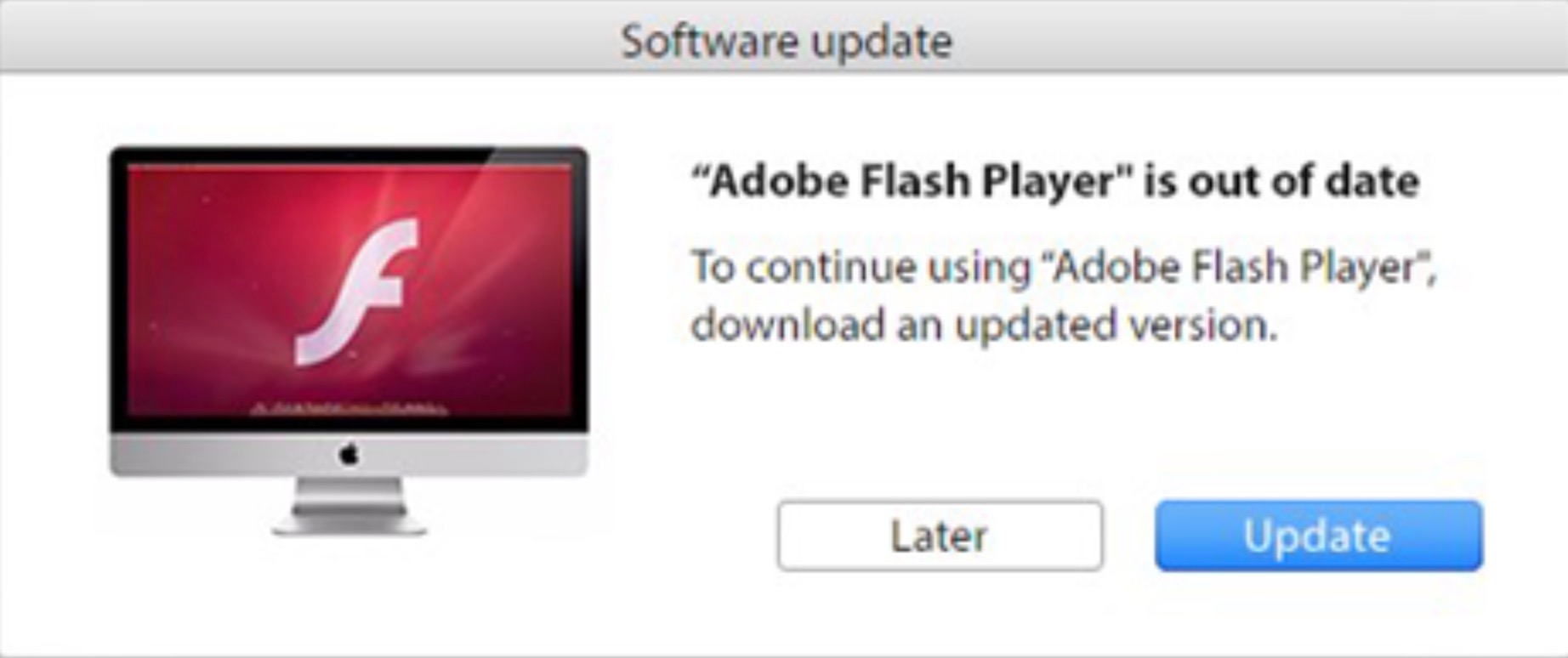
OK folks, it’s worth saying again, there are no dancing kitties or laughing dogs worth the risk of accepting an update to flash player. This specific post is going to cover updating your Mac flash player, but the same goes for flash player on the PC.  The only way to ensure that you don’t get caught from a scam flash player installer is to not update flash player.  

Analysts say that the the number one way that computers, particularly Macs get infected with malware is through flash player updates.  It usually happens like this. 

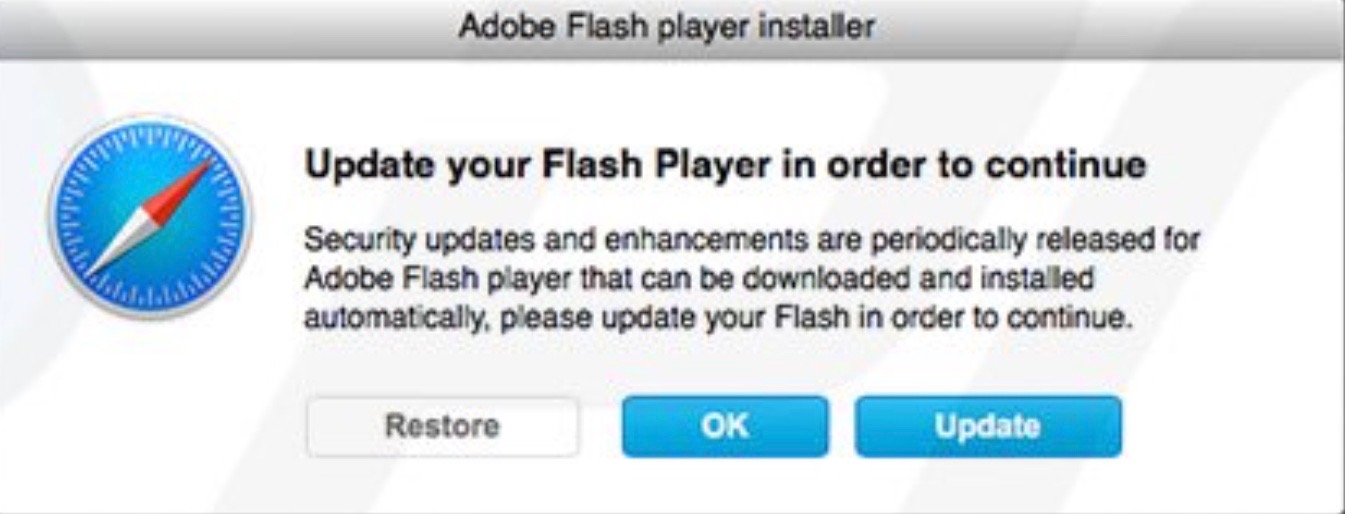
You’re surfing the web, perhaps looking for entertainment or searching for a product you want to purchase at a great price. All of a sudden you get a prompt that pops up telling you that your flash player is outdated and needs to be updated. This prompt looks completely legitimate. It looks just like the prompts from Adobe that you seen in the past.  But what you don’t realize is that it is truly a phishing scam it’s designed to look like a standard update.  If you click update, guess what? You’ve just infected your Mac with malware. Very likely you won’t even notice for a while because these type of infections typically download what’s called a “stub“.  This small program will run in the background and download other malware on to your machine. Perhaps it will change your homepage in your browser, maybe it’ll change your search engine to a search engine that looks just like Google but isn’t.  Maybe you’ll begin seeing pop-ups every once in a while. These are all signs that one click has infected your computer. 

This process is very similar on a PC. But typically, malware installed on a PC is much more advanced and can often search your computer for personal data and send it off to some website in the sky.

The answer is simple. Eliminate flash from your life. Resist the idea of installing, or updating flash on your machine. It just isn’t worth it. The risk of being infected from some of these flash player update prompts is much greater than any value you get from a little flash video.  You see the truth is, developer is no longer develop legitimate applications in flash. It’s old technology, it’s far from secure, and there are much better tools to develop anything current. 

But, there are millions of existing flash developed apps still out there on the web. Many of these are games that were developed 15 years ago when it was the only technology that would allow you to move things around on the screen easily. Even more might be ad platforms that allow people to use a JPEG and a link to purchase placements on legitimate websites. Whatever they are, the ability for you being able to see these is nowhere near worth the risk of problems installing flash player updates can cause.  

If you ever see prompts similar to this, ignore them. Move on.  There is plenty of content on the web for you to be able to see that doesn’t require flash player.

Often times, I finish a discussion such as this by describing the correct way to update your flash player. But I’ve recently seen so many of these infections on peoples Macs That I just can no longer recommend using flash at all. I’m sure you can search the web and find the correct way to do flash updates but my recommendation to you is to forget about flash, and forget about those puppies and kitties that often times lure us into clicking on things that hurt us.