Why do my iPhone text messages show in different colors

photo 1If you use an iPhone You may have noticed that sometimes when you send a text message, the text is in blue and other times it’s in green.

Apple is introduced iMessage as a tool for sending text messages. iMessage uses the Internet, or your data service, to send text messages rather than using text services provided by your cellular provider. This way, texts do not cost you when you send them. But iMessage also allows people using Macs to be able to see text messages coming in by using your iCloud account.

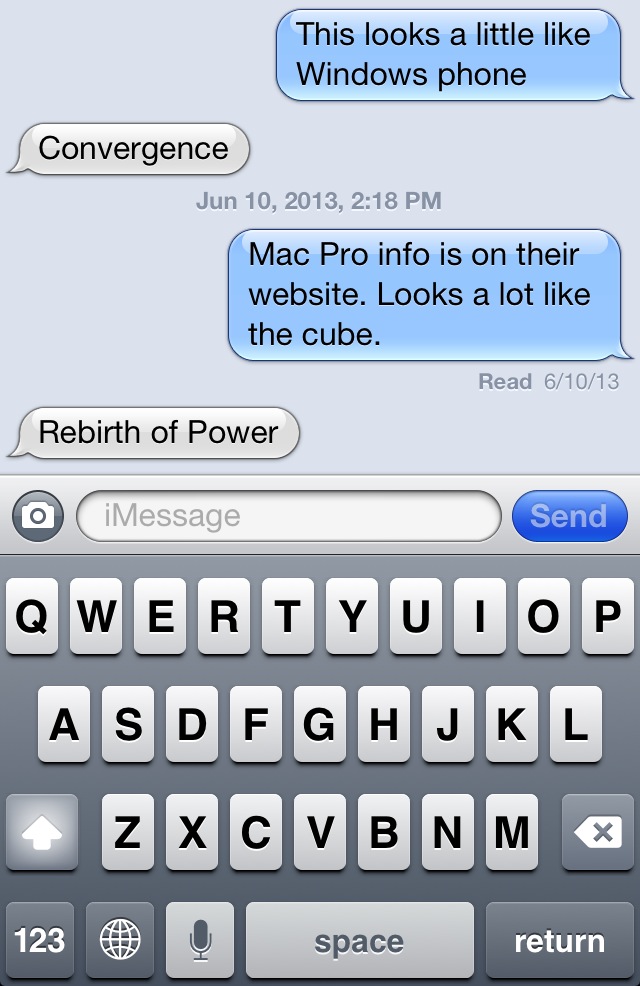
If you tie your iCloud account to your phone messaging application, a text message sent from your phone will also go to iOS devices and Macs that are logged in to iMessage. Apple indicates an iMessage connection between two devices by showing those text messages and blue. So if you’re using I message and the person you’re sending two is also using I message them those text show up as blue text.

The other benefit iMessage provides is that it  is two-way conversational. Once you send a message, below that message you’ll see the word delivered. That says that the message you sent made it to the other person’s device. When the other person looks at the iMessage Below the message will change from delivered to read. This way I text conversation between two people in iMessage allows you to track when the messages received and when the person looks at it.

photo 2But what if a person doesn’t use I message or you’re sending a text message to someone on a different style phone. That’s why the text you sent sometimes look green. If the text messages being sent using your cellular provider’s text messaging system, the message shows up as green.

The extra benefits of being able to tell when a message is delivered or read makes iMessage a great tool.  Unfortunately both you and the recipient must be using a Mac or an iOS device for this to work.
Posted in iOS

Logitech Harmony Smart Control: The one to Purchase.

Harmony 1Universal Remotes.  I can personally remember 4 different ones I purchased over the years.  Some as simple as a universal Sony remote about the size of a hard backed book that did a good job with simple on off and channel commands.  Others as complex as a Harmony remote with a screen on it that was programmed by a USB cable.  All sort of worked.  None really worked well.  That all changed with my purchase of the Logitech Harmony Smart Control.  Finally. I have found a smart remote that I feel can put all my other remotes in a drawer.

What makes this one so special?

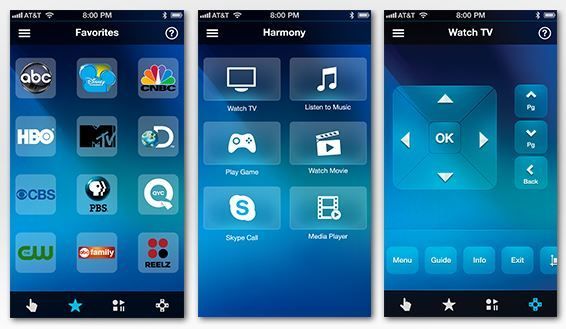
How many people sit on the couch to watch TV these days and have their iPhone or iPad right at their side.  Logitech takes advantage of this with this new remote product.  ALl programming of the remote is done through your iOS device.  And yes, Android is also supported.  Using the Harmony app (free from the Apple app store)you connect to the device and program it from the web.  You simply follow the prompts, make selections of the brand and model of devices you have, tell it what port the device connects to the TV on and it all gets programmed for you.  It even creates shortcuts to common activities like Watch a Movie that can turn on the TV, turn on the Blu-ray player, and set the correct connection port.  All of this happens from the push of a button.  This integration with iOS makes getting the remote to control all your devices very easy.

Not only will it control all your devises that use an infrared remote, but the unit has Bluetooth built in so it seamlessly addresses devices like the PS3 game console that uses Bluetooth.  Unfortunately for my aging Bose system, it does not do Radio Frequency (RF) devices.  In addition, this device handles the AppleTV very well.  Other units make it hard to access the menu button but this one maps it automatically for you.  Everything is seamless.

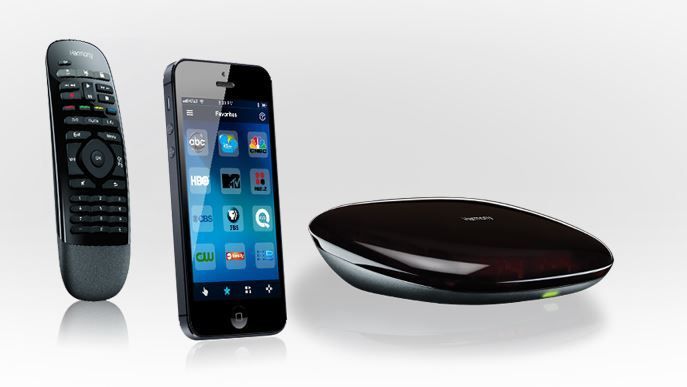
Harmony 2With this unit, you can easily control your home theater devices.   Anyone in the house can download the Harmony iPhone or Android app turn their mobile phone into a personal universal remote control, including 50 favorite channel icons and gesture control.  When your mobile phone is not available, you can use the included simple remote control. It lets anyone in the family change the channel and adjust the volume.   Simply press one button to switch to favorite activities, like watch TV or play a game.

It controls what you already own.

Logitech says you can consolidate 8 remote controls into one simple mobile app. Harmony is compatible with over 225,000 home theater devices. And unique to Harmony is their patented Smart State technology, which remembers your devices’ power and input settings and automatically adjusts them based on what you want to do.  If you are unsure if your device is supported, Logitech provides a great presale site to check.

Here is the best part of this product.  It’s reasonably priced for a smart remote.  Priced at just $129, it is a universal remote that I can finally recommend to people.

Mac Utopia for Printing from your iOS Device

b5384659-e759-4b52-8fe2-114f8aa2f887One question I get asked often is how do I print from my iPhone or iPad to my printer. This sounds like a simple request but in fact, the ability for these small for factor devices to send a print is a little more difficult than for a computer to do the same task.

Apple created these small devices with the intent for them to be fast and agile. As a result, it tended to design functions like printing so that it off loaded some of the computer processing power to the printer rather than requiring the device to do it. When Apple prepares a print job from an iOS device, it creates it in a single universal format. Unlike computers, where drivers for specific printers need to be loaded to allow them to print, Apple uses only one generic universal format for its print output file. When a print job is created on one of these devices, the file is quickly prepared in this universal format and then sent to the printer to have it process into the native format the printer expects to see. So that ends up being the problem for printers. If they do not know how to handle and process the file into the format they need, they cannot print from these devices.

When Apple introduced printing they designed a device standard called AirPrint. AirPrint designates a printing device that has the ability to do this conversion and thereby is supported for printing from any iOS device. If you are looking to purchase a printer today, looking for a printer that supports AirPrint is a great idea. This way, these newer printers support iOS printing right out of the box. But what if you already have a printer and don’t want to replace it at this time?

This is where third party products come in to play. If you have a Mac, the one I would recommend is called Printopia by ecamm.

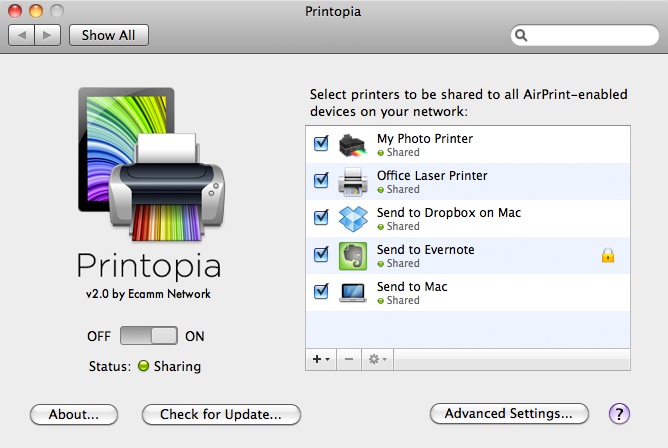
Printopia acts as that middle man between your iOS device and a printer. It does this conversion from Apples universal format to the native format for the printer. Printopia is a small piece of software that runs on your desktop Mac and processed these print jobs into a format the printer wants to see. It is simply installed on your Mac that already has access to the printers you want to use. Every printer that is installed on the Mac is made available to iOS through Printopia.

Once you install the software, it senses the printer drivers already installed and creates a connection to serve iOS devices. It really is that simple to install.

The only requirements are for this to work are that your Mac needs to be on so it can process these print jobs and it needs to be on the same network that your iPhone or iPad are connected to.

You can also save Paper With A Printopia Virtual Printer. This lets you “print” a file directly to your Mac or even send files directly to a Mac app such as iPhoto and Evernote. No need to waste paper next time you need to print a confirmation page. You can even send the file Print the file directly To Your Mac’s Dropbox Folder.

Printopia works With Leopard and even works on PowerPC Macs so that Mac OS X 10.5 and PowerPC Mac users won’t get left out in the cold. s. Purchase only if you like what you see. Have questions? Send us a message, and we’ll write back as fast as we can.

Printopia costs only $20 and is a great way to easily enable iOS printing in a Mac environment.