
When I try to eject my USB drive, why does my Mac think files are in use?

Screen Shot 2014-05-01 at 1.42.26 PMHere’s one that I bet has happened to most of us. You insert a USB thumb drive in your Mac to copy some files off. You copy those files off to the Mac and then immediately try to eject your USB drive.  Your Mac tries to reject the drive but finally comes back and tells you that the drive and use or some files on the drive are in use.

The situation has driven me crazy for years. But the reasoning behind what’s happening perfect sense. One of the great features of a Mac is that all your data is indexed to give you the ability to find things quickly. The software on the Mac that does this index is called Spotlight. Spotlight, being very efficient, immediately begins to index any new drive it finds plugged into your computer. USB drives, particularly solid-state drives like thumb drives are often very slow.  It takes a while to read and write files to these drives. What often happens is that Spotlight has begun indexing that drive and when you try to eject it the Mac sees files on the drive in use and refuses to eject the USB drive.

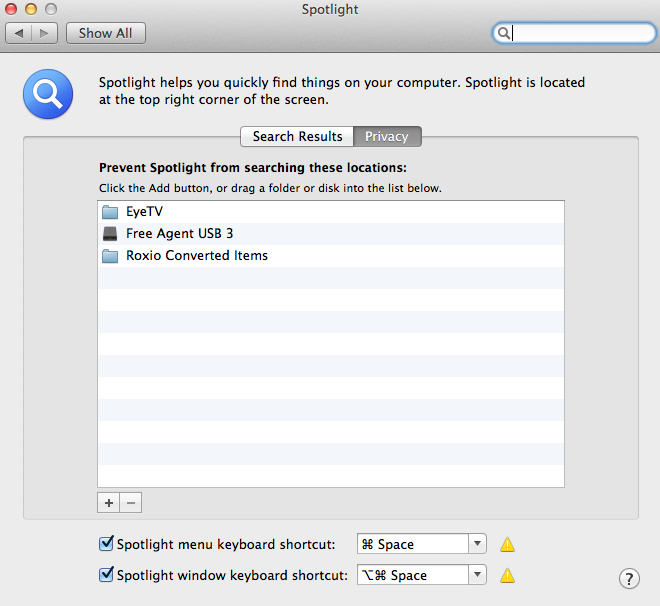
The solution to this is actually fairly simple particularly on a machine that you often Screen Shot 2014-05-01 at 1.42.12 PMplug the same drive into. All you need to do is go to system preferences and select spotlight. At the top of the Spotlight dialog is a privacy tab. Click on the privacy tab. Now you can press the plus icon near the bottom of the dialog and add your USB drive to the list of drives you don’t want spotlight to index. Even easier, you can simply drag the drive over-the-top of the Spotlight privacy tab and drop it. This adds your drive to the do not index list.

Now when you insert the USB drive, you can just drive copy files and then eject it.  Spotlight will not have started trying to index it and the drive will eject quickly and easily.

iTunes won’t let me Authorize my computer to Play my Music.

This often occurs after you have installed a new machine.  If you failed to reauthorize your old computer, iTunes believes it is still using your music library.  Many times, if you have authorized less than 5 machines, you just let it use another authorization.  But once your 5 authorizations are used up from PCs or Macs, it no longer allows authorizations.

The solution requires you to reauthorize all your machines and reauthorize the ones you still use.

After you authorize more than one computer, you’ll have the option to deauthorize all computers for your Apple ID. You can deauthorize all computers once a year.

You won’t delete anything if you choose to deauthorize all computers. You just won’t be able to play content that you bought from iTunes on those computers.

Here’s when you should deauthorize all your computers:

  • If a computer doesn’t work anymore
  • If you don’t have one of your computers
  • If you used 5 authorizations and want to authorize a new computer

To deauthorize all your computers, follow these steps using one of your authorized computers:

Open iTunes and click iTunes Store

.ht1420--signin--en

Click Sign In and enter your Apple ID

ht1420--username--en

Click your Apple ID and select Account

Click Deauthorize All

HT1420--deauthorize-all--en


After you deauthorize all, you can easily authorize computers again one by one. Just follow the steps to authorize a Mac or PC.


Mac Mail: Removing people from the TO: Menu

Screen Shot 2014-04-22 at 10.59.20 AMHave you ever been sending an e-mail message on the Macintosh from mail and noticed that to: selection listed many e-mail addresses and people that you no longer send to? Mac mail remembers a list of people that you have received mail from or sent mail to and populates them in the to: List to assist you in sending Mail without having to type in the full e-mail address. But over time, this list gets very large and ends up showing more people to send to that you ever would want.  Removing names from that list is simple if you know how.

Screen Shot 2014-04-22 at 10.59.01 AM

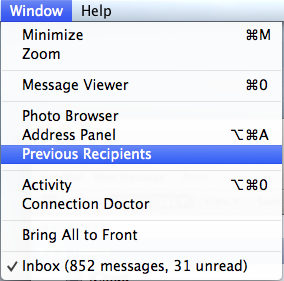
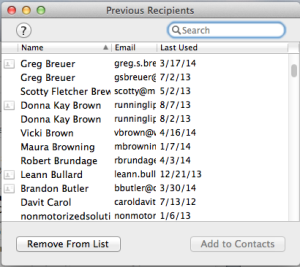
With mail loaded, go to the window menu and select previous recipients. This will bring up a list of all the e-mail addresses that mail has automatically retained for you. From this list you will see the name, E-mail address, and the last time you’ve use that address. You can select any one of these and click remove from list button. Some of these names Will have a small index card icon in front of them. The significance of this icon is that this e-mail address and person is listed in your address book or contact list. If you choose to remove one of these from the list, keep in mind that address will still be retained in your address book unless you remove it there too.

Using the previous recipients dialog, you can easily clean up the list of addresses that mail uses to assist you in sending mail.

How do you know so many answers to tech questions?

Screen Shot 2014-03-06 at 4.14.17 PMMany people ask me how I know so many answers to tech questions.  Part of what I know is how to perform a good Google search.  Here are some tips from the Google Support site on how to do a good Google search.

Tip 1: Keep it simple

No matter what you’re looking for, try to start with a simple search like [where’s the closest airport?]. You can always add a few descriptive words if necessary.

If you’re looking for a place or product in a specific location, add the location. For example, [bakery seattle].

 Tip 2: Search using your voice

Tired of typing? Click the microphone icon in Chrome’s search box to search by voice.

Tip 3: Use web friendly words

Use words that are most likely to appear on websites. For example, instead of saying [my head hurts], say [headache], because that’s the word a medical site would use.

 Tip 4: Don’t worry about the little things

Spelling. Google’s spell checker automatically uses the most common spelling of a given word, whether or not you spell it correctly.

Capitalization. A search for [New York Times] is the same as a search for [new york times].

Punctuation. Most punctuation, like ?!,.%^*()[]\, is ignored when you search.

Tip 5: Find quick answers

For many searches, Google will do the work for you and show an answer to your question on the search results. Some features, like information about sports teams, aren’t available in all regions.

Weather. Search [weather] to see the weather in your location or add a city name after Weatherweather to find weather for a certain place.

Dictionary. Put [define] in front of any word to see its definition.

Calculations. Enter a math equation like [3*9123], or solve complex graphing equations.

Unit conversions. Enter any conversion, like [3 dollars in euros].

Sports. Search for the name of your team to see a schedule, game scores and more.

Quick facts. Search for the name of a celebrity, location, movie, or song to find important information.

Device Independent Applications: To Do List

Evernote Camera Roll 20140302 151252

We all have to many things to do. It’s difficult to keep track of all the things we often have to do. Many of us she’s calendars to keep track of when things need to be completed, others of us make lists. I personally like to use a to do application that helps me organize my thoughts into things that I need to do in the future. Most platforms have some type of a to do applications available on them. Many come with one built into the device. But since I use many devices, in many platforms, I want to have the ability to be able to have my to do list accessible wherever I’m working. It’s also important to have this list available through a web browser, in case I’m working on a computer that I don’t have an application installed.

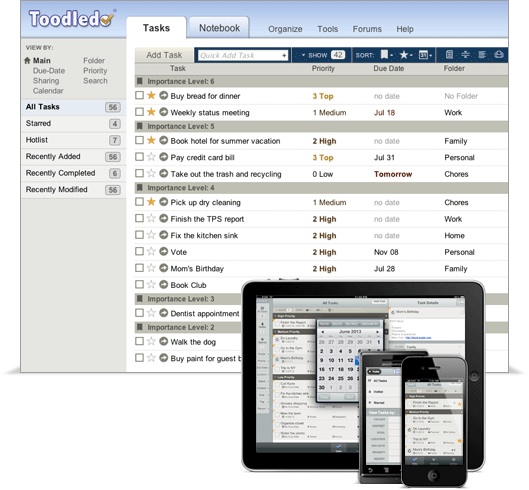
I’ve looked and tested many of these applications. The one that I’ve selected for use is called Toodledo. Toodledo is a very powerful to do list that’s available in many platforms that I use every day. The greatest benefit of the application is that I can use it directly from a web browser any time. There’s also an application available for iOS that I use daily. Here are a few things that they say they can do from their website:

  • Organize Your Tasks – Use folders, tags, contexts, subtasks and more to organize, search and sort through your tasks.
  • Improve Your Productivity –  Toodledo’s hotlist, customizable alarms, and sortable online to-do list will help you remember to complete tasks on-time.
  • Go Anywhere –  Get Toodledo on your mobile phone, in your email, on your calendar, integrated directly into your web browser, and more.
  • Collaborate –  Easily work with other people on shared projects with Toodledo’s collaboration tools.
  • Customize – Select fields you want to use and define how you want to view your tasks. Toodledo is incredibly flexible and customizable.
  • Import Your Existing Tasks –  If you already use a task manager, import tasks from many sources.

Some of the other features of Toodledo that I use all the time include the ability to set a date of when a task needs to be accomplished. You can then creates a calendar that I can map into my regular calendar showing me when all of these tasks need to be accomplished. When I go to the application and check off an item ias being done, it removes it from the list and from my calendar too.

While a lot of people may feel that the application on their phone for todo lists is plenty good enough for them, I feel that having a more universal application that I can use from anywhere provides me a great benefit.

Toodledo is free to use. Like most services they provide a premium version that gives you additional features. Take a look at Toodledo https://www.toodledo.com/index.php. and see if using a more universal to do application makes sense for you.

Draw Charts In Your Web Browser Using Lucidchart

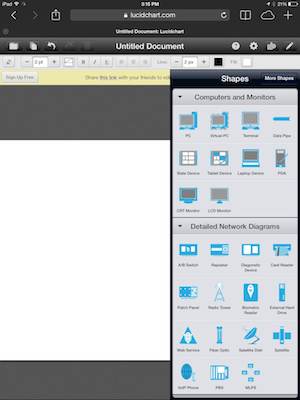
lucidEvery so often I have the need to be able to draw a flowchart. It could be a diagram showing connectivity between computer systems, or just the direction and flow of data in the data processing system. While there are many tools that can provide this service, many of them are expensive and are difficult to work with. In another career, I used Visio to be able to do this type task. Visio is a great Microsoft tool that allows you to draw charts. Unfortunately, Visio is not part of the standard office suite, and also does not have a Macintosh counterpart.

I’ve looked at tools to be able to do this on the Mac like OmniGraffle. OmniGraffle is a terrific tool that allows you to do just exactly this. But I’m regretful it’s not inexpensive. They do have a great iPad app but again it is not cheap. I would recommend that if you need to draw charts like this all the time on the Mac, this is definitely the tool to use. But I do this only once in a while. I hate to spend this type of money to only draw a few charts year. While doing some web searching for a tool but might be inexpensive, I ran into Lucidchart.

Lucidchart Is a web-based chart creation tool. It’s functioning features make you believe you’re actually running a full application on your computer or on your iPad. Because it’s completely web-based, it’s cross-platform too. You have the ability to be able to use it on Windows Mac or even on the chrome book. In fact chrome is the main location that they recommend using this application in. You can pay for Lucidchart by the month, or if you’re charging needs are minor you can use their free version that allows for up to 60 objects created for chart. For my needs this basically fits exactly what I need to do.

One thing you’ll find if you give it a try is after using it for a few minutes you’ll believe you’re actually running a full application, not something in a web browser. This application is been implemented so cleanly that I can actually easily drag, move, and change objects on the fly. It also gives you the ability to be able to export to a PDF or even to the Visio chart if you want to move to Visio to finish up your drawing.

If your need to draw flowcharts is simple, I highly recommend you give this application a try. When you sign up, you get to sample the full version for a number of days and then it reverts to the free release.

Device Independent Applications: Notetaking

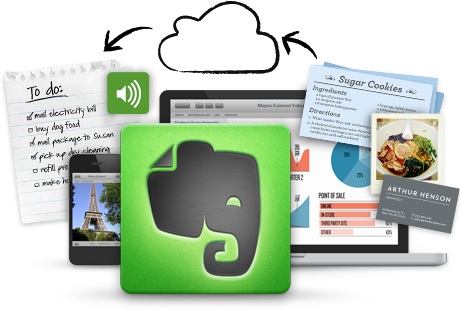
Evernote Camera Roll 20140302 145628If your fond of using a tablet for many applications, one of the first things you run into is the need to be able to take notes. These days, all operating systems include a note taking application. Whether you’re running iOS, android, Mac, or Windows, each operating system provides its ability to do notetaking. But many people need the ability to have a universal notetaking application that can be used on both computers and on tablet devices. Over the years, I’ve tried a number of these and I have finally settled on the use of Evernote.

Evernote is a notetaking application that can be used in a web browser or on literally any tablet or computer platform available today. On the Mac, Evernote can be downloaded for free from the app store. On iOS it’s also free in the iOS app store. There is also an application for android, windows, and Evernote can also be used directly in a web browser. This ability to use an application cross-platform gives you the ability to move notes back-and-forth from wherever you happen to be working at the time.

I often use my iPad, and Siri to be able to speak my notes into Evernote. Evernote like many applications on the iPad supports this seamlessly. I open up Evernote, create a new note, and then basically just speak the information I need to take notes about. Evernote provides a lot of additional abilities too. You have the ability to be able to import documents directly into Evernote. You can move the text in easily through cut-and-paste, or you can simply embed the document. By embedding the document in an Evernote note, you have the ability to be able to edit that in the native application that created. Evernote also has the ability to be able to insert pictures, charts, graphs, or basically anything that you can think of.

There are also web browser extensions that allow you to select text directly in a web browser and create a new note from that text. It supports embedding Internet links in the note so that they can be clicked on directly and take you to a webpage. You have the ability to embed photos directly from the camera on your device or from your camera roll. Evernote has the ability to use text markup such as bold italic and underline and also create number or bulleted lists. In many ways, it could be a wordprocessor for many people.

You can create and name notebooks which you can move documents into, or create new documents directly in  notebooks that you have. This provides a great ability to be able to organize your notes into subjects that you can retrieve at a later time.

Best of all Evernote provides this service for free. Evernote also provides an inexpensive premium service that gives you the ability to search inside PDF documents, and also Store your notebooks off-line, giving you the ability to be able to use Evernote without an Internet connection.

If you’re tired of the note taking application that’s included in your device, or if you’re looking for something more universal with more features, take a look at Evernote. I believe it’s the best product on the market today and I use it nearly every day I work.

Protect your home with Nest Protect

IMG_0009By now, most everyone must of heard of Nest. Nest is a company famous for their Nest thermostat. This thermostat connect to the Wi-Fi in your home and give you the ability to modify thermostat settings from any place that you have Internet access. It also provides a great deal of intelligence related to setting schedules for thermostat.

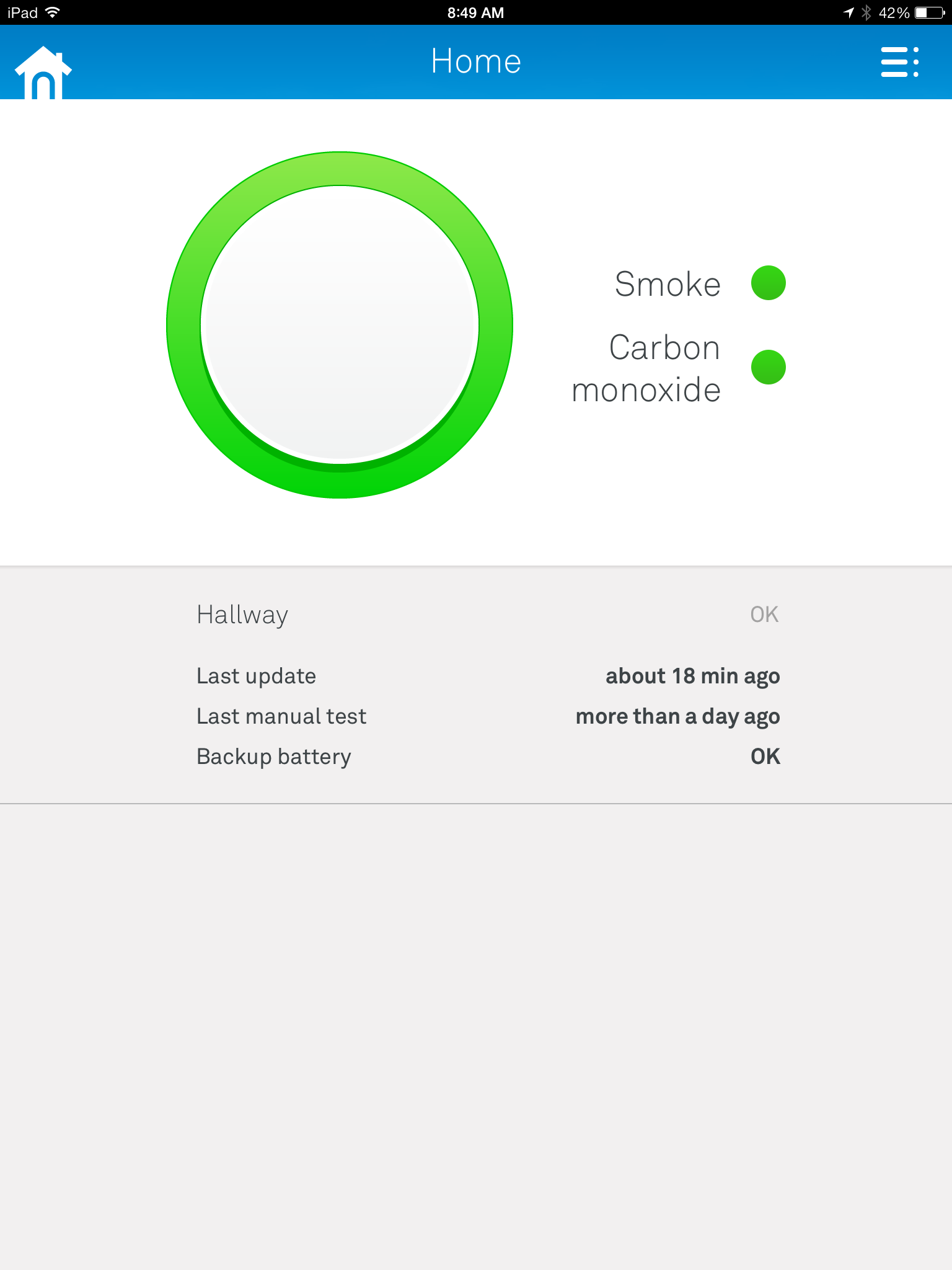
Nest’s latest product is called the Nest Protect. Protect is a connected smoke alarm and carbon monoxide detector. Similar to the nest thermostat, the nest protect connects to your Wi-Fi network and provides the ability to monitor smoke and carbon monoxide detection within your home.
Protect is easy to install. Actually it’s quite a bit easier than the thermostat.  Prior to installation you must decide which model of the unit you want to purchase. Nest provides both a wired connected device and a battery only device. That’s not to say that the wire device doesn’t also have batteries, it does, but the battery only unit does not connect to electricity. You also have to determine whether you want the light color or the dark color version of the device.
IMG_0007Once your protect arrives, it’s extremely easy to install. I installed the wired version in my home.  You begin by removing the existing smoke alarm in the house. My particular alarm was a three wire connected unit a positive, negative, and interconnect wire.  Since nest connects with Wi-Fi, the interconnect wire is no longer necessary.  The installation process wires the two wires in to the unit and mounted to the wall.
Next you run the test on the unit to make sure it’s functioning properly. The test provides audible information from the speaker in the unit in addition to tones that identify both smoke and carbon monoxide. Running the test allows you to understand what the different tones sound like. An LED light ring on the box also provides information about what type of an alarm is being sounded.
After running the test, you connected to your nest account. After updating the software onIMG_0007 my iPad, I simply press the add device button and walked through the process as it found the protect and connected it to my nest account.  Now that it’s connected, the unit works in conjunction with my wireless network to provide me information in case an alarm sounded.
One intriguing feature of the alarm is that in case of an alarm sounding, it has the ability to both text or email me letting me know if I’m away from home that the alarm is going off. The unit also has the ability to like the way if the alarm is sounded by using white LED light through the light ring in the front of the device.
If this entire process sounds simple, it was. Installing the protect took only a few minutes and provides that additional peace of mind.  Is bad as it is to say, I did not have a carbon monoxide detector in my home and all. The nest protect gives me that in addition to much more fruits connected technologies.
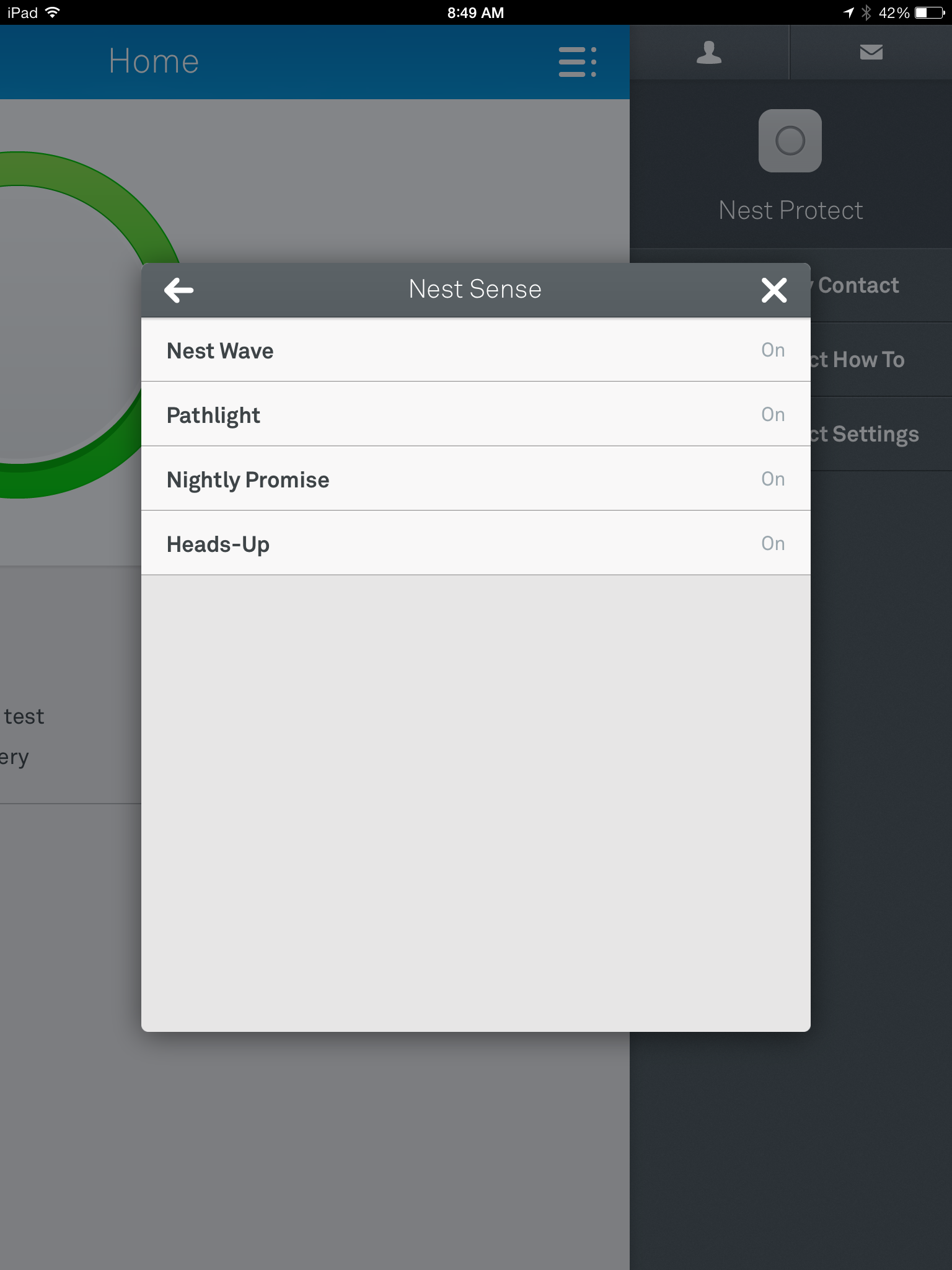
IMG_0008From the first time I installed a nest thermostat, I love the technology the company uses. They make things extremely easy to understand, and provide great features in a connected method through both iPhone iPad or any android device, and through the Internet in a web browser.
I’m happy with my installation of the protect. I also look forward to other devices for the home that nest may come out with in the future. I believe this company really understands home connection information and I look forward to them providing other additional devices that can connect my home to me whether I’m there or not.

Adding Security to Documents

Sometimes you create document that you want to provide some security that other people cannot see what’s in the file. Perhaps it’s a list of passwords or security information or it may be something like your Christmas list that you want to make sure your kids don’t have access to. Many applications give you the ability to add a password to an individual file and require that passwords use for the file open.  Some of these applications make it very simple to add a password while others work just as well but are a little more difficult to get it set up.

Let’s look at the process for adding a password to an Apple Pages, Numbers, or keynote file. Apple tends to make this process very easy.   They even add a pulldown menu item that allows you to provide a password for the file. You can save these files either and iCloud or on your hard drive but you must remember the password to be able to have access to open them.

Apple iWork

For this example also some screenshots from Numbers. The other two applications making up Apple’s office trilogy suite work exactly the same.

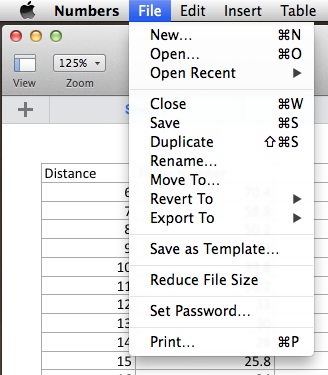
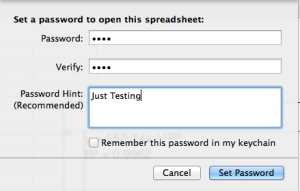
Screen Shot 2013-12-06 at 7.25.59 AMBegin the process by opening your document.  We are ready to add the password to the document simply select set password from the file menu. A drop down properties tab will open and give you the ability to enter the password, verify the password, and provide a password hint.

There is also a checkbox that allows this password to be saved your  Keychain file. If you check this box your computer will automatically open this file without requiring unit in the password. If the intended this is to continue to use the file on the same computer, it probably doesn’t make much sense to save the password any keychain. If you do anyone will be able to open the file on your computer. This still provides the ability to send this file to someone else and require them to know the password.

Screen Shot 2013-12-06 at 7.26.32 AM

Removing the password is simply as easy as repeating the process, keying in the password, and choosing the remove password button.


Microsoft Office

Microsoft also provides the ability to password protect files. These passwords are cross-platform so if you send the file to Windows user from a Mac or to a Mac user from windows password is left intact. Microsoft makes it slightly more difficult to set a file-based password but they do provide a nice help document that can walk you through it.

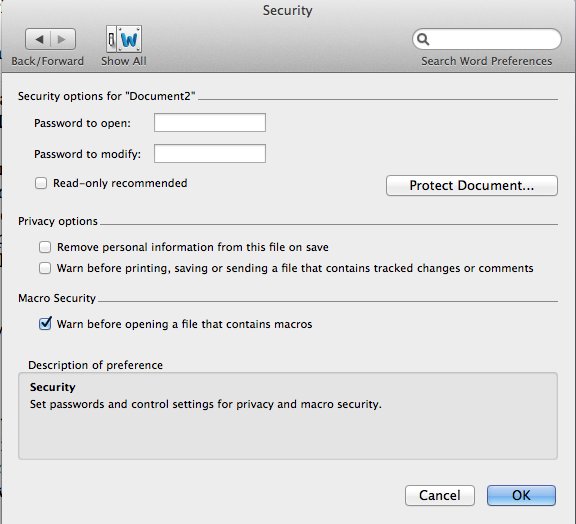
Screen Shot 2013-12-06 at 7.41.28 AMThe Process is very similar for Microsoft Word, Excel, and PowerPoint. We will use the word for this example.

Open your document in Microsoft Word. From the menu bar select preferences. Preference is divided into multiple categories. You need to select the security item under personal settings. From this dialogue you have the ability to set a password to be able to open the file and a separate password to be able to modify the file. This could be very handy if sending a file to someone else to review. You can set a password to let them look at the file without giving them the ability to change anything.

Other applications in these two application families work very similarly.

Sometimes security document is a necessary evil. The application you’re using today likely give you the ability to do this. Give it a try. But be warned, don’t forget the password!


Preparing for Major Operating System Upgrades

computer-upgradesOctober looks to be shaping up to be a big month for operating system upgrades. Microsoft has announced it on October 18 Windows 8.1 will be released. While Apple has not yet made an official announcement, there seems to be a lot of conjecture that OSX Mavericks will be made available in October also.  Many people quickly jump in and perform the upgrades without thinking about any preparation. Preparing to make one of these major upgrades is often a good thing to consider.

Regardless of which operating system you use, performing a major upgrade often puts your data at risk. While both Microsoft and Apple do extensive testing on their major operating system upgrades, often times things can go wrong very easily. Apple has the benefit of having a more closed environment so that it can test its operating system among many machines and many platforms to ensure that the upgrade go smoothly. On the other hand, Microsoft, which supports many more machine types and many more upgrade possibilities, has a more difficult time in testing these major upgrades. That’s not to say that either company doesn’t do everything humanly possible to ensure that their upgrade go smooth. It just says there are many possibilities that are hard to account for and doing testing.

So what’s the average user to do to ensure that their upgrade goes well. A little preparation upfront, and ensuring that your backup is up-to-date are the major things that you want to accomplish.

imgresWindows 8.1

More than a year in the making, Microsoft has been preparing for a major upgrade to windows. Since Windows 8 was released, many reports in the press have paned it as a poor operating system for the average user.  In post I made this blog, I’ve explained how Windows 8 is a fine operating system but only if you have a touchscreen machine. Unfortunately that recommendation doesn’t change much with Windows 8.1. Microsoft has spent a lot of opportunity to upgrade this operating system to take care of many things that people of complained about. Unfortunately the ability to use it on a non-touchscreen machine really hasn’t improved that much. That’s not to say that I wouldn’t go ahead and perform the upgrade if I have a Windows 8 machine. Windows 8.1 will add some nice new features and stability to the computer.

Before you begin the backup process you want to make sure that you have a good backup of your data. Unfortunately, in Windows 8, Microsoft backup utility is less than desirable.  This utility is fine for incrementally backing up changes to files made over days but not necessarily the best in the world for complete recovery.  The main thing to be concerned about is your user data. I recommend copying everything in your user folder over to an external hard drive. This ensures that you have it and can recover it if necessary.  Before you do this ensure that you turn on hidden files and folders so the data is stored in the application library can be moved to.

Once you have a good backup, perform the upgrade as you would any other Microsoft upgrade.  Since this is a major upgrade expected to take at least an hour, and ensure that you have your computer plugged into power if it’s a battery power unit.

imgres-1Macintosh OS X Mavericks

Since Mavericks is a major upgrade, the odds that Apple will require a small charge are very good. Like most Apple upgrades these days, they come from the app store. Login to the app store and purchase the upgrade. One important thing to note is that Apple provides license for you to upgrade up to five machines with each iCloud account that you purchase from. But the machine you use must be tied to your iCloud account for this to happen. Before you begin this backup ensure that your Time Machine backup is completely up-to-date.  If you click on the Time Machine icon in your menubar it will tell you the last time your time machine has updated.  I recommend going to the App Store and updating any applications you purchase there before you perform the upgrade to Mavericks.  Once you purchase it from the app store, it will download and begin the upgrade process.  This version is also a major upgrade to the Mac operating system so you should allocate at least an hour for the upgrade process to happen, and more time if you have a slow Internet connection for the download. Also if your machine is a laptop ensure that it’s plugged into power. Recent Apple updates have stopped in the middle of the process if you were not plugged into power and ensure that you plug it in before you start.

Keep in mind, these are pretty major upgrades. In all upgrades I would recommend waiting three days to a week before you apply.  This just ensures that the manufacture doesn’t find something immediately after the upgrade and put out another patch that you would have to later apply.

I want to reiterate the fact that both Microsoft and Apple put a lot of time into these major upgrades.  Having a backup of your data before you risk it to some upgrade only makes sense. The odds are highly in your favor that you will not need to use these backups but that doesn’t mean that you shouldn’t go ahead and have them.

Hopefully everything in your upgrade will go well. I have done some preliminary testing on both of these releases and fielder both a good upgrade for you to perform. Feel free to leave feedback as to how your upgrade goes.