First Impression: New Apple Silicon Macs

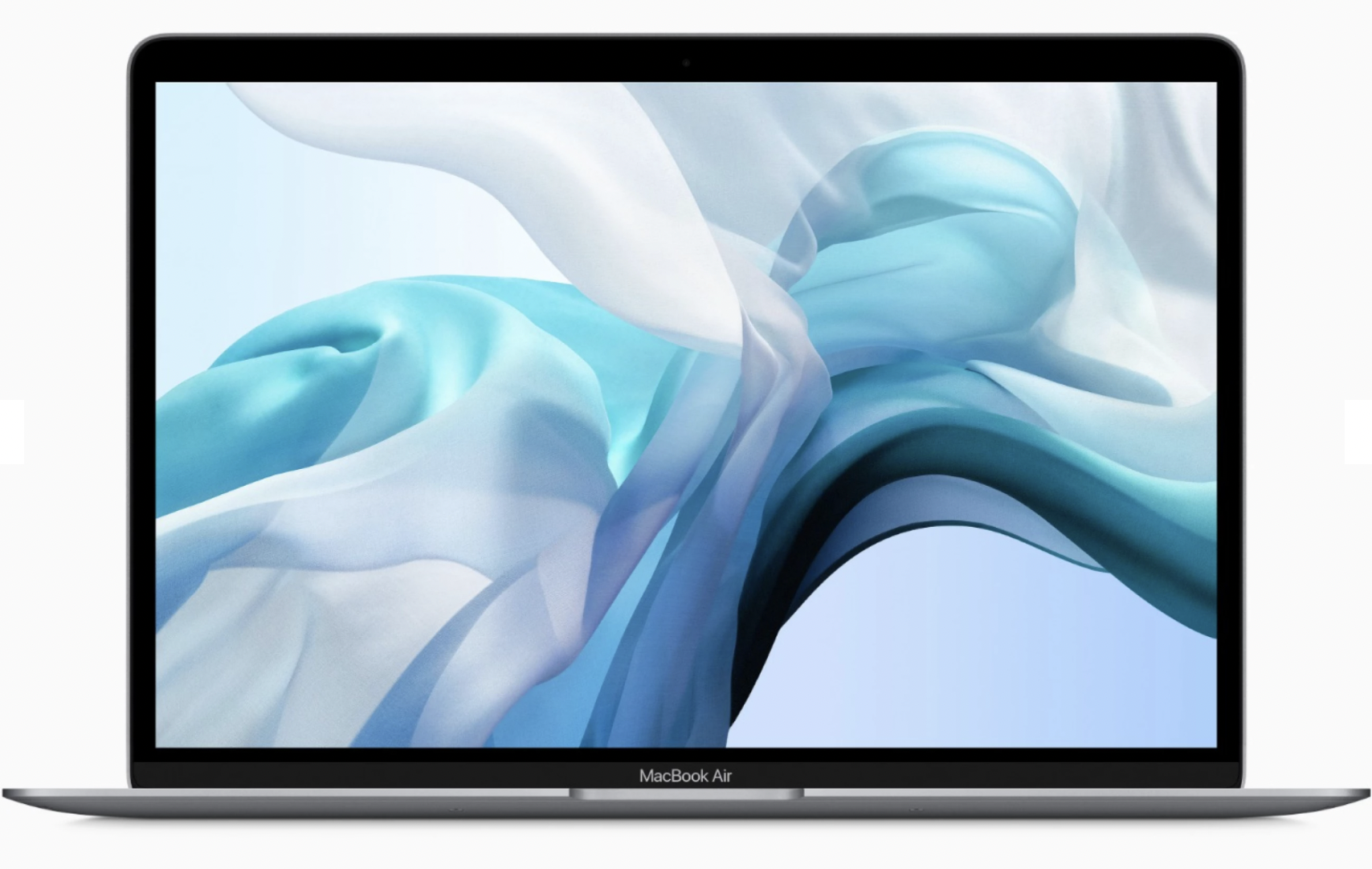
I had the opportunity to work with one of the new MacBook airs and I have to say it’s amazingly fast. Very smooth, very clean, pretty much anything compiled for that new processor just happens, doesn’t really take a lot of time.

Even apps that are not compiled for it, that running emulation, a pretty darn fast to. Maybe even faster than on an Intel machine.

But it’s not without it’s problems at this point. A few developers, need to get their butts in gear, and make their applications work. Poorly written, or older programs have problems.  One I ran into was the Google back up and sync that copies your Google drive down to your computer.  It won’t run at all. Google has acknowledged the problem, but has yet to say when they’ll fix it.

I have Printer Driver issues with the Canon Pixma Pro series printers.  Canon has a Photoshop plugin that prints very well but is badly written and breaks with every update.  It is broken again.

Also from some research I did, screen flow doesn’t run at all either. Kind of surprised. I thought these guys were pretty much on top of things but in this case, they’re gonna need to modify. They’ve also acknowledged the problem and say they’ve got a fix in the works.

Overall, these are gonna be great machines. Possibly even revolutionary in the performance they give at a very low price point.

It’s become pretty obvious to me I need to get familiar with them to keep my skill level up. These are the future.

Give developers a couple of months, and I could probably give it a qualified buy rating. 

Today’s the Day: MacOS 11 Big Sur Release…… Please Wait…..

Well today’s the day. Apple is releasing macOS 11 Big Sur and many people will be rushing to get the latest and greatest operating system released from Apple. But I’d like to give you a couple of good reasons as to why this year, may not be the year that you want to be first on the list with the latest operating system.

It’s been at least 12 years since Apple moved to Mac OS X. That’s a long time to be using the same code base each year and adding features to it. This year Apple has called the release macOS 11 on purpose. It is a major update to the Mac operating system designed to prepare the world for Apple Silicon processors. Apple has said that they are going to continue to update the Mac running Intel processors for quite a while in the future. We know they’ll continue to sell Intel Macs for the next two years, but with Apple Silicon Macs having been released, the hand writing may be on the wall for future updates.

First off, it’s important to note that the Mac you have today is going to be just as good tomorrow. This doesn’t mean we need to run out and buy a new computer and in fact I’d probably hesitate to do that until a lot of the bugs are worked out in the new Apple Silicon Macs. Doing that kind of testing and evaluation is what people like me live for. But for an average user, using their machine to actually do productive work all the time, and it being their only machine, it doesn’t make a lot of sense to move forward today.

But the same can be said for macOS 11. So many things will be changing in this release that I suspect the timeframe to update will be drug out a little longer than actually we’ve seen in the past few years. Typically in the past few years I’ve recommended holding off until we get the first point release. That would be 11.1 or possibly 11.01 depending on how Apple names releases going forward.  But this year, the massive changes were going to see as a result of making this operating system very functional with their new Macs, I suspect waiting a little longer might be better.

So even though today’s the day, if I were you, I’d take a wait and see attitude and put off even the consideration of updating until sometime around the first of the year. Give it a month and a half and will see how things are running.

But if you’re one of those people that just can’t wait, please be sure you have at least one and if possible to back ups of your machine as it stands prior to the update. There’s nothing worse than going in and trying to fix a bad update by rolling the machine back only to find out the back up is either old or not good.

I have all the believe in the world that Apple will make this the best operating system it’s ever released.  And that day will all look back and wonder as to how they made all of the changes work. But just keep in mind, today is not that day…

Can your Mac Move Forward this Fall?

Apple has already announced this falls update to MacOS. It is looking like they will call MacOS 11.  After about 15 years running MacOS 10, we will finally see the version number clock click over by one.  But what does that really mean to you?  It may well mean your Mac will be left behind.

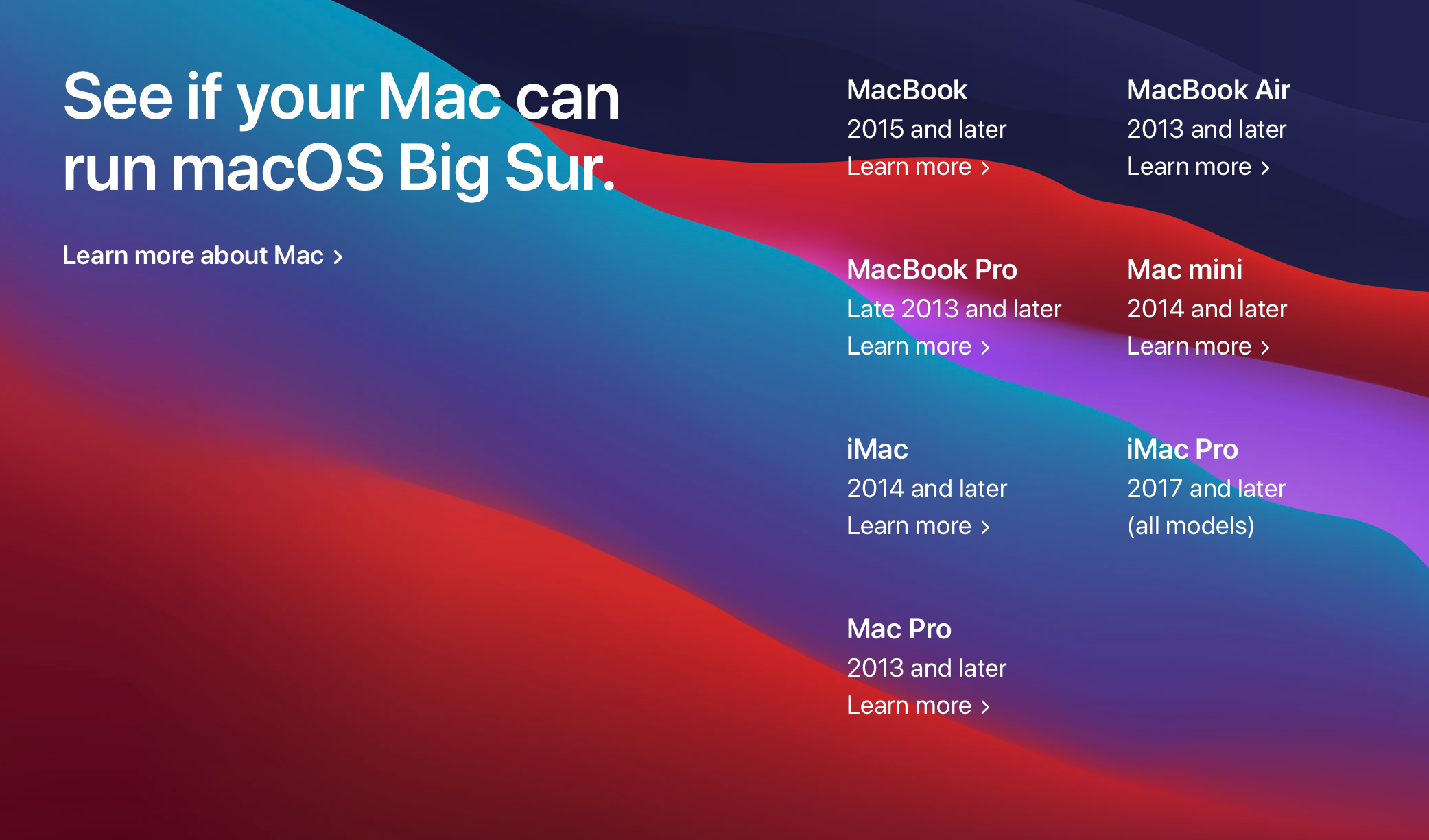
Apple had also announced that they will be moving to new Apple Silicon processors and ditching the intel processors being used today.  But MacOS 11 “Big Sur” will be running on both the new processors we will see later in the year and on the Intel processors we have. But not all machine running 10.15, “Catalina”, will be able to run the new OS.  Here is what Apple’s website says about this falls update compatibility.

What you will notice is that across the board, most machines have been increased by 1 year.  Where this year, the compatibility date was generally 2012, next year, it moves to 2013 or newer.  That seems reasonable.  SO where do you look to see which machine you have?

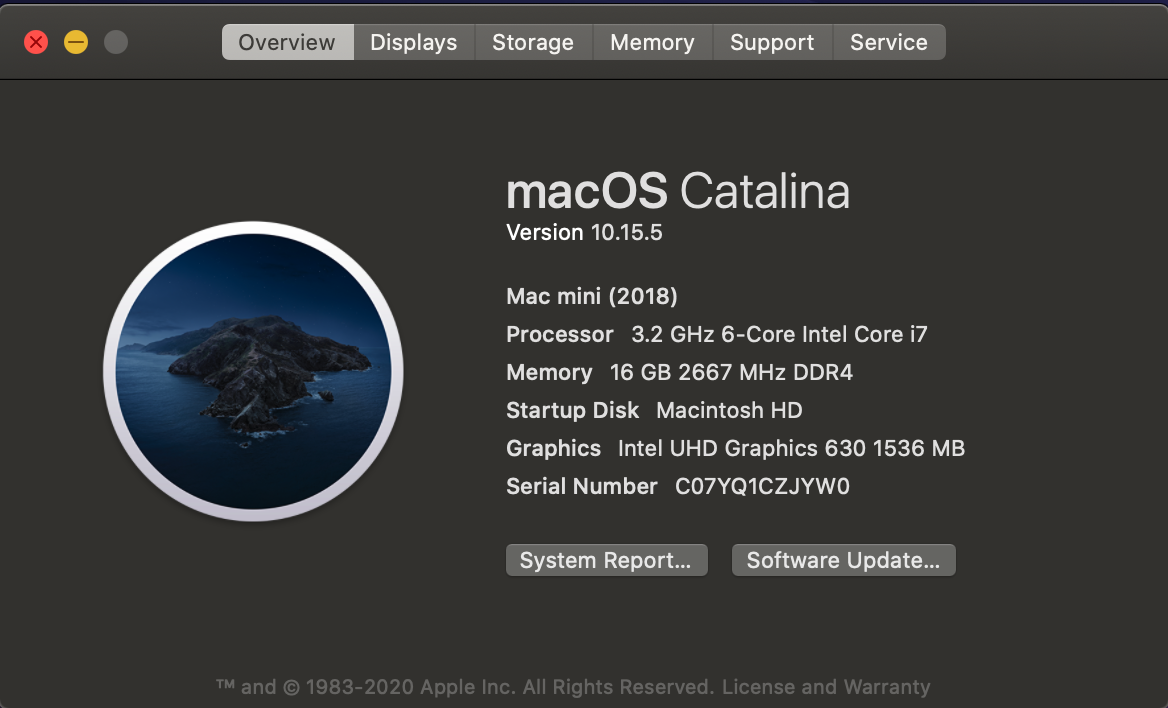
Go to the apple Menu, and select About this Mac.  You should see a dialog similar to this one.

This will tell you if your machine will be able to move forward to the new features of MacOS “Big Sur”.

If your machine is older than this, it might be time to begin the thought process of planning for a replacement.

Posted in Mac

Create a Password Protected Folder on the Mac

Mac users have the ability to create a password protected folder in the form of a disk image using Disk Utility.  This video describes the steps.

An Overview of Photos on the Mac

I created this overview of the Apple Mac Photos application for the local Mac Users Group called appleJAC.  It covers most of the functions of the application.

Have you ever wanted to Dictate to your Mac?

Dictation is built into the Mac.

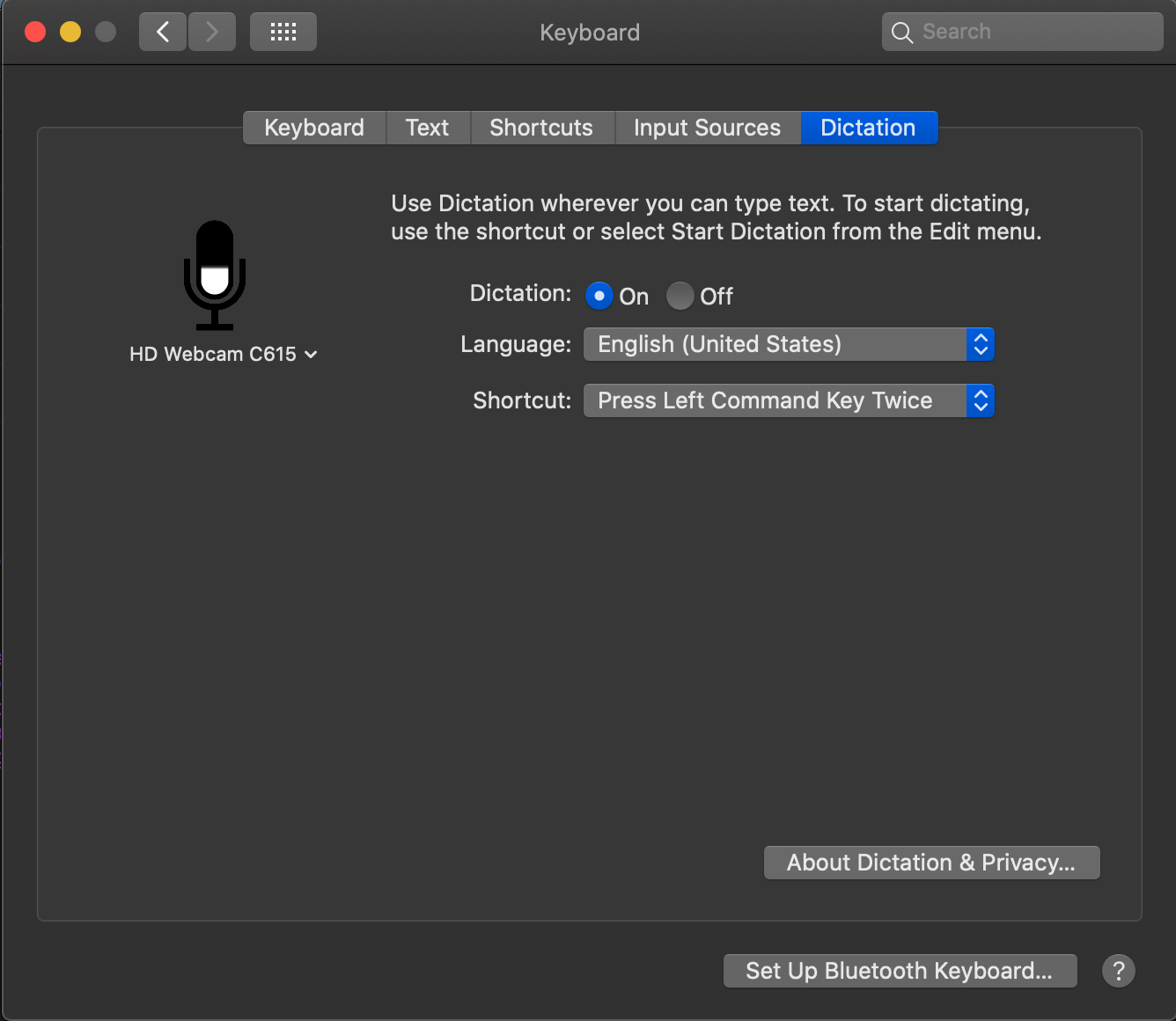
Go to System Preferences; Keyboard; and click the dictation tab.

Turn on Dictation.  Under the shortcut is where the trigger key is set.  In the example above tapping the left side command key twice with turn on dictation.

To use this, click the cursor in any application you want to dictate into and press the left command key twice.  After a second a little microphone will show up on the screen and you can start talking. Whatever you say, will get turned into text. I will warn you, I don’t believe the version of Dictation on the Mac is quite as good as that on the iPhone or iPad but it definitely works.

Here is the Apple Tutorial on making it work.

Apple reportedly disabling flash in updated version of Mac Safari

Well it’s about time, Apple. Flash is been dead for a long time. Even adobe, the creator of flash, as stated that flash will no longer be supported. I’ve written many times in my blog about the evils of updating flash. I hope this will be the last time I write about it.

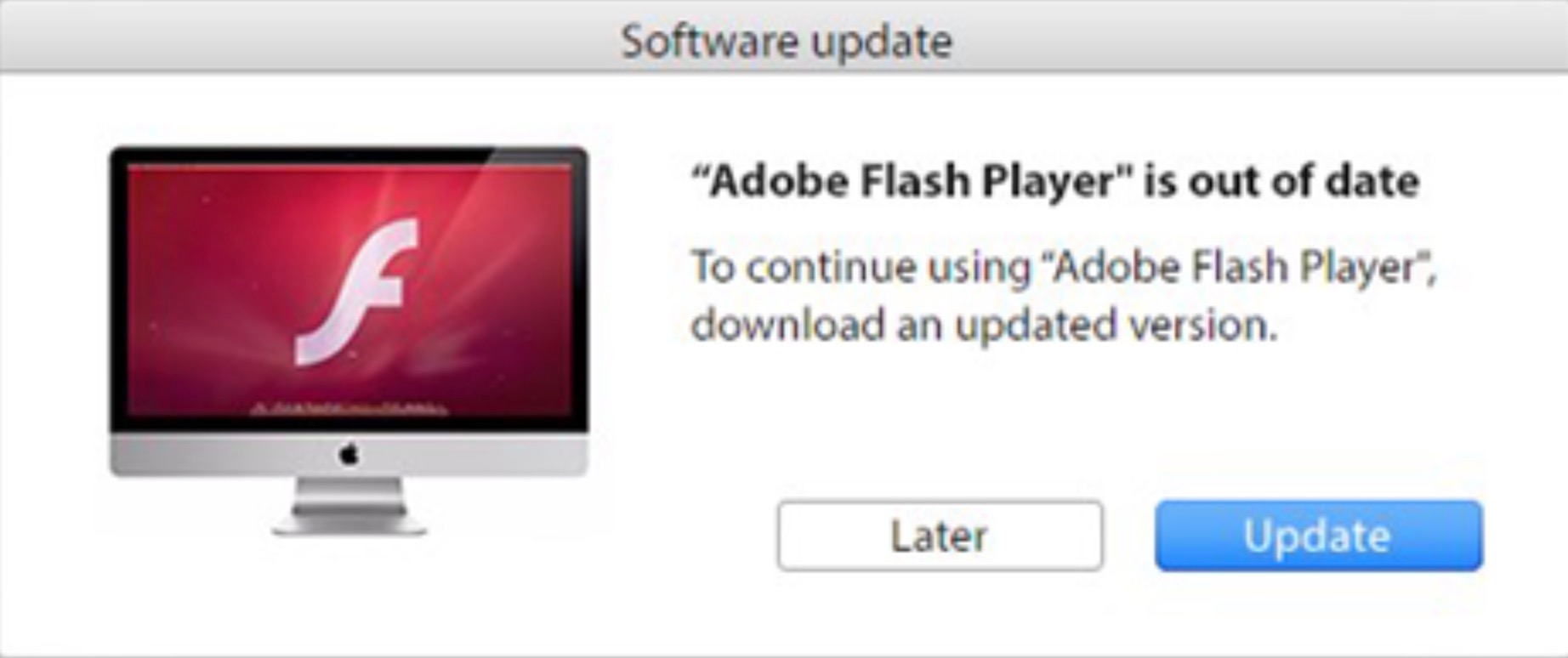
Flash player updates continue to be the number one method of infecting a Mac. Fake reports that your flash needs to be updated, still these days, caused many people to press that update button and go through the process of infecting them selves. Apple for quite a while, has had the ability to block these but hasn’t done so. It certainly is time that Adobe and Apple both deal with this problem. 

But the press continues to say there are sites out there that use flash that are valuable for people to use. In reality, these are often low hanging fruit sites that get pushed high in search ratings.   None of these sites provide any additional value to the user that you can’t find in other legitimate webpages. sites. 

I’m glad to see Apple stepping up and disabling flash internally in the browser. That will make a lot of difference but it still won’t keep sites from popping up the your flash player is out of date updates.

Whether you run a Mac, or a PC, just keep in mind the flash is dead and there is absolutely no reason to update your flash player and risk any kind of infection on your computer. I suspect, I go out on at least two calls every week that are all related to self infections of peoples on computers. I certainly hope this change from Apple reduces that number on the Mac side. Now we need Microsoft and Google to step up and do the same thing.

If you have a new Mac with a T2 security chip, you need to know this….

Most all new Macs have an imbedded T2 chip that performs many useful functions. The Apple T2 Chip is Apple’s second-generation, custom silicon for Mac. Apple uses this chip to improve video processing, process audio input, and most of all control the security of the machine.

At this point in time,the Apple T2 Security Chip is included in these new Mac computers:

  • iMac Pro
  • Mac mini introduced in 2018
  • MacBook Air introduced in 2018 or later
  • MacBook Pro introduced in 2018 or later
  • MacPro when introduced in 2019

While we all have to applaud Apple for rating up security on the Mac from software only to a hardware/Software combination, we also need to understand the ramifications of doing just that.

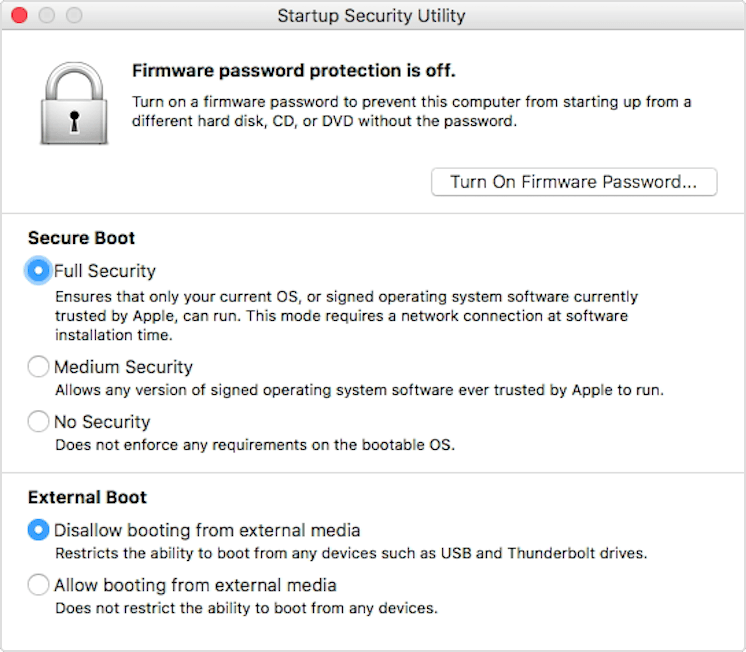
On these new Macs, Apple includes a new firmware based utility called Startup Security Utility.  Startup Security Utility offers three features to help secure your Mac against unauthorized access: Firmware password protection, Secure Boot, and External Boot.

To open Startup Security Utility:

Turn on your Mac, then press and hold Command-R immediately after you see the Apple logo. Your Mac starts up from macOS Recovery.  When you see the macOS Utilities window, choose Utilities > Startup Security Utility from the menu bar.
When you’re asked to authenticate, click Enter macOS Password, then choose an administrator account and enter its password.

Here is some detail on the options:

Firmware password protection

Use a firmware password to prevent anyone who doesn’t have the password from starting up from a disk other than your designated startup disk. To set a firmware password, click Turn On Firmware Password, then follow the onscreen instructions. Learn more about firmware passwords.

You can also use External Boot to prevent even those who know the firmware password from starting up from external media.

Secure Boot

Use this feature to make sure that your Mac starts up only from a legitimate, trusted operating system.

And now for the most important thing you need to know: External Boot

Use this feature to control whether your Mac can start up from an external hard drive, thumb drive, or other external media. The default and most secure setting is Disallow booting from external media. When this setting is selected, your Mac can’t be made to start up from any external media:

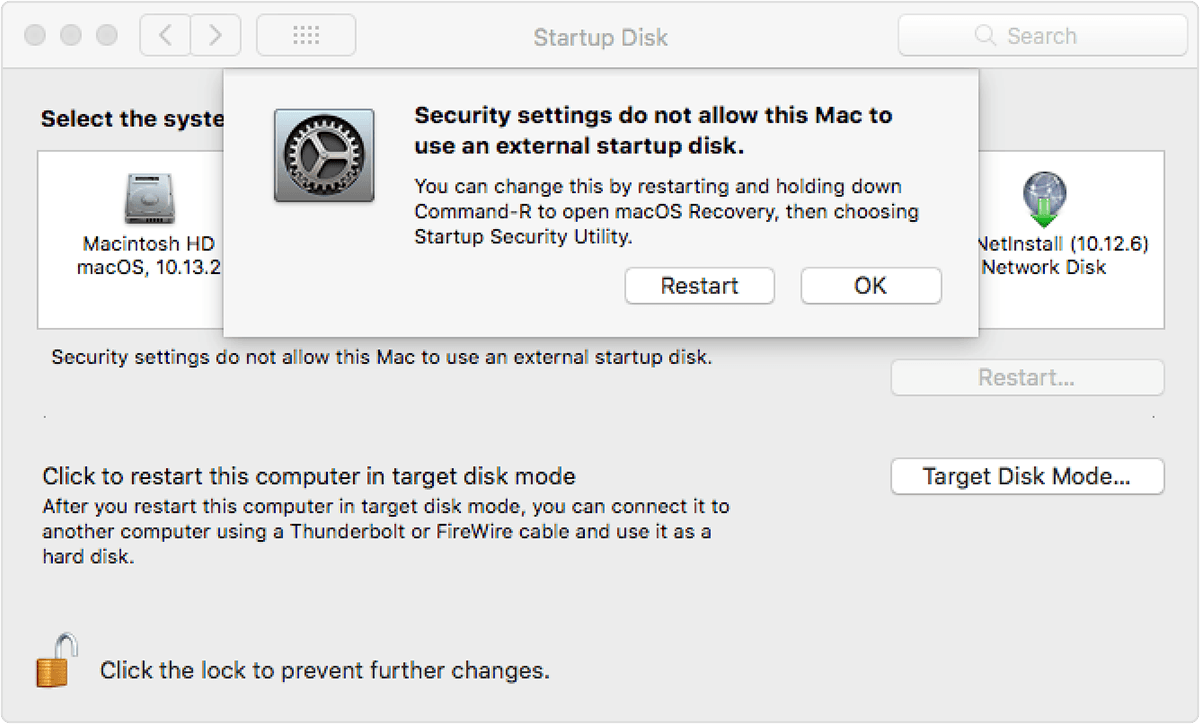
Startup Disk preferences displays a message that your security settings do not allow this Mac to use an external startup disk.

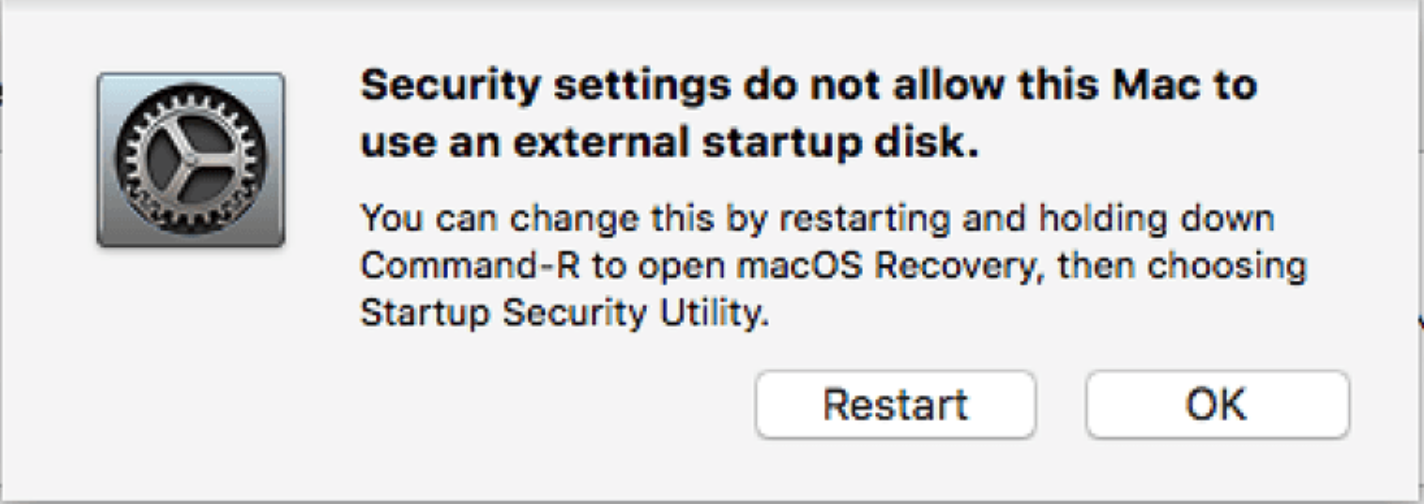
Startup Manager allows you to select an external startup disk, but doing so causes your Mac to restart to a message that your security settings do not allow this Mac to use an external startup disk. You’ll then have the option to restart from your current startup disk or select another startup disk.

If you are a good Mac user and are using two backups for your Mac, the second backup should likely be of the disk image type. Utilities like Caron Copy Cloner from Bombich Software make this easy to do and give you the ability to just boot to the backup in case of a disaster.  Except if you are using a Mac with the T2 Chip.  On those machines you need to set them to allow this type of boot.

To allow your Mac to use an external startup disk:

  1. Open Startup Security Utility.Select Allow booting from external media.
  2. Your Mac doesn’t support booting from network volumes, whether or not you allow booting from external media.
  3. If you want to select an external startup disk before restarting your Mac, quit Startup Security Utility, then choose Apple menu > Startup Disk.
  4. One important note is that to make changes to these settings you need the machine password.

If for some reason, you have forgotten the machine password, you seem to be out of luck to make these changes. Don’t confuse the machine password with the setting to turn on a firmware password. That is an additional layer of security above and beyond the machine password and FileVault disk encryption that you may be using.

Information included from an Apple Tech Note on the Startup Security Utility,


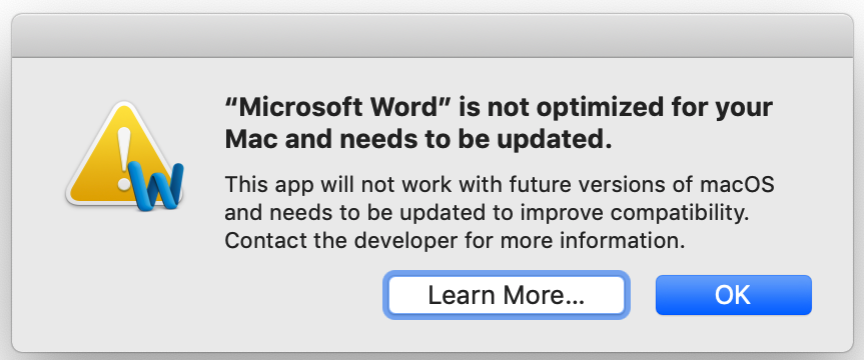
Mac Users: You’ve probably been seeing alerts like this one


Apple has announced that macOS 10.14 will be the last version capable of running 32-bit applications.

As Apple finalizes its transition to all-64-bit code, Mojave and High Sierra present an alert like this when you launch a 32-bit application. While it’s not a crisis at present, you’ll need to update or upgrade those applications before you update to macOS 10.15 later this year.

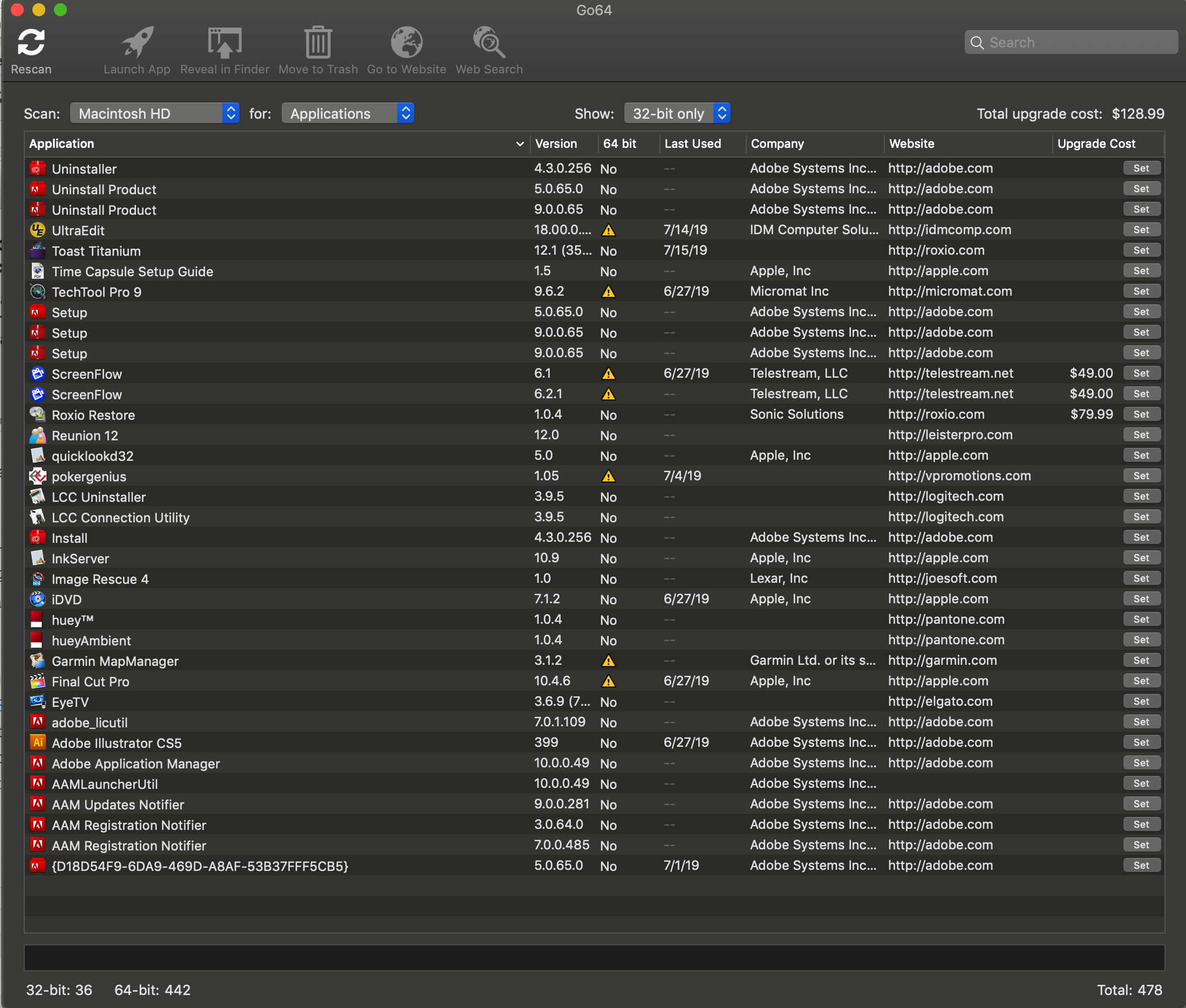
Finding out which of the applications you use each day is a good idea before you upgrade to MacOS Catalina.  St Clair Software has a great little application that can scan your hard disk and list the applications that will have problems.  The application is called Go64 and best of all, its a free download.  Check it out and make sure a critical application to your workflow will not be dying in the next Mac update.

Never… Never…

Recently I have been seeing this type of Malware on Macs much more often.  This is a great article describing how it can infect you.  I have said it before, and I will say it again, never update or install flash.  There is nothing on the web worth the risk.

This malware is not removed by simply running Malwarebytes.  Thats a good start but there are a number of other steps that need to be completed to get rid of it.  The article is a good place to help you to understand what you got from that flash installer.

Posted in Mac