Adware – coming to a Mac near you

adware

As most of you know the consulting work that I do requires me to work on both Macintosh computers and Windows machines. For years one of the biggest difficulties I see with Windows  has been Adware. Wikipedia defines adware as:

… any software package which automatically renders advertisements in order to generate revenue for its author. The advertisements may be in the user interface of the software or on a screen presented to the user during the installation process. The functions may be designed to analyze which Internet sites the user visits and to present advertising pertinent to the types of goods or services featured there.

That’s pretty much exactly what it is. It’s not a virus. It’s more of an annoyance than anything else. Adware has the ability to hijack what you were doing on the Internet and send you information from or possibly even to a website different than what you were looking for. Adware can be subtle. It may send you to websites that are similar to what you were looking for but not exactly the same in an effort to get you to purchase things from a different vendor. It may take over your entire search function on your computer and never allow you to search sites that you want. In this case it only sends you to sites the adware developer wants you to see.

For years a large portion of the problems I see in Windows are related to adware. I always characterize it as software that has its friends. On Windows it’s very common for one Adware infection to lead to many more because the software itself goes out and downloads other adware or malware to install on your computer.

There are great tools in windows to remove much of this like Malwarebytes that allows you to remove much of this adware and clean your computer up. But typically an Adware infection is accompanied by many other problems on a Windows computer.

The purpose of all this background is to give you an idea of what Adware is. But the real news is that Mac users are now beginning to join the adware fold with their windows counterparts. In the last week, for the first time that I remember, I ran into a serious adware infection on a Macintosh computer. The person infected was a sophisticated long term Macintosh user who made the simple error of clicking okay to a pop that told them to update their flash player.

Just like on windows this infection was buried down deep into the operating system and difficult to find and remove. But fortunately like windows there is a utility out there that seems to do a good job in this particular case. After removing many parts of this by hand I ran across a product called Adwaremedic and after reading many Google reviews of it ran in to do the final cleanup on the machine. It seems to have done a great job but having only needed to use it once it’s hard to give it a golden recommendation yet.

The main thing to keep in mind for Mac users is they need to think about safe computing just as Windows users have had to do for years. Here are a few things to consider as you surf the web on your Macintosh:

  • Never respond to pop up windows. Always close them using the close button in the window dialogue rather than the cancel button on the window itself.
  • If your computer tells you something needs to be updated in a pop up window never do it there. If it’s flash player, go to Adobe’s website and download flash player from there. Never accept the help that a popup is trying to give you.
  • Be careful when installing applications that are downloaded from places you’re not familiar with. In Windows I found out the hard way that even a well respected site like CNET has massive amounts of malware in their download section.
  • Be careful installing free applications.  If it seems to good to be true, it probably is.

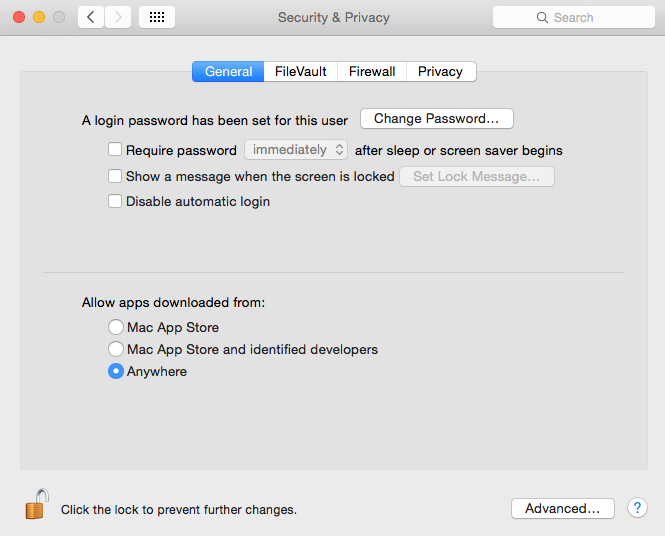
Screen Shot 2015-02-17 at 10.20.39 AMApple has done a great job to keep us from having to deal with this for years.  New versions of Mac OS even prevent us from downloading applications outside of the App Store by default. But there still too many of those out there and typically that has to be turned off to be able to install software you need to use.

To me, it looks like more of these are going to start popping up on our Macs and continue to be a real problem on Windows. Practicing safe computing can keep your machine clean whether it’s a Windows computer or now even a Macintosh.

Apple “Photos ” iPhoto replacement is right around the corner

Screen Shot 2015-02-06 at 8.07.07 AMEarly last year, Apple announced it was working on a New photo application for the Mac called Photos. Later in the fall, Apple confirmed rumors that iPhoto and Aperture we’re going to go away and be replaced with this new application. They also said the application will be delivered in the first part of 2015. Well here we are in the first part of 2015 and early reports and reviews of this new Photos application are starting to hit the web.

While II have not actually seen the new application, I have read a number of reviews and descriptions of how it works. Many of these descriptions discuss the abilities of the app and some of them also describe the things the application will be missing when it’s first released. Overall, it looks like the new Photos application is going to be pretty nice and make some interface improvements from what we’re used to and iPhoto.

First off, there has been a lot of conjecture as to what the look and feel of the new application would be like. Just as I suspected, we’ve all been using Photos for a while now. At least those of us using iOS8. If you’re interested in the overall look and feel of the new photos app, take a look at Photos on iOS. The basic make up of the application is going to be very similar to what we’re seeing on the iOS version. Just as we’ve seen before, Apple continues to try to merge the interface of the iPad and iPhone with that of the Mac. This time though, it’s not the Mac features that are moving to the iOS, it’s the iOS app it’s moving to the Mac.

If you become comfortable with the moments, collections, shares, and cloud features in iOS8 photos, the new Mac application is going to be very familiar to you. Looking at screenshots that have been posted on the web, much of what you’re going to see on the Mac is similar to what you’re seeing on iOS today. Now don’t get me wrong, editing features on the Mac will be worlds ahead of iOS but still not quite up to the level of iPhoto. Apple will continue to add new features overtime as they generally do when they rewrite an application. We’ve seen this with their applications like iMovie.

Basically out of the box Photos is going to be very functional, provide nearly all of the things you normally do with photos in iPhoto, and provide one nice benefit. Photos, will directly read your iPhoto or Aperture library. There will be no conversion, no duplication of space, and no possibility of having things mixed up when you move to the new app.

Apple announced that it’s going to make a pre-release version available very soon for us to begin to learn and play with, and make the initial app release with Mac OS 10.10.3 this spring. I’m looking forward to getting an opportunity to work with it and also being able to write more about it. I can also pretty well guarantee that when the application is released, if your local to Jefferson City, we’re going to dedicate an appleJAC Macintosh user group meeting to this new application.

Neither iPhoto or Aperture will be going away immediately. Even the next release of the MacOS will continue to work with these applications. But like many things in life, change is inevitable, if you stick to iPhoto too long and don’t try the new application you’re going to get left behind and end up not being able to update your computer to the latest operating system, or forcing a move to the new application when you’re not ready. So my recommendation to you is as soon as the new release comes out in MacOS 10.10.3, start taking a look at the new photos app. We’ll have to see how well it works before we can make a final determination of whether that will be the time to move, but I’m absolutely sure the new application will be functionally complete enough for you to deal with most of your photo needs right out-of-the-box.

Here are a few good early reviews from people that have been able to work with the new Photos application.

The Verge
Yahoo
Cnet

Format New External Drives to Mac OS Extended before using then

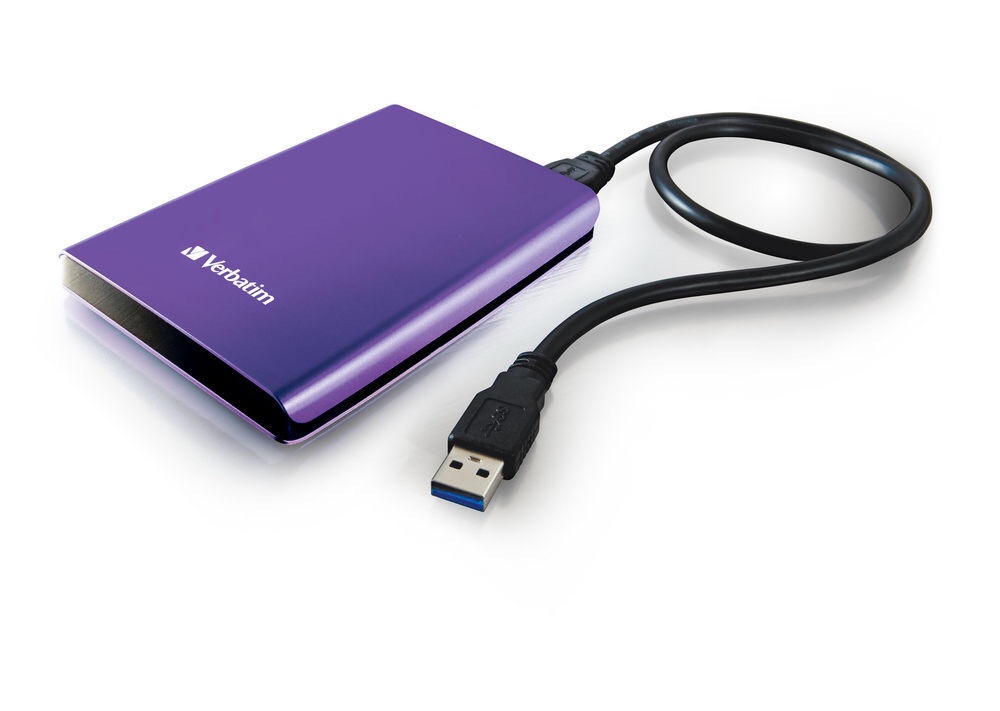
You may wish to use an external FireWire, USB, or Thunderbolt  hard drive to store your files. Here are some suggestions on preparing the external hard drive for best performance with your Macintosh. Many external hard drives come pre-formatted as FAT 32. This is a native Windows file format that can be read by Mac OS X, but is not ideal for use with the Mac.  If you leave the drive in this format, it will work on both Windows and Mac computers but not provide the best performance in either.

Before you begin to use your new external hard drive, reformat it to the Mac OS Extended file system:

  1. Be sure your drive is attached and mounted.
  2. If you have already written any data to the drive, back it up before proceeding to the next step.
  3. In the Finder, choose Go > Utilities. The /Applications/Utilities folder will open.
  4. Launch Disk Utility.
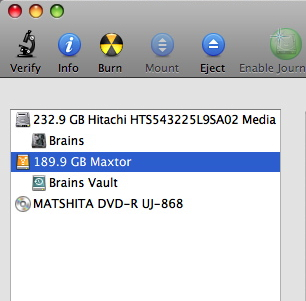
  5. Click the icon for your external hard drive in the sidebar on the left.
    launch_disk_utility
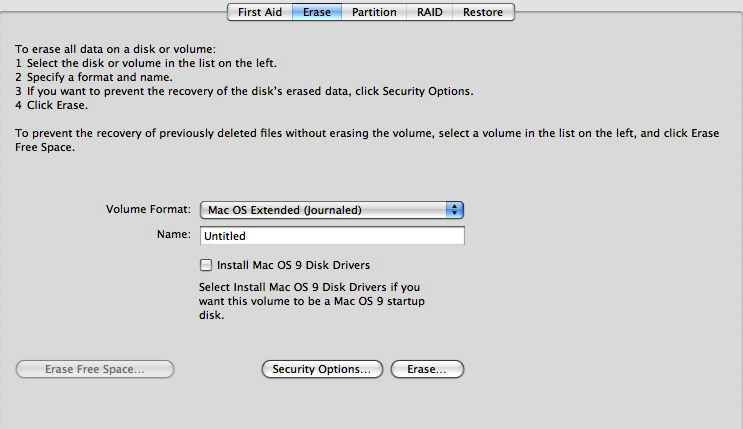
  6. Click the Erase tab along the top of the window.
    erase_tab
  7. From the Volume Format menu, choose Mac OS Extended (Journaled).
    volume_format_menu
  8. Enter a name for the external hard drive in the Name field.
  9. Click the Erase button.

If you need to reformat a drive for use on a PC, use the exFAT format.  This will provide the best format to be used on Mac and PC.

Top 10 reasons people don’t have a backup

imageAt this time of year many of you will be taking photographs of your family at Christmas. When people gather around you and you click your phone or your camera to take those photos you have to realize that some of the people in those photos and in those situations may not be with us next year. How tragic it would be to not have their memory available to you in the photograph you so thoughtfully took this year. But even when you consider those things many people don’t think that they can have a loss of data on their computer.

Computers today are amazingly reliable. They can run continuously for years and never had a problem. They can store massive amounts of information and never have a problem recalling it. But computers today are still electronic devices that are susceptible to the same things seen been in the past. Electrical surges, loss due to theft, a simple drop off the table, a failing piece of hardware, are all real world problems that I see all the time. In the past having a backup may have been difficult. Backup software was hard to use or expensive to purchase. External drives to store your back up data were expensive. But none of those things should’ve stopped you then and none of those things should stop me now.

Your memories are too valuable to you to risk their loss. Hard drives are inexpensive for backup, costing less than $100 and lasting for years. But I hear all the time great reasons for not backing up your data. So if you’re one of the few people that I’ve talked with who have decided not to back up due to one of these reasons, take a minute and reflect on how silly some of the sound.

The top 10 reasons you don’t have a backup

10.  I have my important files on a thumb drive

Thumb drives are handy particularly for moving files from one place to another. But the cost of thumb drives today don’t make sense for backing up your data. Many people have hundreds if not thousands of gigabytes of data and to have enough thumb Drive storage for all of this would be prohibitive.  Plus what’s easier to lose Van a small thumb drive? Backing up your files and making this your only storage for back up is not a smart way to go.

9.  I can always use drive savers to recover my data if I have a problem.

Drive savers is a wonderful company that has saved many people by restoring unreadable and failed hard drives. They’re extremely good at what they do and unless there’s been a catastrophic drive failure can usually get the data back. But expect to pay. And pay through the nose you will.

Data recovery companies know they have you over a barrel and charge for it  The kind of clean room it takes to be able to do this kind of data recovery is expensive. I once had a client who lost their entire business due to a raid system drive failure. 14 drives RAIDed together and none of the drives failed, but the RAID controller did. The files were mission-critical and he sent them off to drive savers. Drive savers recovered every bit of data. And send him a bill for over $27,000.

So yes data recovery companies can save you. But you have to really need the data you be willing to spend that money. Many people ask me about this option in times of a loss. But only one has ever been willing to pay the cost.

8.  Backing up is too complicated

All of the commercial operating systems today have built-in backup. It’s all easy to set up and does it for you once it’s set up. It may be complicated for you to set it up but I can help you with that for 30 minutes worth of my time. And once it’s set up it does it for you. I just can’t see this as an excuse.

7.  I’ll forget to do it anyway

See item 8 above.  Once it’s set up backup can be automatic.

6.  It’s not going to happen to me

Famous last words. You may have used computers for 20 years now and never had one fail but you also now have 20 years worth of data to lose if yours fails today. Computer components are electronics. Spinning hard drives still have bearings that go out.  If you really believe it’s not going to happen to you you’re just fooling yourself. The law of averages says one day you’ll have a data loss and if you’re not prepared for it think house silly you’ll feel if this was your excuse.

5.  My data is just not that important

Some people don’t believe they create anything on the computer. They just use it for email and web surfing. They may store a few pictures but nothing really important. But thoughts change when you’ve lost data. You remember the taxes that you have stored. You remember the pictures of uncle Gus who’s no longer with us. You remember your business papers. You remember just how important your date is to you.

4.  Running a back up slows down my computer

If your backup software is set up correctly it can back up in the middle of the night when you’re not using your computer. If you’re backup is incremental you’re only copying files that have changed since the last back up. Sure, the first backup takes a long time but after that backups can happen in minutes. In the time it takes you to grab a coffee your computer could be completely backed up.

3.  Managing back up files takes time

Today’s backup systems manage their data automatically. When the drive fills up it deletes the oldest copies of the files in the back up. You never have to touch it and you never have to sort it. If you use a laptop you just have to plug the drive in periodically and let it back up.

2.  Backing up cost too much

For the cost of an external hard drive you can be completely backed up. You don’t need any expensive software because your operating system already include software to do the back up. External hard drive can be purchased for less than $100. Aren’t your memories worth that?

1.  I was going to run a back up tomorrow

How many times of I heard someone tell me that they don’t have a back up but they planned to run one tomorrow. Some people still believe tomorrow never comes. The time to back up is today not tomorrow.

So where do you fall in this list of reasons?  Do any of these sound familiar? I hear them all the time. I tweeted out about two weeks ago to people that follow me “backup backup backup” but unfortunately this week I ran into another situation where a hard drive failed and there was no backup. Don’t let this happen to you.

Take advantage of the after Christmas sales to buy a backup drive. If your backup drive is over three years old maybe it’s time to replace it with a larger one. If your date is truly important to you maybe you need two copies of a backup with one stored off site.

Perhaps a Christmas gift for yourself this year should be sitting down with me for an hour and discussing your backup plan.  It could be the best hour of consulting you’ve ever spent.

More Questions on iCloud Drive

Q: I am not really clear on the iCloud drive. Am I correct with this? First, you need to put items in the icloud drive by dragging them there? Then they should show up on the iPhone but where? Is there supposed to be an icloud drive on the phone? or the pad?  Or would the files just be available, for  example, on pages on the iPhone, since that’s where I worked on them?  This is not totally clear for me.

A: What you say makes perfect sense. Unfortunately that’s not exactly how it works.

The part on the Mac is correct drag things to the iCloud drive icon that’s in your Finder sidebar and that puts them and iCloud Drive. On your Mac you can select iCloud drive and finding those items to open them.

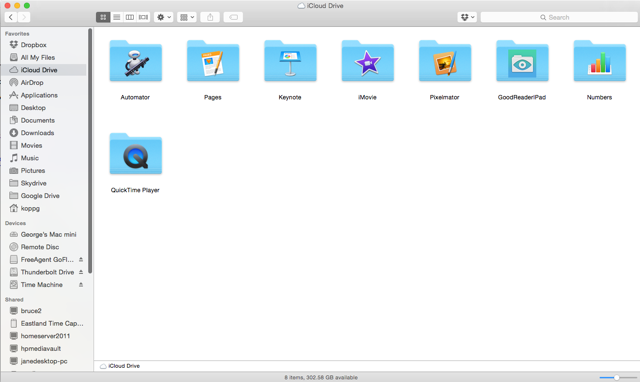
But on the iPhone it’s not that simple, on an iOS device the application has to support iCloud Drive. When it does it creates its own folder on iCloud drive for its specific needs.  Here is a screenshot of my my iCloud Drive.

Screen Shot 2014-12-18 at 4.01.31 PM

Each of the folders with specialized icons is created by an application on the iOS device. Then to access the files in a particular folder, such as pages, you run the pages application on the iOS device. There is no place on the iPhone or iOS platform to look at everything that’s on iCloud drive. You also cannot look for files in other folders. For instance, if you created a home folder on your iCloud drive your iOS apps could not see it.  Each app in iOS only looks in its own folder.

And if that’s not enough, each app from iOS can only look at the root level of that folder.  If on the Mac you create subfolders, iOS cannot see them.

To be quite honest, Apple needs to clean a little of this up before it becomes really useful. For now, I only use it for apps on the phone that I want access to the files on the Mac. Not the other way around.

Hope this clears it up. But it’s not you, it’s confusing by its nature.

Apple has a page on their website that helps clear some of this up.

My iCloud password is wrong again

imgresI believe I finally figured out why some people have so much difficulty with their Apple ID for iCloud passwords. And believe it or not I don’t think it’s truly their fault.

So here’s a common scenario I see with people who use iCloud for sending mail. Out of the blue, you try to send an email on your iOS device or even your computer and you get the message that your user ID or password is incorrect. It typically seems kind of odd to you because you may have just sent an email a few seconds before without any difficulty. So what’s a person to do?

All too often people go into their iCloud settings and try to change their password by reentering it. But unfortunately this is the wrong thing to do.

One thing that Apple needs to get a handle on is why iCloud seemingly goes off-line over and over again day after day for short periods of time. I see this myself almost on a daily basis. I tried to send an email and get that dreaded your password is wrong message. But what the message really should say is iCloud is off-line again. Rather than going and trying to change the password,  if you just leave the message in the outbox and trust that eventually when Apple gets iCloud working, probably within the next few seconds that email message will get sent.

What I see happening is people go in to try to change their password and either get it wrong or it still doesn’t work and then resort to trying to reset their password time after time. The whole process of resetting your password in iCloud is not without trouble also. Many times you ask it to send you an email to do the reset and the email never comes through or the email gets caught in a junk mail filter.

The right thing to do during the short iCloud glitches is to just chill out and leave the message alone. When you start down the path of trying to reset your password and you do it very often you typically get things messed up. Either the password reset didn’t take or you’ve changed it so many times and added to your normal password so many times you can’t get it right again.

So here’s my recommendation to those people but text me and tell me their iCloud password is wrong again. Take a chill, have a cup of coffee, or a stronger drink if you feel the need, and wait for at least 30 minutes before you try to do a reset on your password.

If you want to speed up things many times you can go into the outbox open up that email that you tried to send and press send again. Yes, you shouldn’t have to do that but again iCloud mail doesn’t seem to be perfect and trying to fight the iCloud password game typically ends up as a losing proposition.

Adobe Provides iPhoto Import for Lightroom

Screen Shot 2014-11-20 at 5.37.37 PMWhen Apple announced earlier this year that it would discontinue aperture and come out with its own new application called Photos for the Mac, many people didn’t know what the future of iPhoto was. But since then Apple has indicated that iPhoto’s future is limited.  So while we wait for the new photos application, it makes good sense to look at other options for dealing with our large photo collections after iPhoto’s demise.

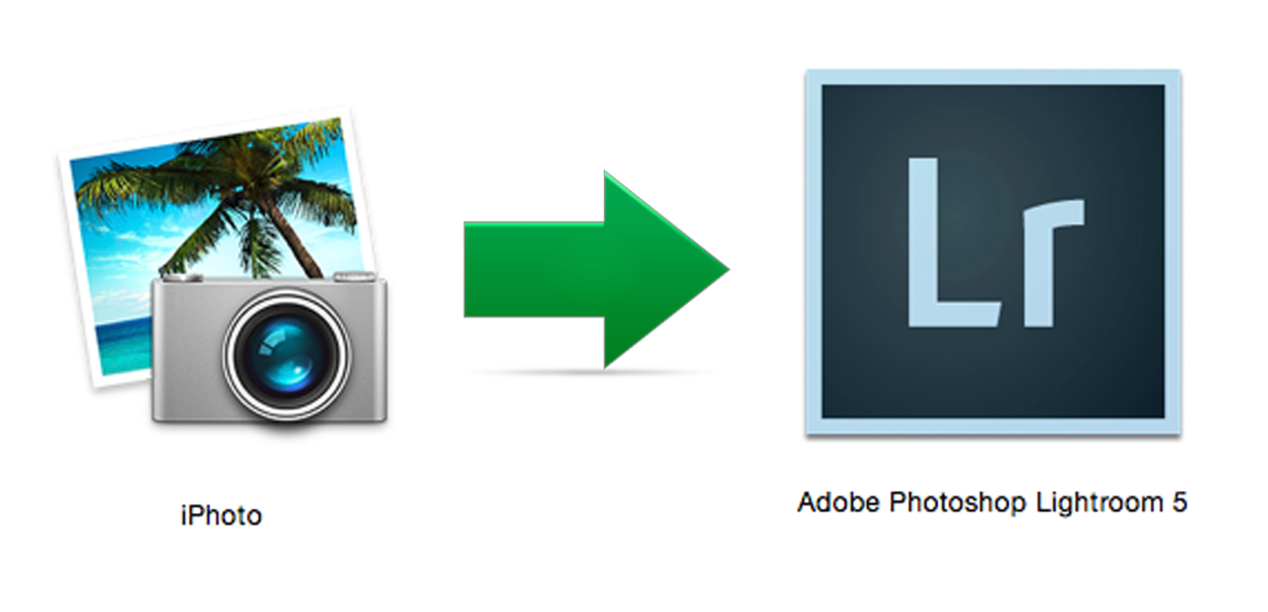
The primary photo organization application on the market is Adobe’s Lightroom. Lightroom is an excellent application for organizing photos, and remains my choice for photo management for for advanced photo users.. But iPhoto was definitely easier to use and provided operating system integration for Mac users that was second to none. While we wait and see what the new Photos app brings, Adobe has moved forward and provided an ability for us to import iPhoto libraries into their Lightroom product. The truly amazing thing is that Adobe’s importer not only imports photos but also much of the organization that we used inside iPhoto.

In the latest update to Lightroom, Version 5.7, Adobe included it’s own custom plug-in designed to import as much as possible from your Aperture catalog into Lightroom. Adobe’s tool will retain all of the following metadata:

  • Flags
  • Star Ratings
  • Keywords
  • GPS Data
  • Faces (face naming tags are mapped to keywords)
  • Rejects (files designated as Rejects in Aperture will be imported into Collections >
  • Photos Hidden in iPhoto)
  • iPhoto events/folders/albums will be mapped as closely as possible into Lightroom collection sets and collections

​A few things are lost in the transition, but they’re quite understandable:

  • Image adjustments
  • Smart Albums
  • Face Tag Region of Interest (face naming tags are mapped to keywords)
  • Color Labels (other than optionally as keywords)
  • Any kind of creation (books, web galleries, etc) other than the collections that correspond to them

I am boarded all 26,000 photos for my iPhoto library and the importer did a terrific job. I was quite impressed with its ability to be able to organize things in similar fashion to what I used in iPhoto.

Apple’s new photos app may be absolutely amazing, and certainly should have the ability to import iPhoto libraries, but until we see what Apple comes around with this certainly is an option for folks that want to move forward particularly if they want to get into more advanced photo organization and editing.

MacOS Updates and Incompatible Software

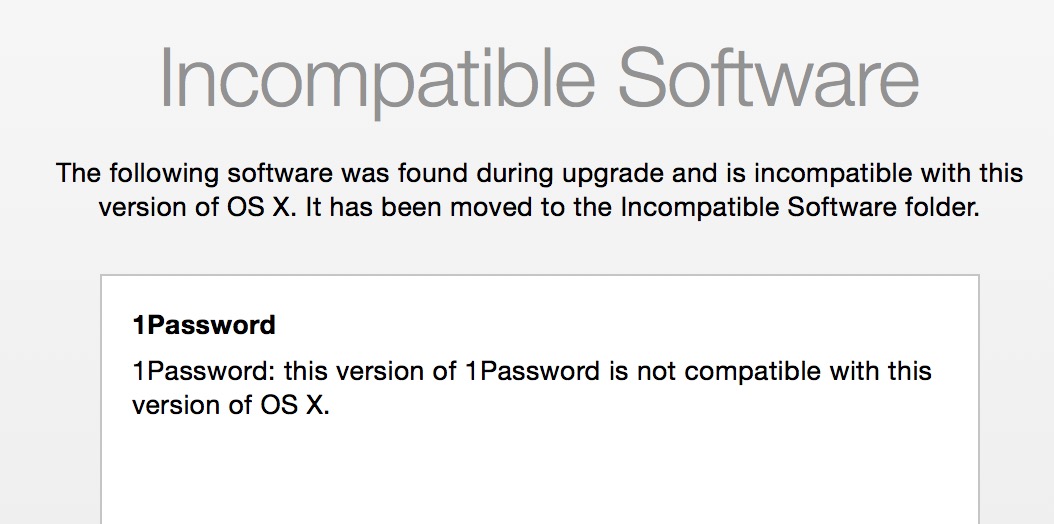
Screen Shot 2014-11-20 at Thu, Nov 20, 9.03.25 AM-1Whenever you perform an update on the MacOS, the updater always checks for software that is incompatible while it’s doing the installation. Most times it will not find any software that is incompatible. But once in a while you do have applications installed, typically ones that use application plug-ins to the operating system, that are not compatible with the new operating system release. The OS installer will move these applications to a folder on the roof level of your hard drive called incompatible software. That way it’s able to complete the upgrade and let the machine boot without running into compatibility problems.  When this happens, a dialogue will be displayed at the end of the update process that looks like the picture shown here.

This screen will list by application name the programs you have that are no longer compatible with the updated operating system you just installed.  In this case the installer noted that the program 1Password was not compatible with the version of the operating system.  It also told you that it moved that software to the incompatible software folder.

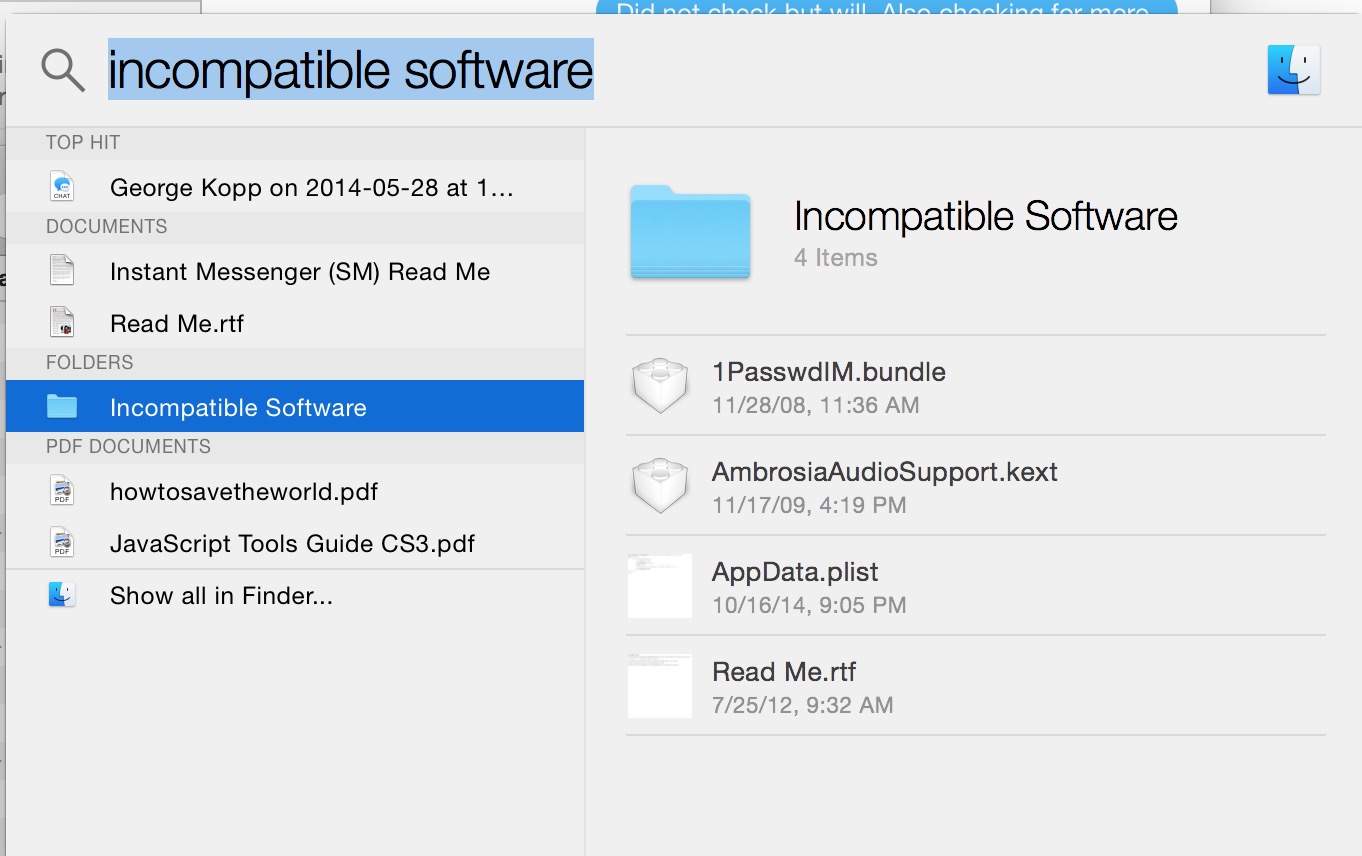
When this happens it’s always a good idea to look for updates to these applications.Screen Shot 2014-11-20 at Thu, Nov 20, 10.56.53 AM  If you download the application from the Mac App Store, after you do your operating system update it’s always good to go check and see if there are any application updates available. If you install the application through other methods, you should go to the website of the software creator and see if an update has been made available.

Then it’s a good idea to look into the incompatible software folder at the root level of your hard drive. This folder will show you which applications that have incompatibilities shown for in the past. It’s always a good idea to check for updates for any application shown in this folder. It’s also of note that there is the possibly that only a portion of an application was incompatible.  So checking for an update to an application that is shown in here, even if it seems to continue to run, is always a good idea.


iMovie Project Data Lost

Screen Shot 2014-11-06 at 12.39.56 PMRecently, I had a client that had a problem with iMovie. They found that when they opened up iMovie, all the work they had done on the project that they were working on was gone. They restored the project from Time Machine and found that the project was still blank.

I also took a shot and restoring from the Time Machine disk and found the same thing so I called Apple and after talking to the level one support person, they escalated to a level 2 iMovie support specialist. We looked at the logs and it looks like iMovie crashed on the machine probably at some point. Normally that would not of been an issue except iMovie had never been closed for days while working on this project.

So here’s what I found out. If you have a project open in iMovie, Time Machine never backs it up. The reason is the file is in use. Even more importantly iMovie does not write your work to the disk until you close the program. So if you open iMovie, start a project, work on it for days and nights, but never close iMovie, your work never gets written to the hard disk. It’s only in memory. Since it’s never written to the hard disk, but still open, it does not get backed up either with Time Machine.  This was actually news to me.

So here is what probably happened.  My client opened iMovie and iMovie was never closed so the work was never written to the project on disk and the work was never backed up. Then something on the machine had a problem causing iMovie to crash and all of those days of work on the project was lost.

The take away for this is that you need to close iMovie every once in a while in the process of working on your projects. Without closing iMovie you’re never going to write your work to the hard drive and if you don’t write it to the hard drive it will not get backed up.

Pages templates show in a foreign language

IMG_0308.JPGApple’s Pages application provides a number of high-quality easy to use templates to create documents quickly that look very professional. One of the things I often get a question about when people begin to use these templates is why Apple creates them in some foreign language. Here’s the question I usually see:

Q:  Hey George, one thing I don’t understand is why all the text is in a foreign language when I use a template in Pages. Why doesn’t Apple just use English?

A:  Pages templates contain placeholder text, entered to show what a block of text will look like on the page without the distraction of holding any specific meaning.  This text is called lorem ipsum.

Here’s what Wikipedia has to say about it.

“In publishing and graphic design, lorem ipsum is a filler text commonly used to demonstrate the graphic elements of a document or visual presentation. Replacing meaningful content that could be distracting with placeholder text may allow viewers to focus on graphic aspects such as font, typography, and page layout.

The lorem ipsum text is typically a scrambled section of De finibus bonorum et malorum, a 1st-century BC Latin text by Cicero, with words altered, added, and removed such that it is nonsensical, improper Latin.”

The language of that text (Latin) is immaterial, as it is intended to be replaced with whatever words you want to put on the page.

To change this text, you simply click on a block of text in the templets.and start typing.

Alternatively, you can click on the text, go Edit > Paste and Match Style to replace it with text you have copied from elsewhere.