Print Dialog is missing Features in Chrome

Q: From my laptop, using the Chrome browser. I can not print double sided from.  I can print double-sided from my stand alone computer. I can print double-sided from my laptop using Safari or Word. Is there something fairly simple that I can do to correct that Chrome problem  and be able to print double sided or should I just use Safari?

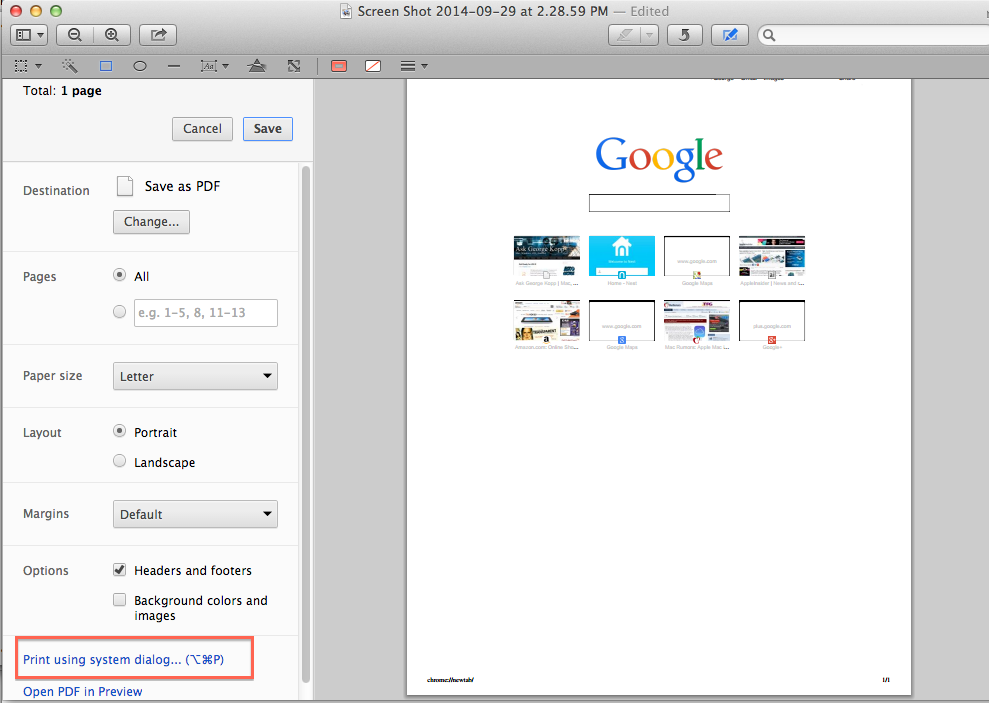
A: Chrome uses their own dialogue to do printing. When you go print from chrome the dialogue looks like this.Screen Shot 2014-09-29 at 2.29.34 PMIf you click on the area that I have highlighted in red that says print using system dialogue, it changes to this:

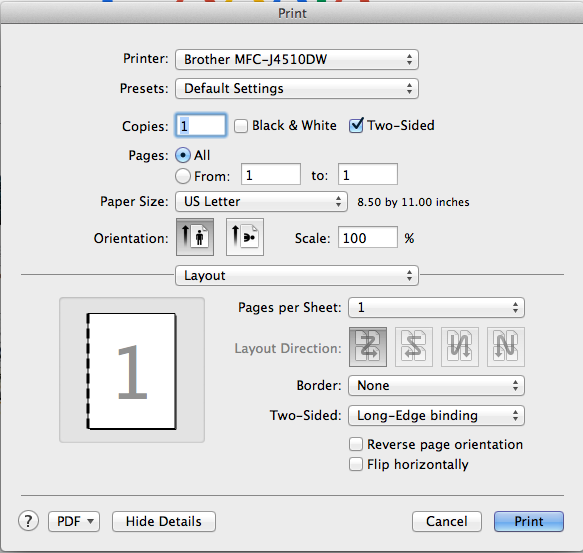
Screen Shot 2014-09-29 at 2.30.13 PMThat’s the same dialogue Safari uses so if you can print double-sided in Safari now you can do it in chrome too.  In this case you would need to click on layout and select two-sided printing.

Having a problem with Your Mac? Start it up in Safe Mode to attempt a Fix

imagesStarting up in “safe mode” may help you diagnose problems you’re having with your Mac. In safe mode, the operating system does not load any application or process other than the base system functions.

Safe Mode is a way to start up your Mac that performs certain checks and prevents certain software from automatically loading or opening.

Starting up in Safe Mode does several things:

  • It forces a check of the startup volume, just like the First Aid feature of Disk Utility. You may see a progress bar on the screen during this check, and the computer takes longer than usual to complete its startup.
  • It loads only required kernel extensions.
  • It disables all fonts installed by the user.
  • It moves font caches to the Trash that are stored in /Library/Caches/com.apple.ATS/(uid)/  – where (uid) is a user ID number such as 501 (Mac OS X v10.4 or later).
  • It disables all startup items and login items in Mac OS X v10.4 or later.
  • In Mac OS X v10.3.9 or earlier, Safe Mode opens only Apple-installed startup items (such items may be installed either in /Library/StartupItems or in /System/Library/StartupItems). These items are different from user-selected account login items.

Taken together, these changes can help resolve or isolate certain issues that exist on the startup volume.

Here’s how to do it.

1. Shut down your Mac and wait 10 seconds.
2. Press the power button.
3. Immediately after you hear the startup tone, hold down the Shift key.
You should press the Shift key as soon as possible after you hear the startup tone, but not before.
4. Release the Shift key when you see the gray Apple logo and progress indicator (spinning gear).
To leave safe mode, restart your Mac normally without holding down any keys during startup.

Safe mode will often allow you to delete or remove something that continues to restart every time you restart the computer. It also allows you to run diagnostics or look to see if an extension to the operating system could be causing your problem. It’s not something you do every day, but it certainly can be helpful.

Fixing Network Connection Issues

Short video on creating a new network location on your Macintosh

Links From My Recent Mac Class

Screen Shot 2014-09-14 at 7.58.26 PMLast night I had the opportunity to teach a class on Macintosh applications. We covered the applications that are included in the Mac operating system. You can never have enough tips about any application, I found the sites on the Internet that provide some great tips for some of these included applications.

Feel free to check these out.

80 handy iPhoto tips and tricks | News | TechRadar
Get more out of Apple email – How to – Macworld UK
How to use the Calendar in OS X Mavericks – How to – Macworld UK
Tips for using Maps on a Mac – How to – Macworld UK
Tips for using Safari 7 in OS X Mavericks – How to – Macworld UK
iMovie (2013): Tips For iMovie ’11 Users
12 Cool Tips and Tricks for iMovie ’11 | Mac|Life
10 Tips for Getting More Out of iCal | Mac|Life
7 FaceTime for Mac Tips, Tricks, and Features | Mac|Life


Posted in Mac

Get ready for your Trip to Yosemite

Screen Shot 2014-09-07 at 11.06.37 AMOS X Yosemite is the newest major operating system release for Mac users, versioned as OS X 10.10, and it’s due to be released soon. This release includes many new feature enhancements and refinements. I have been working with the Beta release and it looks to be a great release of OS X and all users that can update their Macs should do so.  But before you run the updater to install it on your Mac, there are a few things you should do just to ensure that your upgrade goes well.

Yosemite is super easy to install, and it’s similar enough to Mavericks and Mountain Lion that it’s unlikely most users will encounter any trouble with the update regarding app compatibility or system support. But any major new operating system releases offer a good time to run through some simple maintenance  to insure compatibility of the Mac itself, your apps, and also to do some general clean up and, the most important thing of all, back up.

So here are a few things you might want to consider before upgrading your computer to Yosemite

1: Check Mac System Compatibility

At it’s core, updating to OS X Yosemite requires the following:

  • 64-bit Intel CPU
  • 8GB of free disk space
  • OS X Lion or OS X Mountain Lion, or Mavericks
  • Internet connection so that it can be downloaded from the Mac App Store

If some of that sounds like jargon gibberish, but basically, if your machine runs Mavericks, it will run Yosemite. Apple is not published a list of machines but Yosemite will run on, but here’s the list for Mavericks.

  • iMac (Mid-2007 or later)
  • MacBook (13-inch Aluminum, Late 2008), (13-inch, Early 2009 or later)
  • MacBook Pro (13-inch, Mid-2009 or later), (15-inch, Mid/Late 2007 or later), (17-inch, Late 2007 or later)
  • MacBook Air (Late 2008 or later)
  • Mac Mini (Early 2009 or later)
  • Mac Pro (Early 2008 or later)
  • Xserve (Early 2009)

Perhaps the biggest requirement for many users will be having at least 8GB free on the Mac hard disk.  Don’t skimp here. Make sure you have enough free space for the updates before you start. Running the installer puts all of the new software on your computer and then removes the old. So additional free space is needed at the time of install to make it work well. Running out of space would not be a good thing.

2: Install General System Updates & Update Mac Apps

Keeping system updates and apps up to date is good policy for stability and security, but you’ll often get new features too. This can be particularly true when apps have been updated to support new major OS X releases, where a potential new feature built into the operating system may need to be independently included within the apps themselves.

Updating OS X and your apps through the Mac App Store is remarkably simple:

  • Launch the “App Store” from the Applications folder
  • Go to the “Updates” tab and choose “Update All”

3: Do Some General System Clean Up

Major OS X updates are a great time to perform some general system maintenance and clean up to help insure things are running well. Much of this is optional, but if you have the time it’s a good idea to perform some cleaning on the Mac:

  • Delete old apps you no longer use, usually tossing them into the Trash is enough but you can do a more thorough uninstall if desired
  • Trash useless old files from the ~/Downloads/ folder
  • Delete unnecessary caches from user folders and old apps
  • Clean up files from the desktop, either throw them all into a ‘cleanup’ folder or individually into their appropriate places in your home directory – this is an easy task that helps to speed up older Macs

Now go to the utilities folder inside the applications folder and run Disk Utility.  Select the Macintosh HD in the left pane and press the Repair Disk Permissions button.  Apple doesn’t say this is necessary, but I’ve seen far too many times but not doing this causes you problems down the line.

4: Back Up with Time Machine

Last but certainly not least, back up the Mac. Having back ups of your important data and files is very important, and Apple’s Time Machine makes it so easy to backup everything that there is little reason not to do it. Always, always, back up your Mac before installing a major system update. It’s unlikely something will go wrong, but if something does go haywire you can quickly recover if you have a fresh backup handy.

[stextbox id=”info”]For most general users, it is often good to wait a few days after the new OS is available to make sure there are no issues with it.[/stextbox]

That’s about it,  Now go ahead and download and enjoy OS X Yosemite, free is a great price for a great operating system update!

Once the install is complete I typically run the system updates again. This ensures that if Apple has patched the system beyond the release version you get those updates too. It also ensures that any Apple applications or vendor applications that have been updated for the new operating system get installed on your computer


 

Internet Slowdown Problems

Screen Shot 2014-08-15 at 11.26.09 AMQ: Lately I’ve noticed that the internet has slowed down a great deal. I also tried to purchase music at iTunes and got an error message, three times, that the network connection had ‘timed out’

A: In my experience Internet slowdowns are often a result of two things. Obviously it could be a slow down at the cable company providing the service. But the second thing actually happens more often. The devices that connect us to that Internet sometimes get confused. These are boxes at tend to run 24 hours a day so any little glitch can cause a problem. The first thing I always do when the network seems slow is to unplug the router and unplugged the cable modem. But it’s important to reconnect them in the right sequence.

While these boxes are unplugged, restart your computer. It’s always a good idea to shut down all the way to power off and then turn the power back on.

Next, plug the cable/DSL modem in and then wait about a minute. Now plug the power into the router. This allows the cable modem to reset and make a connection prior to getting the router powered back up. Once you’ve done that the next thing to do is to test the speed of your Internet and see if you’re getting what you’re paying for.

I often use one of these websites to test Internet speed.

http://www.speedtest.net/
http://www.dslreports.com/speedtest

There are also apps to do this on the iPhone or the iPad.

If you’re not getting the speed you’re paying for, it’s time to call your Internet service provider and see if they can do anything to help.

Transcend’s JetDrive Lite : A Low Cost and Fast Storage Upgrade

Screen Shot 2014-08-13 at 8.20.04 PMTranscend’s JetDrive Lite 330 Expansion Card gives you the chance to instantly boost the total available capacity of your MacBook Pro system without the need to upgrade to a larger capacity SSD.

With their substantial amount of storage space, Transcend’s JetDrive Lite 330 expansion cards provide plenty of space for professional-quality photos and videos as well as a large music collection. Each 64GB card for instance, can store over 31,000 high-resolution photos, 16,000 mp3 songs, 16 hours of Full HD quality video, or seemingly limitless number of documents.

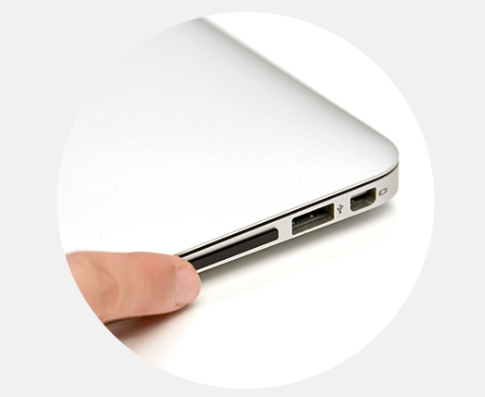
When inserted into the SD card slot of a MacBook Pro 13″ Retina Display, the low-profile Screen Shot 2014-08-13 at 8.20.18 PMJetDrive Lite 330 won’t stick out like a normal SD card and can even be left in place for on the go storage. What’s more, the JetDrive Lite 330 makes fast and efficient file transfer possible with incredible transfer speeds of up to 95MB/s read and 60MB/s write.

Thats the great part. It’s unbelievably fast. I installed the beta for the Yosemite operating system on the drive and it’s nearly as fast to me as running from a internal SSD drive.  I really love the way if it’s flush in the SD slot.

For just $40, I’m able to get 64 GB of pretty darn fast SSD space for my MacBook Pro. It’s a great way to safely try out a new operating system. You got a love that.

Posted in Mac

Mac: Starting apps using Spotlight

SpotlightThere are many applications on a Macintosh that I only use once and a while. Rather than find the applications folder and look for that applications icon, I use a better way that allows me to go directly to where I want to go.

If there’s an app I need to use that’s not in my Dock, I start it by hitting Command + Space bar to open the Spotlight search box, then I begin typing its name. After just a few characters Spotlight has usually realised which app it is, and I just hit Return to start that app. Simple, and quick. No mouse required!

In the next release of the operating system, Yosemite, Apple will make this even more prevalent. When you hit this command key combination, the spotlight dialog will pop up in the middle of the screen so it will be easier to see.

MacBasics: Mac OS Productivity Apps Training in Jefferson City

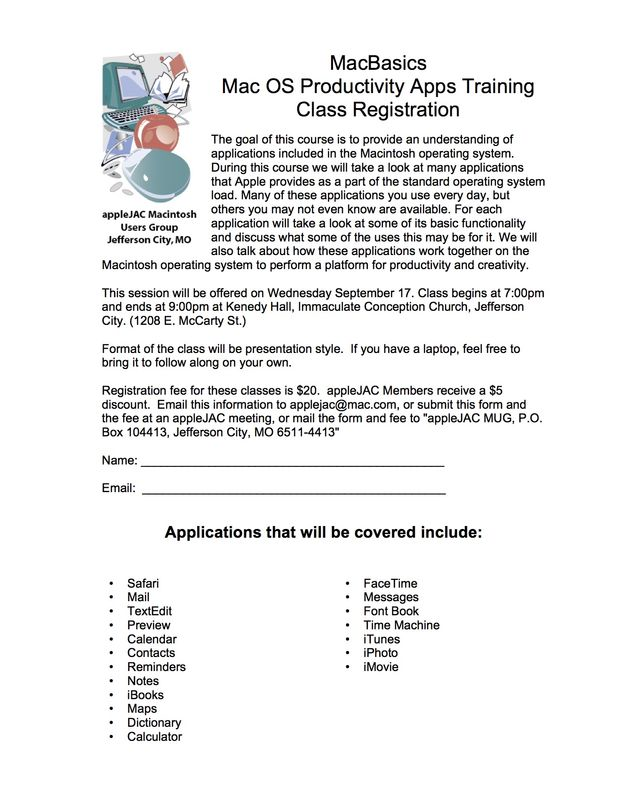
A few times a year, I am asked to do some training for aappleJAC, our local Macintosh Users Group.  One of these classes is coming up in September.  This class will cover the Mac operating system beyond the basics. A basic Macintosh class will teach you to get around in the operating system and find things but Apple has include so many applications with the Macintosh OS that it really cannot cover these in one class.This class, will cover all those applications that Apple includes free as part of the operating system.

Information on the class is below. Everybody’s welcome.

6a00d8341fbd4c53ef01a3fd41d6d7970b-640wi


Posted in Mac

Paste text without Formatting

imagesI don’t know about you, but I never, want to paste something into a fresh document AND carry across its original formatting. I always want to paste and remove the format.  On both the Mac and Windows, there’s a keyboard shortcut that will allow you to do that. Unfortunately, that keyboard shortcut is not simple to do.

On a Macintosh, to paste without formatting (i.e. as plain text), hold down Shift + Option + Command and hit V. It’s a tricky keyboard combo to master but with a little practice you’ll get used to it.

On Windows, in most versions of recent Windows versions,  Ctrl + Windows Key + V also pastes text as plain text. All you have to do is to relearn these command sequences as your standard paste command. If you do that, you’ll always be getting text only without the added format.