Adding Security to Documents

Sometimes you create document that you want to provide some security that other people cannot see what’s in the file. Perhaps it’s a list of passwords or security information or it may be something like your Christmas list that you want to make sure your kids don’t have access to. Many applications give you the ability to add a password to an individual file and require that passwords use for the file open.  Some of these applications make it very simple to add a password while others work just as well but are a little more difficult to get it set up.

Let’s look at the process for adding a password to an Apple Pages, Numbers, or keynote file. Apple tends to make this process very easy.   They even add a pulldown menu item that allows you to provide a password for the file. You can save these files either and iCloud or on your hard drive but you must remember the password to be able to have access to open them.

Apple iWork

For this example also some screenshots from Numbers. The other two applications making up Apple’s office trilogy suite work exactly the same.

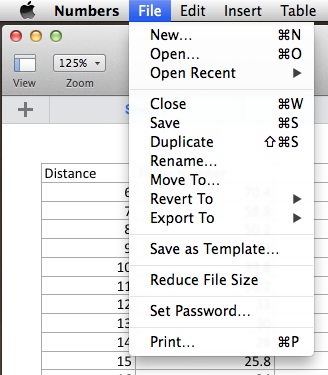
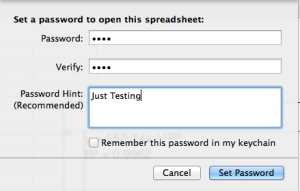
Screen Shot 2013-12-06 at 7.25.59 AMBegin the process by opening your document.  We are ready to add the password to the document simply select set password from the file menu. A drop down properties tab will open and give you the ability to enter the password, verify the password, and provide a password hint.

There is also a checkbox that allows this password to be saved your  Keychain file. If you check this box your computer will automatically open this file without requiring unit in the password. If the intended this is to continue to use the file on the same computer, it probably doesn’t make much sense to save the password any keychain. If you do anyone will be able to open the file on your computer. This still provides the ability to send this file to someone else and require them to know the password.

Screen Shot 2013-12-06 at 7.26.32 AM

Removing the password is simply as easy as repeating the process, keying in the password, and choosing the remove password button.


Microsoft Office

Microsoft also provides the ability to password protect files. These passwords are cross-platform so if you send the file to Windows user from a Mac or to a Mac user from windows password is left intact. Microsoft makes it slightly more difficult to set a file-based password but they do provide a nice help document that can walk you through it.

Screen Shot 2013-12-06 at 7.41.28 AMThe Process is very similar for Microsoft Word, Excel, and PowerPoint. We will use the word for this example.

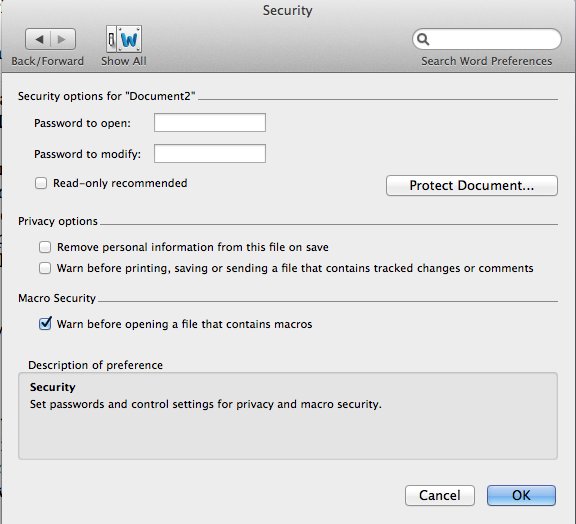
Open your document in Microsoft Word. From the menu bar select preferences. Preference is divided into multiple categories. You need to select the security item under personal settings. From this dialogue you have the ability to set a password to be able to open the file and a separate password to be able to modify the file. This could be very handy if sending a file to someone else to review. You can set a password to let them look at the file without giving them the ability to change anything.

Other applications in these two application families work very similarly.

Sometimes security document is a necessary evil. The application you’re using today likely give you the ability to do this. Give it a try. But be warned, don’t forget the password!


Preparing for Major Operating System Upgrades

computer-upgradesOctober looks to be shaping up to be a big month for operating system upgrades. Microsoft has announced it on October 18 Windows 8.1 will be released. While Apple has not yet made an official announcement, there seems to be a lot of conjecture that OSX Mavericks will be made available in October also.  Many people quickly jump in and perform the upgrades without thinking about any preparation. Preparing to make one of these major upgrades is often a good thing to consider.

Regardless of which operating system you use, performing a major upgrade often puts your data at risk. While both Microsoft and Apple do extensive testing on their major operating system upgrades, often times things can go wrong very easily. Apple has the benefit of having a more closed environment so that it can test its operating system among many machines and many platforms to ensure that the upgrade go smoothly. On the other hand, Microsoft, which supports many more machine types and many more upgrade possibilities, has a more difficult time in testing these major upgrades. That’s not to say that either company doesn’t do everything humanly possible to ensure that their upgrade go smooth. It just says there are many possibilities that are hard to account for and doing testing.

So what’s the average user to do to ensure that their upgrade goes well. A little preparation upfront, and ensuring that your backup is up-to-date are the major things that you want to accomplish.

imgresWindows 8.1

More than a year in the making, Microsoft has been preparing for a major upgrade to windows. Since Windows 8 was released, many reports in the press have paned it as a poor operating system for the average user.  In post I made this blog, I’ve explained how Windows 8 is a fine operating system but only if you have a touchscreen machine. Unfortunately that recommendation doesn’t change much with Windows 8.1. Microsoft has spent a lot of opportunity to upgrade this operating system to take care of many things that people of complained about. Unfortunately the ability to use it on a non-touchscreen machine really hasn’t improved that much. That’s not to say that I wouldn’t go ahead and perform the upgrade if I have a Windows 8 machine. Windows 8.1 will add some nice new features and stability to the computer.

Before you begin the backup process you want to make sure that you have a good backup of your data. Unfortunately, in Windows 8, Microsoft backup utility is less than desirable.  This utility is fine for incrementally backing up changes to files made over days but not necessarily the best in the world for complete recovery.  The main thing to be concerned about is your user data. I recommend copying everything in your user folder over to an external hard drive. This ensures that you have it and can recover it if necessary.  Before you do this ensure that you turn on hidden files and folders so the data is stored in the application library can be moved to.

Once you have a good backup, perform the upgrade as you would any other Microsoft upgrade.  Since this is a major upgrade expected to take at least an hour, and ensure that you have your computer plugged into power if it’s a battery power unit.

imgres-1Macintosh OS X Mavericks

Since Mavericks is a major upgrade, the odds that Apple will require a small charge are very good. Like most Apple upgrades these days, they come from the app store. Login to the app store and purchase the upgrade. One important thing to note is that Apple provides license for you to upgrade up to five machines with each iCloud account that you purchase from. But the machine you use must be tied to your iCloud account for this to happen. Before you begin this backup ensure that your Time Machine backup is completely up-to-date.  If you click on the Time Machine icon in your menubar it will tell you the last time your time machine has updated.  I recommend going to the App Store and updating any applications you purchase there before you perform the upgrade to Mavericks.  Once you purchase it from the app store, it will download and begin the upgrade process.  This version is also a major upgrade to the Mac operating system so you should allocate at least an hour for the upgrade process to happen, and more time if you have a slow Internet connection for the download. Also if your machine is a laptop ensure that it’s plugged into power. Recent Apple updates have stopped in the middle of the process if you were not plugged into power and ensure that you plug it in before you start.

Keep in mind, these are pretty major upgrades. In all upgrades I would recommend waiting three days to a week before you apply.  This just ensures that the manufacture doesn’t find something immediately after the upgrade and put out another patch that you would have to later apply.

I want to reiterate the fact that both Microsoft and Apple put a lot of time into these major upgrades.  Having a backup of your data before you risk it to some upgrade only makes sense. The odds are highly in your favor that you will not need to use these backups but that doesn’t mean that you shouldn’t go ahead and have them.

Hopefully everything in your upgrade will go well. I have done some preliminary testing on both of these releases and fielder both a good upgrade for you to perform. Feel free to leave feedback as to how your upgrade goes.

How Many Email Addresses Do I Need?

Screen Shot 2013-10-02 at 8.29.08 AMPeople often ask me a question about their email.  They question whether they need an additional email address over the one that their Internet service provider normally provides.  For many people, using the Internet email address put your service provider provides is fine.  Some people, for business or professional reasons, would like to have an additional address that they can use for those purposes. Other people feel that an additional email address, to use for sites that they register on, or for companies who insist upon having your email address, is a good idea to help reduce spam.  I would like to advocate you have more than one email address that you use.  I think that it’s important for you to protect the use of your primary email address from it becoming a spam mailbox. Using an additional email address for this purpose is a good way to prevent that from happening.

But how many email addresses do I need?

There was a time when retrieving email from multiple providers was a difficult thing.  It often requires you to log onto different websites and retrieve mail one site time.  In some cases, it even require you to run a specialized piece of software provided by that email vendor that allows you to get email from them.  But these things of changed. Today is easy to configure your email client to pick up multiple email addresses and merge them together into a single inbox for you to look at.  It’s also simple to segregate those email addresses based upon the way you use them.  For instance, if you have one particular email address that you use for signing up for coupons, you can have all of those coupons put in one location that you can then look at at your leisure.

My rule of thumb is that many people need three email addresses. First off, you need your primary email address that you use with friends and family. These are people that you want to be able to contact, and you want to make sure that that email address does not get compromised with spam.  Secondly, I’m a strong advocate of using a throwaway email address, that you can get free from many providers, for signing up for things that you dont care if you lose contact with.  If this address is sold by someone who you’ve provided it to, and ends up on the spam list, you can easily delete this email address and create a new free email address for this purpose.  Finally, many people that work, have an email address provided by their employer. Others who work for themselves, have a need to segregate their work email from the personal email. So many people will need a third email address for this purpose.

Applications such as Windows live mail, or mail on the Mac, allow you to easily set up these email addresses to all be retrieved the same time, show up in a single inbox if you like, and provide rules for what to do with emails that are on specific subjects.  Even higher in applications such as Microsoft outlook allow you to do the same thing.  In this way, having multiple email addresses becomes transparent to you as a user.

Where do I get another email address?

First off, if you’re setting a new email addresses you may want to consider using a high-quality free email service is your primary personal email address.  This way, if something causes you to change Internet service providers, you do not lose contact with those personal friends and family that are most important to you.  My first recommendation would be to use Gmail for this purpose. Microsoft also provides Outlook email at Outlook.com that’s a free email and also has very good performance.  Apple will provide you an iCloud email address for free also. One caveat with the Apple iCloud email address. If you’re using iCloud on the computer to synchronize contacts and calendars, you can only have one iCloud address active at any one time.

Other providers such as AOL, or Yahoo, also provide email addresses for free. Many people consider AOL, Yahoo and Hotmail spamming email addresses due to the fact that these email addresses of been around a long time and are often thought of as email services with high spam content.  I would also caution against using one of these three email addresses as your business email address.  There’s something about doing business with someone with a Hotmail account that makes people uneasy.

[stextbox id=”info” caption=”Types of Email Arddresses”]

Personal Email Address – your most prized email that you protect aginst spam.  Only give this out to friends and family.

“Throw away address” – one you can give to everyone.  If it becomes too much of a spam pot, you can delete it and start over with another free one.

Business Email Address – an address that you use strictly for business purposes.

[/stextbox]

If you follow this idea, and have more than one email address, you’ll find that your primary email address it’s less difficult to deal with and you’re able to continue to use it for much longer period of time.

Should I Encrypt My External Drive on my Mac?

Screen Shot 2013-08-02 at 8.16.51 AMDeciding to encrypt your external hard disk on your Macintosh is a bigger decision than you might think. With Mountain Lion, Apple has made it very easy to encrypt an external drive. Encryption provides you the knowledge that someone will need the password for that drive to be able to have access to your files. In today’s world data loss and people getting their identity stolen, that seems to be a pretty good idea at least on the surface. But making the decision toI encrypt my drive needs to be done with some thought.

An encrypted disk works just like a regular disk image but requires a password to open and become available (“mount”). You can move files to or from an encrypted disk as easily as you can from a non-encrypted disk. You can certainly use keychain to store your password on your computer and keep you from having to type again each time you need to use the disk. But storing the password is just one more opening that reduces your level of security. If you truly believe you need your external this encrypted, storing the password for the encrypted disk on your computer is probably not a good idea. So this means each time you need to use the disk and you plug it into your computer, you will need to enter the password again. If security is your biggest concern, this is a small price to pay to know that your disk cannot be used by someone else if they get a hold of it.

But there’s another side of disk encryption. As we all know, hard disks fail. Disks fail for many different reasons. Sometimes the failure is related to the actual disk platter. Other times it could be the electronics on the drive itself. There are many utilities they give you the opportunity to be able to recover data off of the disc that is failed or near failing. There are also commercial services like Drive Savers that allow you to send the drive to them and have them recover for a hefty price. But one thing is very important to understand. While the odds of recovering data off of a failed or failing drive are certainly something less than 100%, the odds of not being able to recover your data from encrypted drive that begins to fail are closer to that 100%  level. It’s vitally important to back up any drive that you encrypt. You must begin with the understanding that a failing drive that has been encrypted is almost certainly a lost drive.

Encrypting the drive in Mac OS 10.8, Mountain lion, is fairly easy.

  1. Right click on the external disk on your desktop that you’d like to encrypt.
  2. Click on Encrypt ‘disk name’.
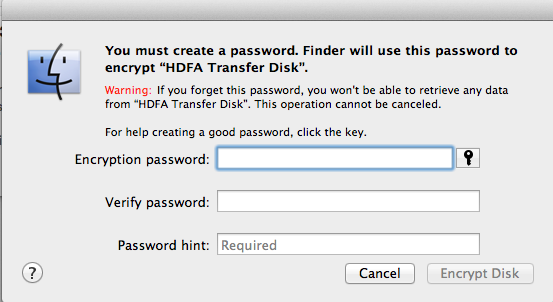
  3. You’ll now be asked to choose a password that you’ll need to gain access to encrypted content. Knowing this password is key to being able to access your drive. It is important for you to write it down and store it in a safe place or using an app like 1Password to keep it safe for you.
  4. After you’ve chosen your password and password hint, now click on Encrypt Disk.

Thats all it takes to encrypt your drive.

Screen Shot 2013-08-02 at 8.14.53 AM

Making the decision to encrypted drive is not one you want to make lightly. Give it some thought as to how important the data on your drive is and why it needs to be kept absolutely secure. Also think for a moment if you’re willing to deal with the multiple entries of that password each time you use the drive or connect it to a machine. If these issues don’t scare you off, Apples disk encryption is very secure. It certainly should keep your data safe in the long-term.

Backing Up your iOS Device

iPhone BackupHow important is your data? Most of us realize that a good backup is worth it’s weight in gold. Many of us have backup methods are we back up our computer data and even sometimes take that data offsite. But more and more we are finding our most important computing device these days to be our smart phone or tablet. These devices are with us all the time. We store information in them that’s extremely personal to us but critical for us to have available. Having a good method to backup your handheld device is extremely important. If you have an iOS device, there are typically two methods to choose for backup. 

Backing up to iCloud

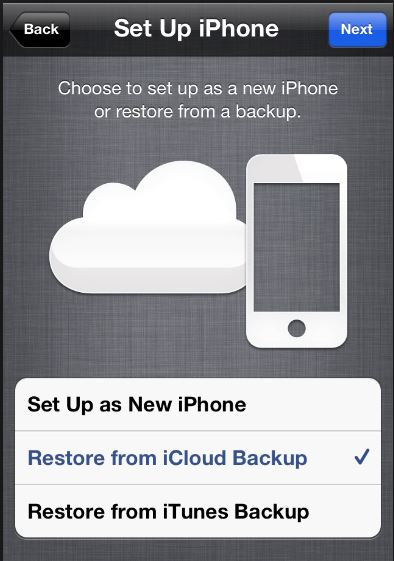
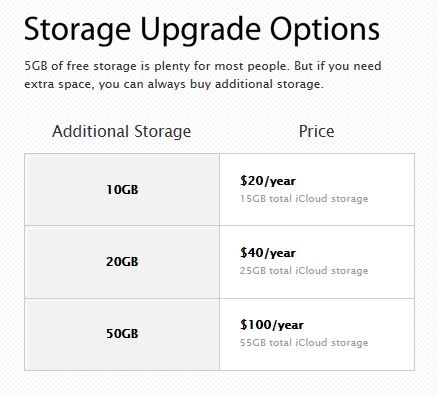
A wireless backup in the cloud. How perfect could that be. Seems like a no-brainer to use this method for backing up our device. There are problems associated with a cloud-based backup strategy. The biggest problem is the limited amount of storage space Apple provides us on iCloud. Sure iCloud is a free service and you can add additional storage space for a cost. Unfortunately these costs are not trivial. Many of us have iPhones or iPads with a relatively large storage capacity.

iCloud Storage OptionsWhen you sign up for iCloud, you automatically get 5GB of free storage. That may be plenty of room, particularly if you only have one device, because of the way iCloud stores your content. Your purchased music, movies, apps, books, and TV shows — as well as your Photo Stream — don’t count against your free storage. That 5GB goes a long way for your mail, documents, account information, settings, and other app data. And if you need more storage you can easily purchase an upgrade right from your device. But many people have a single issue that causes them to run out of space very quickly.

Photos you take on your device go into the Camera Roll. All these photos get backed up to iCloud and DO use part of the storage that iCloud provides you. People who routinely keep hundreds of photos in the camera roll will quickly exhaust the 5GB of space Apple provides and not realize why they have done so. If you sync your photos to your computer, or be sure you have saved them there from your Photo Stream, you should be able to remove these photos from the Camera Roll.

Many people believe they need to leave them there to keep them on the phone. But, you have to keep in mind that if you have Photo Stream turned on, they will be copied to the stream and available from that selection on your device.

Another way to deal with this is to sync your photos to your computer. This is in my opinion a preferred method for ensuring those photos are backed up. In general, I recommend people keep no more than 100 photos in the Camera Roll. With that many photos, a standard iCloud account should provide enough storage for two iOS devices.

Backing up to your computer

In the early days of iOS backing up your computer was the only option. Your computer typically has larger amounts of storage has the ability to keep copies of the backup. But even this can cause a space problem in the attic. If you have a new machine with an SSD drive, you may have limited storage space available. Backing up your device to your computer will make a copy of everything on it so it’s much larger than the storage space that iCloud uses for it’s backups. Since iCloud storage eliminates the need to copy anything you’ve purchased from Apple, it is able to store more information in a smaller space. When backing up to your computer though all information gets copied and takes much more space.

If you have storage space on your computer, backing up to get may be a good solution for you. By plugging your device into your computer, you not only can back it up, but you can download those photos out of the camera roll too.

But just like backing up to iCloud, there are things you need to be aware of when backing up to your computer. When you back up your computer it keeps a full copy of the device. If you change devices often, you may have full copies of older devices you no longer own still stored on your computer.

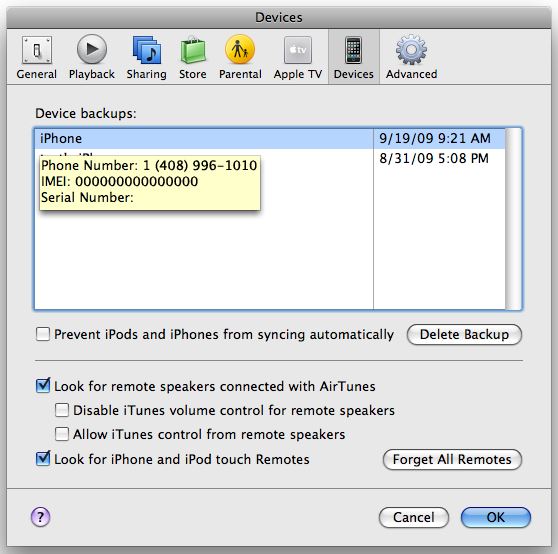
iOS Backups If you want to delete a backup created by iTunes, follow these steps:

  1. Open iTunes Preferences:
    • Windows: Choose Edit > Preferences
    • Mac: Choose iTunes > Preferences
  2. Click Devices (the iOS device does not need to be connected).
  3. iTunes will show the phone number, IMEI, and serial number of the backed up iPhone when you position your mouse pointer over a backup (iTunes shows only the serial number for iPad and iPod touch). Use this to locate the backup for the iOS device you want to delete. Select the backup you want to remove and click Delete Backup.
  4. Confirm you wish to remove the selected backup by clicking Delete Backup.
  5. Click OK to close the iTunes Preferences Window.

Deleting extra copies of old devices can save significant storage on your computer.

George’s Recommendation

Because backing up is something that needs to be seamless, I recommend using iCloud is your main backup process. In doing this, you must keep in mind that you need to sync your photos once in a while to your computer to reduce the number of images that are stored in your camera roll. As long as you do that, iCloud storage is usually sufficient to be able to backup both your iPhone and your iPad if you have one.

[stextbox id=”info” caption=”Turning on iCloud for Backup”]

iCloud automatically backs up the most important data on your device using iOS 5 or later. After you have enabled Backup on your iPhone, iPad, or iPod touch in Settings > iCloud > Backup & Storage, it will run on a daily basis as long as your device is:

  • Connected to the Internet over Wi-Fi
  • Connected to a power source
  • Screen locked

You can also back up manually whenever your device is connected to the Internet over Wi-Fi by choosing Back Up Now from Settings > iCloud > Storage & Backup

[/stextbox]

HELP! “Mailbox quota exceeded”

StacksThat’s the bounce back message your friends may see if you fill up your server based email box.  Just because you download your messages you cannot be sure that they are being removed from the server by default.

There are two types of email server systems in common use today.  These systems are referred to as: POP and IMAP.

IMAP (Internet Message Access Protocol)

IMAP is a protocol by which you can read email. IMAP allows you to view your email from more than one place. E.g. from your desktop computer at work and from your laptop at home and from abroad and from your mobile device – multiple locations.

IMAP keeps the messages on the server until it is told to delete them.  In a typical IMAP implementation, all the messages you see on your mail program are located on the server.  With IMAP you have a service provider imposed storage limit called a  quota. If you run out of space on the server you will not be able to download new emails into your account!

POP (Post Office Protocol)

POP is better if you have no need to check your email in multiple locations. If you only ever check your email on one computer at, then POP is fine for this purpose.  In most cases, when you bring the email message down to your computer, it removes it from the server.  But this is a setting and some people, in a hope to save everything they ever get in email, just in case, set it to not remove messages.  In these cases you can also see the same message when you run out of space.

Which one is better?

One big problem here is that not all service providers provide both types of email access to choose from.  Most services that are intended for use on phones, tablets, or computers, may only offer IMAP.  Examples of IMAP providers are:  Gmail, iCloud, Outlook.com, Yahoo, and AOL.  In the over al scheme of things, IMAP is a much more modern protocol because it, having a centralized storage database for mail, allows you to delete a message from one place and have it deleted from all your computers or phones attached to this mailbox.

But not every provider provides IMAP.  Many Internet service providers will only give you access by POP.  These are typically companies more interested in providing internet service than mail.  An examples of this is Mediacom, a local internet service provider where I live. These companies don’t want to provide IMAP because while it is much better for the consumer, it requires more server infrastructure to store these messages on their end.

How do I deal with “Mailbox quota exceeded”?

This depends on the type of account you use.

For a POP account, you need to be sure your mail client is set to delete messages from the server. Most mail clients are very similar in setting this up.  You need to go to the account settings and look for a checkbox that says something like” Remove from server after:” and provides some choices such as one day and one month.  One Month is usually a reasonable setting.  With this turned on there is often a “Remove now” button that will remove all server mail older than the one month setting you chose.  But don’t worry, with a POP account, if the messages are on your computer, even though you delete it from the server, it will stay on your computer.

For an IMAP account, it’s not quite as straight forward.  Since the messages on the server match those on your computer, the only ways to clean this up are to either delete messages, move them to a local folder, or increase your quota.

Deleting messages is simple but requires quite a bit of time since you need to make decisions on what is good to keep and what is not.  Be sure to empty the trash in mail to clear them out after marking them as trash.  Moving them to a local folder requires you to create a folder within your mail client and select messages from your inbox to copy to this local folder.  This then stores this mail on your computer and removes it from the server.  If the domain is something that you host of have control of, you can often go into the service providers cpanel (control panel) and increase the mail quota.  This is a little different for all providers so you might want to read their instructions before trying to do it.

The most important thing to keep in mind is to not be a hoarder.  Clean up your email and don’t let many thousand messages accumulate just because you don’t have time to go through them.  Setup up a junk filter and have these messages deleted immediately.

[stextbox id=”info” caption=”Setting Mac Mail to delete messages on a POP account”]

 

MacMailIn Mail, do the following:

Go to the Mail menu and select Preferences
Click on the Accounts icon and select the Advanced tab
Click the checkbox on for “Remove copy from server” and select “On Month” in the dropdown box below the setting
Now press Remove Now
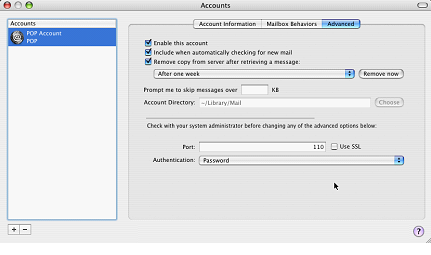
Remove mailo dialog

[/stextbox]

My Windows 8 Laptop makes no Sound

Q: My Windows 8 computer says it cannot find any Audio hardware on my Laptop.  It used to make sounds but now does not.  Is this a hardware issue or a software issue?

A:  It could be either but we should be able to easily tell.  To do this we need to look into Device Manager.  In windows 7, it was as easy as going to control panels but Windows 8 is a little different.

Before proceeding, I would first make sure the volume is turned up using the keyboard key on the machine.

Now, Follow these easy steps to open Device Manager in Windows 8 from the Control Panel:

1.From the Start screen, swipe up and tap the All apps icon.  If you have a mouse, right-click on the Start screen and then click All apps.

2.Once on the Apps screen, scroll or swipe to the right until you see the Windows System heading.

3.Tap or click on Control Panel, located under Windows System.  Windows 8 will bring up the Desktop and automatically open the Control Panel.

4.Tap or click on the Hardware and Sound link.

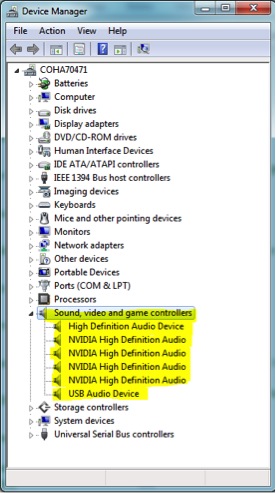
Sound Driver

Note: You won’t see Hardware and Sound if your Control Panel view is set to Large icons or Small icons. In your case, just tap or click on Device Manager and then move on to Step 6.

5.In the Hardware and Sound window, click or tap Device Manager, located under the Devices and Printers heading.

6. In Device Manger , you need to look for The Audio portion as shown in the image.  We are looking for any of those to show with an X, a yellow triangle, or a red mark.


If the Audio devices are completely missing from Device manager, it is likely a hardware issue with the laptop and you should call the manufacturer.  It the devices show up but have an X, a yellow triangle, or a red mark by them, it usually means it is a driver issue. To fix this you would double click on the device, choose the driver tab, and update the driver.  If this does not fix it, the next thing to try is to uninstall the driver from the same location and reboot the machine.  Windows should then reinstall the driver on the next boot.

Is this Spam?

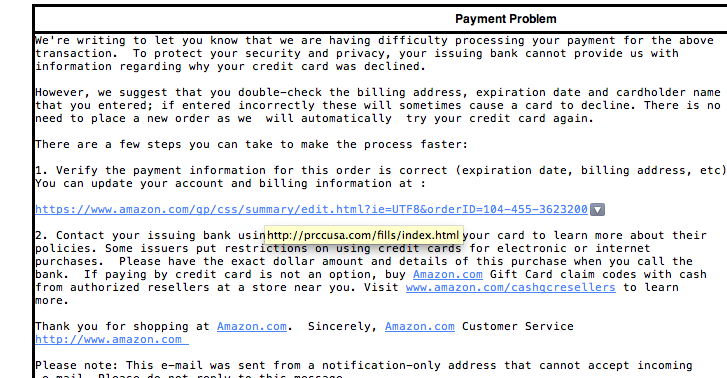
Here is a little trick to help you determine if an email sent to you is real or a spam email.  Most of these emails that make you question whether they’re real, include a web link in them. The web link is usually written out so that you can see the entire link.  People sending out spam have realized that if you see the link, and it looks real, the odds of you clicking on it are much greater. Your mail program gives you the ability to help determine whether those links are really real. If you hover over the link with your pointer or cursor, a link will pop up showing where that link actually really takes you.

Take a look at the example below:

Screen Shot 2013-06-11 at 8.04.13 PMThe link in the above email looks like it goes to a page at Amazon.com. But when I hover over the mail you see that it’s actually going to a completely different place. By hovering over the link before you click it you have the opportunity to determine for yourself whether that email is probably spam, or a real email that you need to address.


But it’s Not Spam!

spamA question I often hear from people has to do with why their emails often end up being marked as spam by the person they send it to. Determining spam is a difficult situation these days. It’s very hard to determine if an email is truly informational or is intended as marketing spam.  There are many software solutions that help make these determinations for people, and often times these solutions are outside of the control of the individual user.  Sometimes email sent to you is going to be marked as  spam even though you normally would want to see them. You are even absolutely sure you never marked them as spam, but they continue to fall there anyway. This can be a result of a server being used for your mail account trying to determine spam from a blacklist compiled by others or even from others in your own company marking the sender as a spammer.

Here is a great article I found on how this happens.  It’s important to understand that once this occurs, it is often difficult to reverse.  This is why I always advocate using a separate email address for any marketing correspondence you send.  This protects your primary email address from ending up caught in the quagmire of spam and junk mail filters.

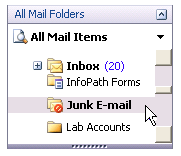
You should also understand you email clients spam or junk mail features so you know how to unmark an email as spam that is incorrectly filtered.  This process is different for every mail client but basically consists of going to the spam or junk mail box on your computer and selecting a command in the mail client menus that tells the software the email is not spam.

For example, in Microsoft Outlook, you would do the following:

To mark a particular message as not junk, follow these steps:

  1. Screen Shot 2013-06-05 at 5.09.42 PMIn Mail, click the Junk E-mail folder in the Navigation Pane (Navigation Pane: The column on the left side of the Outlook window that includes panes such as Shortcuts or Mail and the shortcuts or folders within each pane. Click a folder to show the items in the folder.).
  1. Right-click any message that you want to mark as not junk.
  2. On the shortcut menu, point to Junk E-mail, and then click Mark as Not Junk.

The process is quite similar in Apple Mail.  For Outlook express.  Take a look at this article from Microsoft for more details.

[stextbox id=”alert” caption=”A couple other comments about spam”]

If your looking for an email address to use that has a great spam filter associated with it, try a gmail address.  Google has great spam filters that are very accurate and a gmail address is available for free.

If you are a Mac user overwhelmed by spam, consider a program called Spamsieve.  Spamsieve runs in conjunction with Apple Mail and provides a great deal of configuration ability in determining spam.  With a few days of training it can eliminate 90% of the spam from your mailbox automatically.

[/stextbox]

I Just can’t keep track of my Mac’s Cursor….

Screen Shot 2013-05-17 at 12.06.56 PMDo you ever lose your curser on your big screen Mac? Perhaps it is hard to follow it on your new retna display laptop. There is an easy fix for this that allows you to make your Mac curser get larger.

It’s easy to make your cursor bigger and it’s built into your Macs’s operating system. Open your System Preferences and select Accessibility. This system preference lets you choose from many accessibility options, including enabling access for assistive devices. The Display selection lets you change the size of the mouse pointer and adjust the contrast of your display.  The VoiceOver selection lets you toggle VoiceOver off and on and open the VoiceOver Utility. There are other options to let you turn on and configure display zooming and other display enhancement settings such as grayscale, enhanced contrast, and Black on White/White on Black. The Audio selection lets you control whether the screen will flash when an alert sound occurs. The Keyboard selection lets you turn Sticky Keys off and on and configure them, and also can set a delay to ignore accidental keystrokes. The Mouse & Trackpad selection lets you use the numeric keypad in place of the mouse, add a delay or maximum speed to the mouse pointer.

Once Accessibility is opened, you want to select the Display selection from the menu on the left. Under this option you see a slider to adjust the Cursor Size from Normal to Large. One nice thing about this slider is that the cursor grows as you slide so it is easy to see just how much larger you are making it.

While you are in this System Preference, you may want to try some of the many other options that are included there.

So if your big screen causes you to misplace the cursor, or your high resoloution Rgetna display cursor is just too small, you can easily fix it without having to install anythin on your Mac.