 Do you ever lose your curser on your big screen Mac? Perhaps it is hard to follow it on your new retna display laptop. There is an easy fix for this that allows you to make your Mac curser get larger.
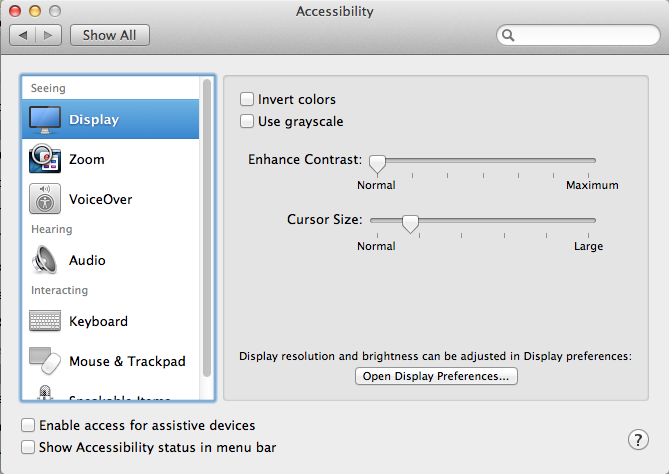
It’s easy to make your cursor bigger and it’s built into your Macs’s operating system. Open your System Preferences and select Accessibility. This system preference lets you choose from many accessibility options, including enabling access for assistive devices. The Display selection lets you change the size of the mouse pointer and adjust the contrast of your display. The VoiceOver selection lets you toggle VoiceOver off and on and open the VoiceOver Utility. There are other options to let you turn on and configure display zooming and other display enhancement settings such as grayscale, enhanced contrast, and Black on White/White on Black. The Audio selection lets you control whether the screen will flash when an alert sound occurs. The Keyboard selection lets you turn Sticky Keys off and on and configure them, and also can set a delay to ignore accidental keystrokes. The Mouse & Trackpad selection lets you use the numeric keypad in place of the mouse, add a delay or maximum speed to the mouse pointer.
Once Accessibility is opened, you want to select the Display selection from the menu on the left. Under this option you see a slider to adjust the Cursor Size from Normal to Large. One nice thing about this slider is that the cursor grows as you slide so it is easy to see just how much larger you are making it.
While you are in this System Preference, you may want to try some of the many other options that are included there.
So if your big screen causes you to misplace the cursor, or your high resoloution Rgetna display cursor is just too small, you can easily fix it without having to install anythin on your Mac.