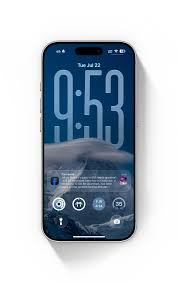
 Here’s a clear step-by-step guide to modifying your Lock Screen in iOS 26 — including the newest customization features Apple added (like Liquid Glass clock styles, widget placement, and more): Apple Support+2MacRumors+2i\
📱 How to Modify the Lock Screen in iOS 26
1. Open the Lock Screen Customize Mode
-
Wake your iPhone so the Lock Screen is visible.
-
Touch and hold anywhere on the Lock Screen.
-
Tap Customize to edit the current screen, or tap the + Add New button to create a new Lock Screen. Apple Support
🖼 Choose or Change Your Wallpaper
-
Pick a new wallpaper from your photos or Apple’s categories (People, Pets, Nature, etc.).
-
You can use Photo Shuffle to rotate through selected images.
-
Spatial Scenes — a new 3D style that gives depth to compatible photos — may be available depending on your device. Tom’s Guide
⏱ Customize the Clock
-
Tap the time to change its font style and color.
-
iOS 26 adds a Glass (semi-transparent) option alongside solid styles.
-
You can resize the clock (making it larger) by dragging the small handle at the corner when editing. MacRumors+1
📊 Add and Position Widgets
-
Tap the widget area to add widgets like weather, calendar, fitness, alarms, and third-party widgets.
-
Unlike earlier iOS versions, you can drag the widgets toward the bottom of the screen (just above Quick Actions). MacRumors+1
🔄 Swap Quick Actions
-
The buttons below the Lock Screen (like flashlight and camera) can be replaced with other quick actions:
-
Tap the current control → Remove it → then Add Quick Action to choose a new one. Tom’s Guide
-
🧠 Link to a Focus
-
Within customize mode, you can link a Lock Screen to a particular Focus mode (Work, Personal, Sleep, etc.).
-
This makes that Lock Screen appear automatically when the linked Focus turns on. Apple Support
🗂 Switch Between Multiple Lock Screens
-
After creating more than one Lock Screen, just touch and hold on the Lock Screen and swipe left/right to switch between them. Apple Support
🗑 Delete a Lock Screen You Don’t Want
-
Touch and hold the Lock Screen → swipe to the one you want to remove → swipe up → tap Delete. Apple Support
💡 Bonus Tips
-
If your clock or widgets look different after updates (e.g., Liquid Glass transparency), you can tweak the style or switch back to a solid look under Customize → Tap Time → Choose Solid (users report this works well to restore contrast). reddit.com
-
In iOS 26.2, Apple added an opacity slider for the Liquid Glass clock to make it easier to read if it’s too faint.