
You can stop iPhone apps from using your microphone by changing a few privacy settings. Here’s how to make sure nothing listens without your permission:
 1. Turn Off Microphone Access for Specific Apps
-
Open Settings
-
Go to Privacy & Security
-
Tap Microphone
-
You’ll see a list of apps with microphone access.
-
Toggle off any app you don’t want using your mic.
2. Check for Apps That Recently Used Your Microphone
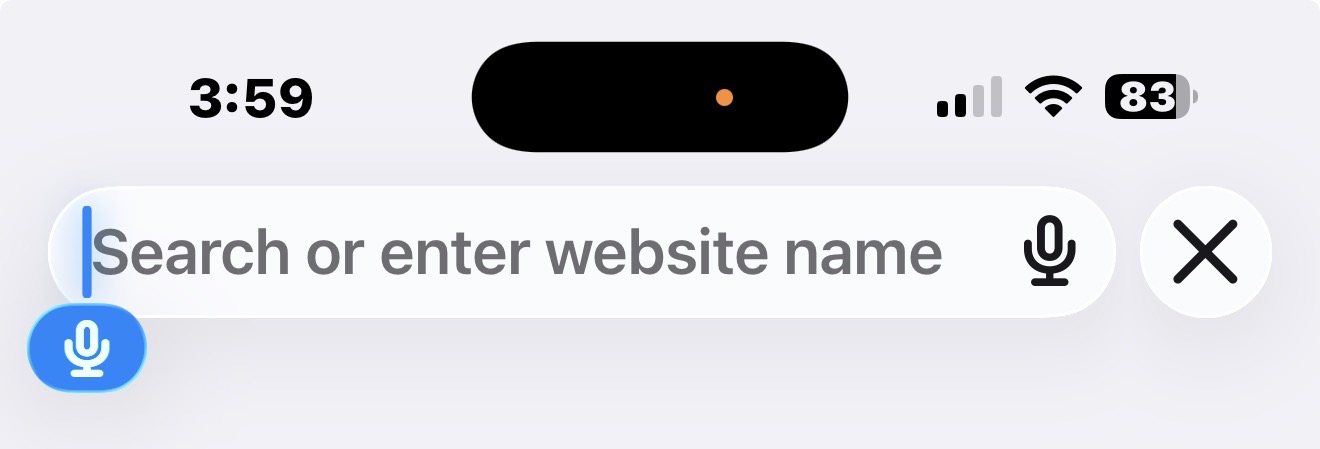
Note the Orange dot and blue Microphone
iOS shows a small orange dot at the top-right of the screen when the microphone is active.
-
If you see it unexpectedly, swipe down from the top-right to open Control Center — it will say which app used the mic last.
3. Manage Siri Settings (if you’re worried about voice listening)
If you want to reduce how often Siri listens:
Disable “Hey Siri”
-
Go to Settings → Siri & Search
-
Turn off Listen for “Hey Siri”
Disable Siri from using your mic when locked
-
Turn off Allow Siri When Locked
4. Disable App Background Activity
Some apps may try to use system features in the background.
-
Go to Settings → General → Background App Refresh
-
Turn off apps you don’t trust (or disable it entirely).
5. Limit App Permissions When Installing
Whenever you install a new app and it asks for microphone access:
-
Tap “Don’t Allow” if it doesn’t need it.
6. Reset All Permissions (optional)
If you want to completely reset which apps have access to sensors:
-
Go to Settings → General → Transfer or Reset iPhone → Reset
-
Tap Reset Location & Privacy
This forces all apps to ask again for any permission, including microphone.
7. Extra Tip: Check for Profiles or Device Management
Rarely, enterprise profiles can enforce permissions.
-
Go to Settings → General → VPN & Device Management
-
Remove anything you don’t recognize.