Perhaps it’s time to Change your Email Address

There are lots of reasons someone may want to change their email address. The most prominent reasons is that you’re using an email Service that is no longer getting good support or you’re changing your Internet service provider and had previously been using an email provided by that provider. Regardless of why you want to change your email address, the process all goes just about the same.  If you are currently using an email address provided by your service provider, or if you’re using one of the old Internet addresses from companies like AOL or yahoo, these are all email addresses that probably need to be changed to something more stable.

The first thing you need to do is create a new email address. There are lots of good email providers out there and you can choose from any of them. I typically recommend using Google or outlook as your new email address as those are both from companies that will probably be around for a long time to come . Once you’ve created the new email, you’ll need to set it up so that all your devices have access to it and  then use your old email address to verify that everything works by sending yourself an email and verifying you receive it on all your devices.

Next comes to the hard part. You have to make sure that people know it’s your new address. If your previous email address still works, you can look through it for email that you’ve received from people, and companies, that you want to continue to get email from.

I typically look at email in three separate categories:

  1. Email from friends or businesses that you consider critical.
  2. Email that you’ve signed up for.  This can typically be things like businesses or grocery stores that you’ve given your email address so that you can get coupons or sale information from. It may also be newsletters that you’ve signed up for about subjects that you have interest in.
  3. Email that you never signed up for and really don’t care that you get. Many people call this spam, but regardless of what you call it you really don’t care about it and for purposes of changing your email, you don’t want these people to have your new email address. That way this spam will stop coming in.

Of these three categories, only two need to be dealt with. We’re gonna start off by looking at group 2. These emails are typically things that you’ve signed up for, and you enjoy getting, so you wanna make sure they get your new email address. Rather than going through the process of trying to change your email for these accounts, typically the best way is to just re-sign up for these emails. If it’s an email newsletter or list, sign back up again with your new email. If it’s email from particular company, sign up there with your new email or give your email when you’re checking out at a store so that they can re-sign you up using your new email. These are easy. These can happen overtime because these are not critical.

The primary work involved in changing your email has to do with the category 1 people. These are typically businesses, governments, utility companies, credit card, companies, and friends that you want to have your new email. Let’s look at each of these types separately.

Start off by making a list of businesses and organizations. You know that you get email from. From that list you can check them off as you get them done. Many times if you still have access to your existing email, scrolling through past emails will give you an idea of some of the ones you need to get changed.

Financial

Businesses or companies that have a financial connection to you need to be some of the first ones that you change.  Banks often have a process for changing your email address. If your bank is local, the easiest way to change your email addresses go to the bank and take your ID. If you don’t have a local bank, then usually they have a process for you to go through to make a change to your email address on your account. You’ll need to call them and work this out with them individually.

While we’re talking about calling someone, never look up the phone number for these types of institutions on the Internet. It’s just too easy for people to redirect you to the wrong phone number trying to impersonate your facility. Look up the phone number typically on a bill or statement if they will have sent you. This applies to all of these types of businesses you need to change your address with.

For brokerage account, if you have a personal relationship with your broker, you can probably just call them. If you don’t, you’ll need to call the number on your account statement and explain to them that you want to change your email address. They’ll walk you through their process.

If you are retired, you’ll obviously need to let Social Security know your new email address. They have a process for doing that once you login to their site. If you get retirement from another method, you’ll have to let those retirement systems know your new email address also. Many times you can do this over the phone.

Businesses and credit cards

Use your statements that you get from businesses or credit card companies to give you phone numbers to contact them to change your email address. Each one of these will have a different process to go through. In fact, it’s kind of frustrating sometimes. Some are very easy and some make you jump through a lot of hoops. But you’ll need to contact each one of those and get each one of those changed.

Same thing with utility companies. In fact, any company that you get a bill from by email or a receipt from my email is gonna have to get your new email address. Work through each one individually, and make sure you give yourself plenty of time to make these changes.

Friends

Letting all your friends know your new email is probably the easiest thing to do. Start in your new email account, and send a email describing the fact that you’re changing your email address. Just make it short and sweet. Tell them that you’re changing your email address to the new email address and from now on you’d like for them to use this.

You can do this all in one email if you write the email that you want to send, and then use the blind carbon copy function (BCC) in your email client to send the same email to each person all at once. Just add them all to the BCC list and when they get the email it looks like they’re all getting an individual email from you.

Be sure you allow time to get this to happen. Hopefully you’re making your email address change while you still have access to your old email account. This way you can watch emails quit coming into your old account and start coming into your new one and keep track of ones that haven’t made the change yet so that you may need to re-notify them.

If you’ve already lost access to your old account, then it’s basically starting over. It’ll take quite a while before you get all these things changed, but once they do get changed, you can give solace to the fact that you’re at least using a reputable company for your email address. These companies will likely be in business for quite a while and hopefully you’ll never have to go through this process again.

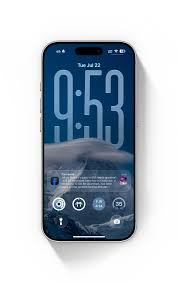
Modify the Lock Screen in iOS 26

Here’s a clear step-by-step guide to modifying your Lock Screen in iOS 26 — including the newest customization features Apple added (like Liquid Glass clock styles, widget placement, and more): Apple Support+2MacRumors+2i\


📱 How to Modify the Lock Screen in iOS 26

1. Open the Lock Screen Customize Mode

  1. Wake your iPhone so the Lock Screen is visible.

  2. Touch and hold anywhere on the Lock Screen.

  3. Tap Customize to edit the current screen, or tap the + Add New button to create a new Lock Screen. Apple Support


🖼 Choose or Change Your Wallpaper

  • Pick a new wallpaper from your photos or Apple’s categories (People, Pets, Nature, etc.).

  • You can use Photo Shuffle to rotate through selected images.

  • Spatial Scenes — a new 3D style that gives depth to compatible photos — may be available depending on your device. Tom’s Guide


⏱ Customize the Clock

  • Tap the time to change its font style and color.

  • iOS 26 adds a Glass (semi-transparent) option alongside solid styles.

  • You can resize the clock (making it larger) by dragging the small handle at the corner when editing. MacRumors+1


📊 Add and Position Widgets

  • Tap the widget area to add widgets like weather, calendar, fitness, alarms, and third-party widgets.

  • Unlike earlier iOS versions, you can drag the widgets toward the bottom of the screen (just above Quick Actions). MacRumors+1


🔄 Swap Quick Actions

  • The buttons below the Lock Screen (like flashlight and camera) can be replaced with other quick actions:

    • Tap the current control → Remove it → then Add Quick Action to choose a new one. Tom’s Guide


🧠 Link to a Focus

  • Within customize mode, you can link a Lock Screen to a particular Focus mode (Work, Personal, Sleep, etc.).

  • This makes that Lock Screen appear automatically when the linked Focus turns on. Apple Support


🗂 Switch Between Multiple Lock Screens

  • After creating more than one Lock Screen, just touch and hold on the Lock Screen and swipe left/right to switch between them. Apple Support


🗑 Delete a Lock Screen You Don’t Want

  • Touch and hold the Lock Screen → swipe to the one you want to remove → swipe up → tap Delete. Apple Support


💡 Bonus Tips

  • If your clock or widgets look different after updates (e.g., Liquid Glass transparency), you can tweak the style or switch back to a solid look under Customize → Tap Time → Choose Solid (users report this works well to restore contrast). reddit.com

  • In iOS 26.2, Apple added an opacity slider for the Liquid Glass clock to make it easier to read if it’s too faint.

MacMost: A Terrific Resource for Learning about your Mac


MacMost is a long-running Apple-focused educational resource that helps people get the most out of their Macs, iPhones, iPads and other Apple products through easy-to-follow tutorials, tips, news and guides. MacMost.com+1

I learm a lot of things from watching Mac most tutorials. In fact, yjrdr videos  are an inspiration for being able to find new things about your Mac, and actually being able to do them from the great instructions that are provided in these videos.

Take a look at it and see if what you think, but I think your going to like it.

📌 What MacMost Is

MacMost (often stylized MacMost.com) is primarily:

  • A website with thousands of free video tutorials about using macOS, iOS and Apple apps. MacMost.com

  • A weekly newsletter with tips, recommendations and Apple news. MacMost.com

  • A YouTube channel and podcast offering how-tos, tricks, news updates and practical advice geared to both beginners and experienced users. Apple Podcasts

On the main site you’ll find recent posts teaching things like how to use features in Photos, Finder, Shortcuts, and other built-in apps, plus regular tips and tricks to make Apple devices easier to use. MacMost.com

👩‍💻 Founder and Content

The creator behind MacMost is Gary Rosenzweig — the founder, host and producer. He has written many books on computing and teaches through clear, straightforward videos.

New Features in iOS 26.2

Here’s a clear breakdown of the major new features and changes in Apple’s iOS 26.2 update (released December 12, 2025):

📱 Core System & UI Enhancements

🔹 Liquid Glass customization – You can now adjust the opacity/transparency of the Liquid Glass clock on the Lock Screen (beyond the fixed presets) for finer visual control. MacRumors+1
🔹 Smoother animations & UI polish – System menus and transitions feel more fluid and refined. reddit.com


📌 Convenience & Productivity Features

🕰️ Alarms for Reminders

  • Reminders can now act like alarms with an audible alert at the due time (“Urgent” option), plus snooze and Live Activity support. MacRumors

📤 AirDrop improvements

  • Share with people not in your contacts using a one-time code that’s valid for 30 days. MacRumors


🎧 Media & Content Upgrades

🎵 Apple Music offline lyrics

  • Lyrics now work even when you’re offline for downloaded songs. MacRumors

📻 Podcasts app enhancements

  • Auto-generated chapters, clickable links to podcasts mentioned in episodes, and timed link support. MacRumors


🧠 Safety & Alerts

🚨 Enhanced Safety Alerts (U.S.)

  • Expanded imminent threat notifications (e.g., floods, natural disasters) with maps and guidance. MacRumors


🧰 App & System Tweaks

📊 Sleep Score revision

  • Adjusted Sleep Score scales for what counts as very low, high, etc. (shared with watchOS 26.2). MacRumors

📱 Screen flash for notifications

  • Accessibility option lets the screen (not just LED) flash on new notifications. MacRumors

📺 Apple News improvements

  • Quick access buttons for categories (sports, puzzles, politics, food, etc.) and a dedicated “Following” tab. MacRumors

🏡 Home app multipack pairing

  • Use one setup code for multiple accessories sold together. MacRumors

🧮 Freeform tables

  • Add tables with smart-sizing cells in Freeform. MacRumors

🎮 Games app upgrades

  • Sort games by size, improved controller navigation, and live challenge score banners. MacRumors

🚗 CarPlay tweaks

  • Option to disable pinned messages while driving for a simpler Messages experience. MacRumors

🔐 Passwords app control

  • Manage which websites don’t save passwords. MacRumors


🔒 Security & Stability

🛡️ Security patches

  • Fixes for 20+ vulnerabilities including actively exploited WebKit bugs, making the update important for security. MacRumors


📊 Summary: Key Themes in iOS 26.2

  • More personalization: Liquid Glass opacity slider and UI finesse.

  • Practical fixes: Reminder alarms, AirDrop codes, media features like offline lyrics.

  • Safer & smarter: Enhanced alerts and security patches.

  • App ecosystem improvements: Podcasts, Apple News, Games, Freeform, Home, CarPlay.

New Features in MacOS 26.2

🌟 Major New Features

🔆 Edge Light — Built-In Video Call Lighting
A brand-new video enhancement that uses your Mac’s display as a virtual ring light during video calls. Edge Light:

  • Illuminates your face in low light by glowing around the screen edges.

  • Lets you adjust light width and color temperature (warm/cool).

  • Detects your face and dims itself when you move the cursor so it doesn’t block your work.

  • Can automatically activate in low-light on newer Apple Silicon Macs (2024+ models). MacRumors+1

📅 Urgent Reminders Integration
The Reminders app gets an “Urgent” option for tasks with due times. When used:

  • You get an alarm at the due time on your iPhone or iPad (macOS routes the alert to mobile devices for reliability).

  • Includes a snooze option.
    This spans across macOS and iOS devices after setup. AppleInsider

🎙 Podcast Enhancements
Updates to the Podcasts app:

  • Automatically generated chapters for easier navigation.

  • Links to mentioned podcasts inside episodes and transcripts, making exploration richer. MacRumors

🎮 Games Library Improvements
For gamers and game management:

  • New filters in the Games library (sort by category, size, etc.).

  • In-game challenge score banners show live updates when someone new takes the lead.

  • Improved connected controller support. MacRumors

🛠 Other Notable Additions

📡 AirDrop Codes
A new AirDrop verification method gives a code to share with people not in your contacts, adding a layer of security/confirmation for transfers. MacRumors

📰 Apple News Sidebar Links
The News app sidebar now shows section links (e.g., Sports, Politics, Business) for quicker navigation. MacRumors

🧩 Freeform Tables
Cells in Freeform boards now intelligently resize to fit text, images, and objects—helpful for organizing structured content.

Stopping iPhone Apps from Listening to You

You can stop iPhone apps from using your microphone by changing a few privacy settings. Here’s how to make sure nothing listens without your permission:


1. Turn Off Microphone Access for Specific Apps

  1. Open Settings

  2. Go to Privacy & Security

  3. Tap Microphone

  4. You’ll see a list of apps with microphone access.

  5. Toggle off any app you don’t want using your mic.


2. Check for Apps That Recently Used Your Microphone

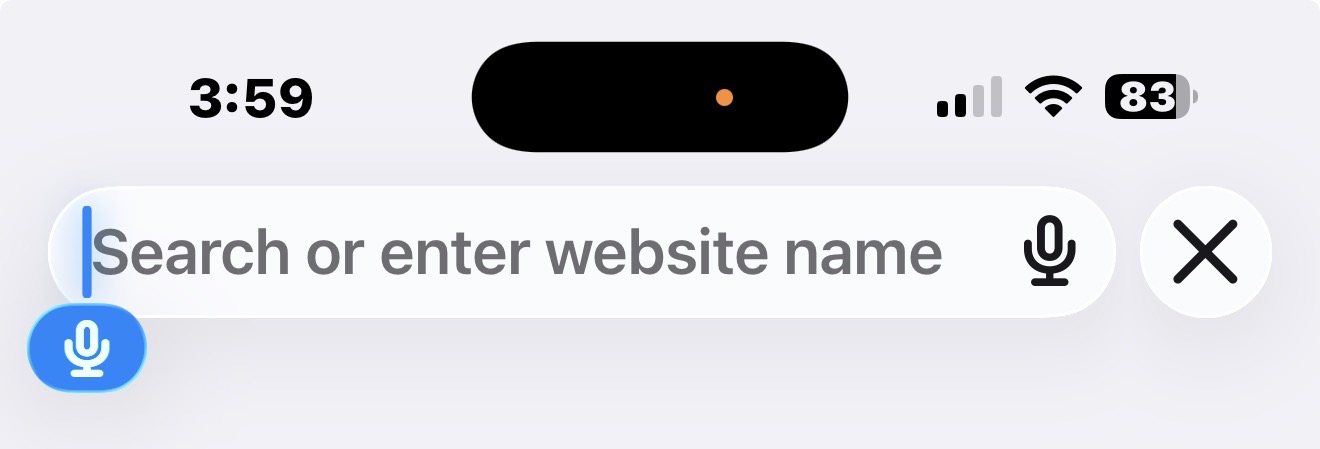
Note the Orange dot and blue Microphone

iOS shows a small orange dot at the top-right of the screen when the microphone is active.

  • If you see it unexpectedly, swipe down from the top-right to open Control Center — it will say which app used the mic last.


3. Manage Siri Settings (if you’re worried about voice listening)

If you want to reduce how often Siri listens:

Disable “Hey Siri”

  • Go to Settings → Siri & Search

  • Turn off Listen for “Hey Siri”

Disable Siri from using your mic when locked

  • Turn off Allow Siri When Locked


4. Disable App Background Activity

Some apps may try to use system features in the background.

  • Go to Settings → General → Background App Refresh

  • Turn off apps you don’t trust (or disable it entirely).


5. Limit App Permissions When Installing

Whenever you install a new app and it asks for microphone access:

  • Tap “Don’t Allow” if it doesn’t need it.


6. Reset All Permissions (optional)

If you want to completely reset which apps have access to sensors:

  • Go to Settings → General → Transfer or Reset iPhone → Reset

  • Tap Reset Location & Privacy

This forces all apps to ask again for any permission, including microphone.


7. Extra Tip: Check for Profiles or Device Management

Rarely, enterprise profiles can enforce permissions.

  • Go to Settings → General → VPN & Device Management

  • Remove anything you don’t recognize.

Fall 2025 Computer Recommendations

At least once a year I like to give my opinion on what type of a computer someone should be looking for if they’re in the market to purchase a new machine. Many times, there are so many computers on the marketplace that it’s hard to make a decision based upon the functionality you’ll need to use. This year is special with the discontinuation for updates for Windows 10 and many PC’s not having specs to run Windows 11.  Basically I break these into two categories, a minimum performance machine and a high-performance machine. If you are a high-performance user, you already know that. If you’re not sure, a minimum performance device is probably where you need to be working.

Often times in the big box stores you find machines that have some of the specifications but not all of them. Big box machines are typically built, particularly on the PC side, with a price in mind. Often times, the machine has specifications that don’t meet current use specs. This also shows up on many Internet sites. Be sure to look into the specifications you’re selecting for the machine that you’re looking to purchase.

In my opinion, brands do matter.  Seeing many machines with problems, I can say that Macintosh computers are generally the most trouble free and will maintain good performance for a longer period.

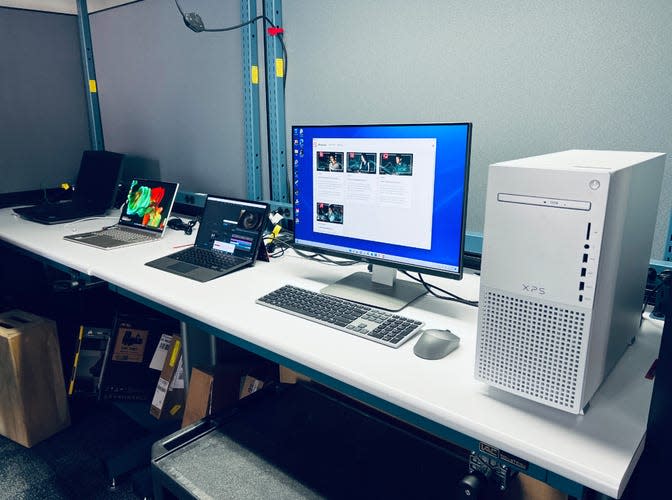
But some people need Windows for specific applications.  When it comes to Windows computers, my experience says that I would look for these brands (in order):

  1. Dell
  2. HP
  3. Lenovo

All three of these vendors maintain good support websites and make updating hardware drivers easier.  That doesn’t mean much when the machine is new but as it ages, it means everything.

Windows Systems

Laptop, Minimum Performance

Memory: 16 GB
Processor: Intel Core Processor i5 
Storage: 256 GB SSD minimum
Graphics: Integrated graphics
Networking: wireless
Operating System: Windows 11

Laptop, Higher Performance

Memory: 32-64 GB
Processor: Intel Core Processor i7 or i9
Storage: 512 GB SSD minimum
Graphics: Integrated graphics or dedicated if available
Networking: wireless
Operating System: Windows 11

Foe Macintosh Systems, a MacBook Air is the correct machine for entry to mid stream users today.  For more professional uses and MacBook Pro is great.  If you want a desktop the new M4 iMac is great and either the Mac mini or Mac Studio on the higher end make great sense.  Avoid the Mac Pro desktop.  It’s price vs performance is low for nearly all users.

Macintosh Systems

Laptop, Minimum Performance

Memory: 16 GB
Processor: Apple M4
Storage: 256 GB SSD minimum
Graphics: Integrated graphics
Networking: wireless
Operating System: MacOS 26

Laptop, Higher Performance

Memory: 16-32 GB
Processor: Intel Core M3 Pro, M3 Max, or M4series
Storage: 512 GB SSD minimum
Graphics: Integrated graphics or dedicated if available
Networking: wireless
Operating System: MacOS 26

Date Set for First Waste Event of the Year

The first E-Waste event for 2025 is being held May 24, 2025 in the City Hall parking lot on McCarty Street.  These events are usually in the mornings.

I recently found some great Web links from Apple that describe in clear detail what to do if you’re passing on or recycling an Apple device. Each link shows the steps you need to take to make sure your personal information is removed from the device, and that it’s safe for whoever that device is given to to set it up and get their information moved onto it.

What to do before you sell, give away, trade in or recycle your Mac >

What to do before you sell, give away or trade in your Apple Watch, or buy one from someone else >

Lets Talk about Macs with Intel Processors

It’s always difficult to talk about electronic obsolescence. But I think the time has come for those of you that are McIntosh users to start thinking about that particular topic. Back in November 2020 Apple released its first M series processor, the M1 since then, Apple has converted the entire MacIntosh lineup, and actually the iPad lineup and the iPhone lineup to processors built on Apple Silicon. Today, nearly the entire line has some version of an M4 processor. I am always an advocate for you to continue to use your computer as long as you’re comfortable with it and as long as it functions for the tasks that you purchased it for. But once in a while, there comes a time when technology moves beyond what you currently have and you need to begin considering moving forward with that technology.

If you are one of those people that are still using a Mac with an Intel processor, it’s come time for you to consider a replacement. You can check your processor by going to the Apple menu and selecting About This Mac. It will clearly tell you both a version of the operating system you are using and also the type of processor. If you’re still using a machine with an Intel processor that means that it’s probably about five years old or getting very close. Max typically have a lifespan of about seven years, and I’m not saying these Intel Macs are dead, but the functionality that Apple is adding to its devices, including Apple Intelligence, are only going to be supported on Apple’s new M1 or newer processors. We are already starting to see that while these machines will update to macOS 15, many of the new features that Apple has added to that version are not available to entail processors. I’ve also experienced recently the difference in performance between any Mac with an Intel processor and any Mac with an Apple Silicon processor. The speed difference is truly astounding. Even the M1 processor is going to be multiple times faster than what you have with Intel. The new M4 Macs are even more astounding.  You would be amazed the difference in manipulating a photo library with 20,000 images, or even a documents folder with 500 documents in it. The performance difference is like night and day.

So while it might not be something you have to consider tomorrow, you need to put it on your radar that if you’re using an Intel Mac, you probably need to be considering a new Mac. There is good news in all of this, though that because the new max are so much faster than the old ones, you may not need as expensive a machine as you purchased in the past. If you’re using a MacBook Pro, you might be able to consider the MacBook Air. The MacBook Air is using an M4 processor and is extremely fast. The new iMacs are also so much faster than the previous versions, you may not need to upgrade as high in the lineup to get performance that will suit your needs.

In addition, the lower end machines, our lower priced than they were the last time you purchased a machine. If you need a desktop machine, a Mac mini starts at $599. You can even get sales of that machine debt to almost $500. Same goes with the MacBook Air, an M3 MacBook Air, now that the M4’s are out, is selling for less than $1000. It has to, Apple reduce the price of the M4 MacBook Air to just $999.

I’m always happy to consult with you and discuss what your needs might be. But keep in mind, support for Intel processors with Apple operating systems is going to go away. It’s just a matter of time, and the performance difference we’re seeing in these new Apple Silicon machines is so much better, it’s time to start considering the change.